Section 4. PlexTools Professional Functions
44 PlexTools Professional Reference Guide
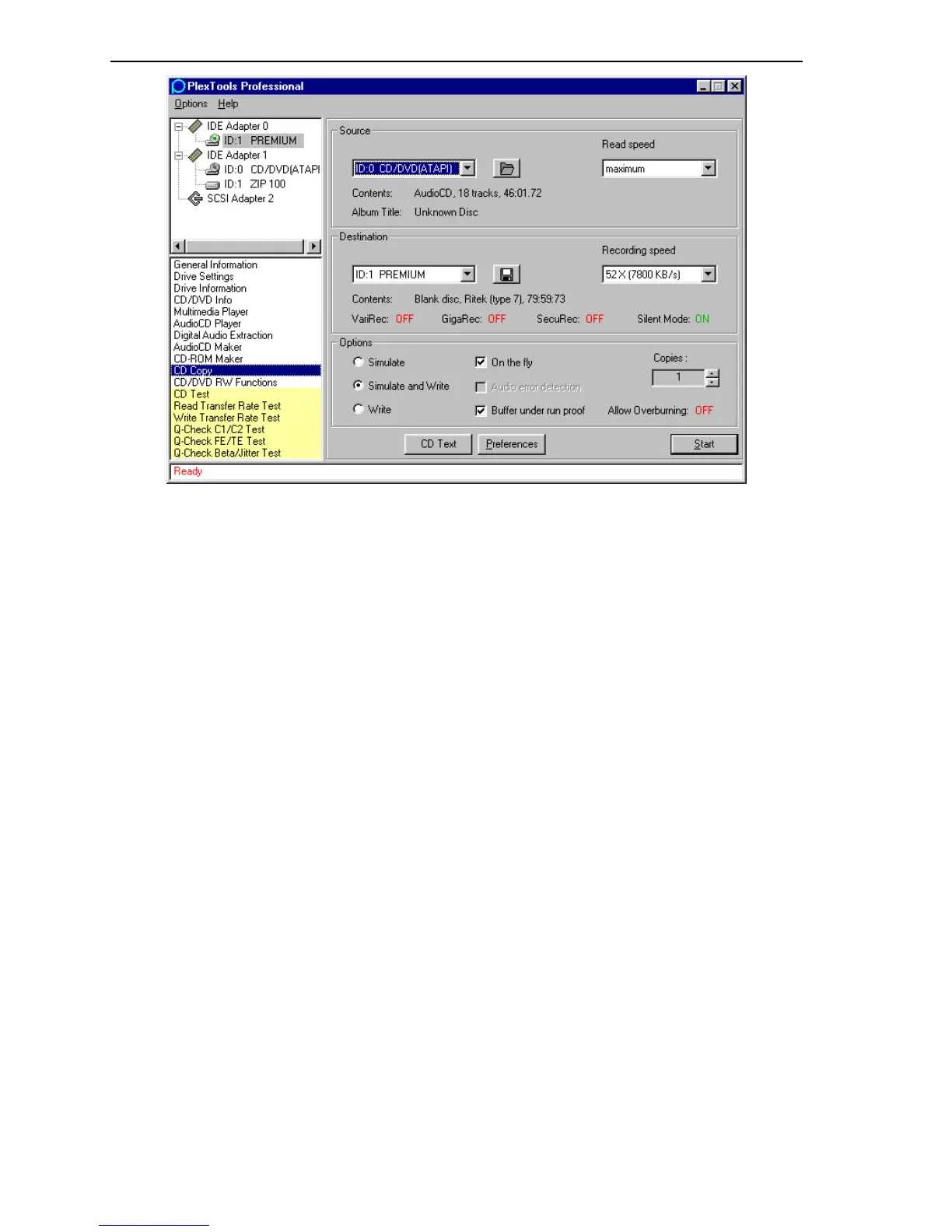
Figure 40: CD Copy Window
• Source: Specifies source drive to use for the copy.
• Read speed: Specifies the reading speed. For good results, the reading speed
must be higher than the recording speed.
• Destination: Specifies the destination for the copy. This can be a drive or a file.
• Simulate: Simulates the burning process. Nothing will actually be written on the
CD-R or CD-RW disc.
• Simulate and Write: Simulates the burning process. If the simulation is
successful, the actual writing proceeds on the CD-R or CD-RW disc.
• On the fly: Copies a disc directly from CD to CD. This type of copying requires
sufficient system resources and performance. If on-the-fly copying results in
errors, it may be safer to disable this type of copying.
When on-the-fly copying is disabled, the source disc will be read into a
temporary file on the hard disk. This file will be used as the source for recording
the final disc. The temporary file is erased after the copying process has
completed.
• Audio error detection: Allows detection of errors during the reading of audio
tracks. This powerful PlexTools Professional feature is not provided with
standard audio extraction software.
• Buffer under run proof: Enables Buffer Under Run Error Proof technology,
which eliminates buffer under run errors, so you can safely use your computer for
other tasks while you’re writing to a CD-R or CD-RW disc.
• Copies: Allows burning of multiple copies of the disc.
• CD Text: Displays the CD TEXT window for adding CD text to the recorded
CD.



 To Next Page