Introduction
How to
Activate
How to Exit
Explanation
46
8.9.2 AI Tracking
AI Track includes Parallel, Spotlight, and Follow. The drone will y automatically based on the
track mode selected by the user and the subject. Users can choose whether to automatically
sta recording when activating AI Track. After enabling, a video will be automatically generated
after nishing AI Track. You can preview the video in low resolution in Album and view the high
resolution version after downloading.
1. Launch the drone and take o.
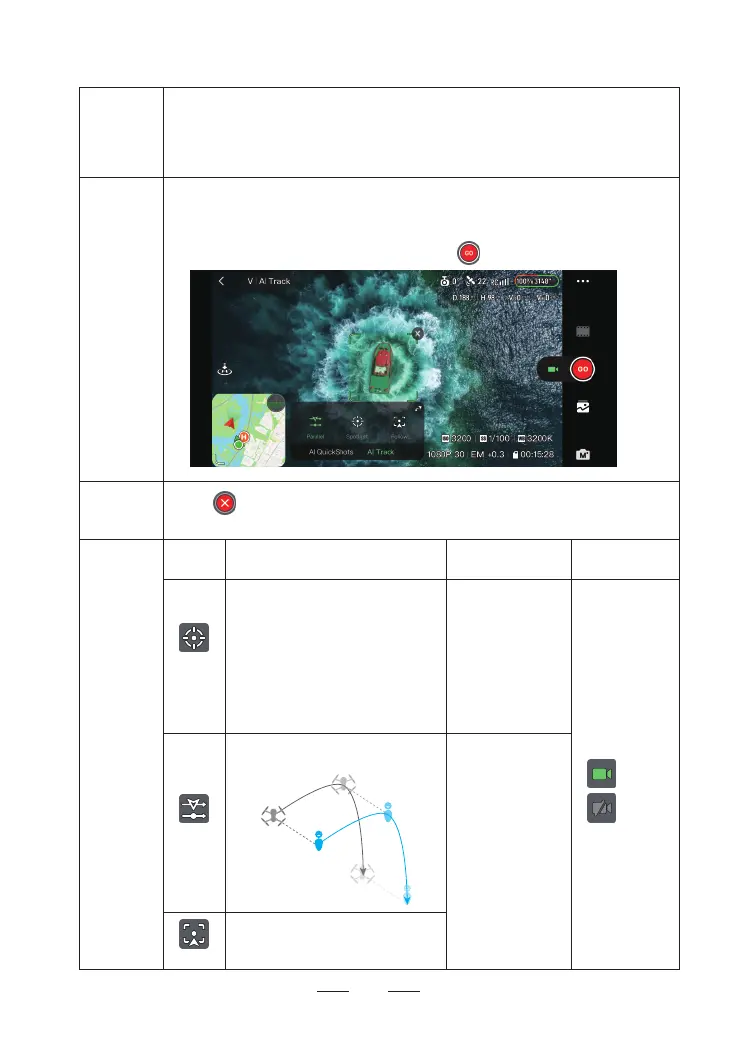
2. In video recording mode, drag-select the subject in the ight inteace of the Potensic Eve App
and a pop-up window will appear at the bottom, and the default mode is AI Track-Spotlight.
3. Select a shooting mode and set the parameters. Tap and the drone will begin tracking.
1. Tap on the left of the ight inteace to exit AI Track.
2. Press once the RTH button on the remote controller to exit AI Track.
Mode Description
Suppoed
Subjects
Adjustable
Parameter
Spotlight
Parallel
Follow
The drone will automatically follow behind
the target.
The drone will maintain a parallel trajecto
with the subject, ying alongside it.
The drone does not y automatically, but
the camera remains locked on the subject.
Using the control sticks to manually move
the drone:
· Toggle the throttle stick to adjust the
altitude from the subject.
· Toggle the pitch stick to adjust the
distance from the subject.
· Toggle the roll stick to circle the subject.
· Toggle the yaw stick to adjust the frame.
· Stationa subjects
· Moving subjects
(only vehicles,
boats, and people)
· Moving subjects
(only vehicles,
boats, and people)
Choose whether
to automatically
sta recording
when activated
Enable
Disable



 To Next Page