02-CML000057 Precidia Technologies Inc. B-1
Appendix B: Troubleshooting and
Support
First Steps
1 Configure the unit with the correct settings. Follow the procedure in the figure
on the following page (B-2) to troubleshoot Configuration screen access.
2 Ensure that you are using the correct serial cables and that all cables are prop-
erly connected and in good working order.
- If you are connecting the Precidia unit to a DTE (Data Terminal Equip-
ment) device, use a null modem serial cable.
- If you are connecting the Precidia unit to a DCE (Data Communication
Equipment) device, use an RS-232 serial cable.
- If you are connecting the Precidia unit as a Hayes-compatible modem, or
to a Hayes-compatible modem, use a specialized null modem serial cable.
See “Specialized Null Modem Serial Cable” on page E-1. Some POS
terminals may also require this type of cable.
3 If you know the IP address of the unit, you can check the network connection
by pinging the unit. (See Check IP Address (Ping) on page B-3.)
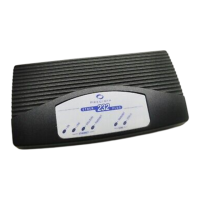
4 Check the indicator lamps on the front panel of the unit and use the indicator
lamp tables in this Appendix to diagnose the problem.
5 If, after following the suggestions in this guide, you are still having problems
accessing configuration or gaining connectivity, contact Precidia support by
filling out a Service Request Form at:
http://www.precidia.com/support/service_request.html.
A support representative will contact you within one business day.
For general information, User Guides and Help Guides, visit:
http://www.precidia.com/
See Appendix C: Specifications and Warranty for warranty information.


 To Next Page