Chapter 7: Monitor Profiles
36
To enable monitor profiles:
1 Choose Settings > Monitor Profile.
2 Select the unit you want to use for monitoring.
3 Select Enable monitor.
Opening, Saving, and Closing Monitor Profile Settings
Monitor Profiles can be saved and opened from the file menu. Monitor Profile files (.dmprof) store all monitor settings, EQ, and format
configurations that are loaded and active in DADman. When a profile is loaded all Monitor settings are restored. You can set the Pref-
erences (Mac) or Options (Windows) to automatically load the last saved monitor profile when DADman opens.
To open a monitor profile:
1 Choose File > Open Profile.
2 Navigate to the profile (.dmprof) you want to open and select it.
3 Click Open.
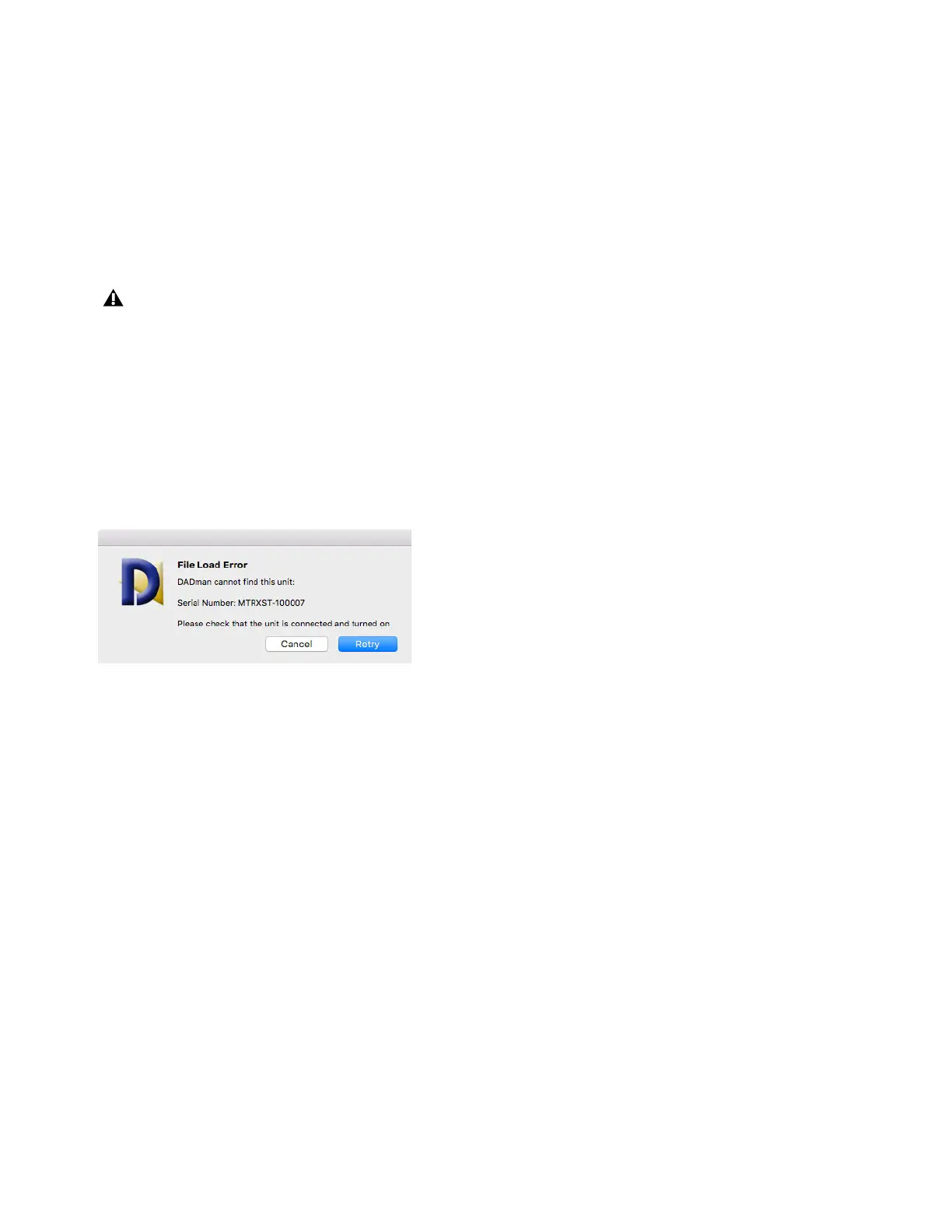
When opening a monitor profile created on a different unit, you may encounter a “File Load Error.” This error occurs because the mon-
itor profile tries to match the serial number of the unit on which it was created. You can load the monitor profile and safely dismiss this
error by clicking
Retry once and then Cancel.
To avoid this error in the future, Save the monitor profile under a new name and it will use the your device’s serial number.
1 Choose Settings > Monitor Profile.
2 If necessary, click the Groups tab.
3 Select the unit you will use for monitoring.
4 Select Enable monitor.
5 Choose File > Save Profile As.
6 Replace the existing file or save your changes as a new monitor profile.
7 Click Save.
Note that a monitor profile assumes that the I/O resources loaded are available in the actual unit. If this is not the case, the I/O
configurations are left blank and you will need to manually remap sources and outputs.
File Load Error dialog



 To Next Page