QUILTING WITH YOUR QBOT
Your QBOT comes with a collection of over
18 quilt designs. With each of these designs
you also have different rotation alternatives
for most of the designs. Print out the design
manual found on either your DVD or your SD
card.
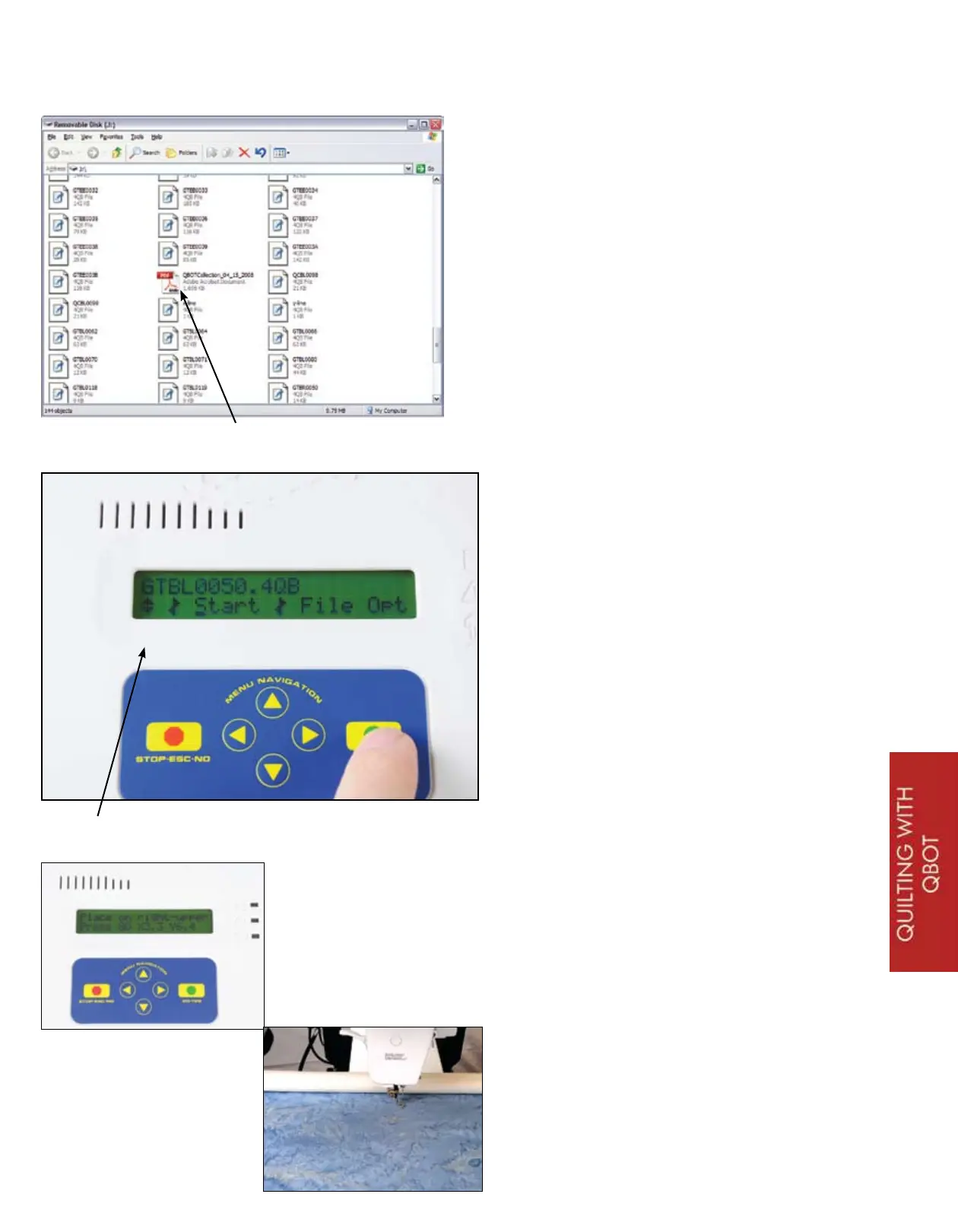
Simply navigate to the .pdf file and double
click the icon. Most of today’s computers
have a Reader application that can open a
document with the .pdf file extension.
QBOT Design Collection Icon
From the main Quilt|Record|Options
menu, select ‘Quilt’ and press ‘GO’.
The display will show a filename and
have the navigation menu under it as
shown. With the blinking cursor under
the UP/DOWN arrows on the left of
the display, use the down arrow on
the keypad to scroll to the file named
GTBL0050.4QB. Next, use the right
arrow on the keypad to place the cursor
over the ‘S’ in ‘Start’. Press ‘GO’.
UP/DOWN arrow icon
Your QBOT now asks you to ‘Place on
right-upper’. This will define the right
upper corner of your quilting area. If
you are using the QBOT technique quilt
(pattern on DVD), use the first 5-inch
square. Here, we are using a plain
piece of fabric and selecting a spot near
the take-up rail on the quilting frame
as our upper right corner. Touch ‘GO’.
You have just told your QBOT that this
is the upper right corner of your quilt
block.
23


 To Next Page