If no previously save trackmap exists for the newly downloaded data, the next action that must be
performed is the creation of a GPS track map. A GPS track map is the most important item for data
review, as the track map controls all of the timing functions of the G2X and DataLink software. Without
a GPS track map, no lap times, segment times or visual driving lines will be available.
In essence, the creation of a GPS track map is the same as physically placing start / finish and segment
beacons at various points around the race course. The difference is we are re-creating the track in the
DataLink software utilizing GPS information, then inserting (in the software) the start / finish and
segment timing points at various locations around the GPS track map. Those timing points are also GPS
plotted positions and provide timing information with the same accuracy as trackside beacons.
GPS track map files are saved according to the name assigned by the user. Typically, the name will
reflect the name of the track or location in use. Saved GPS track map files can then be recalled for use,
according to the testing location and needs of the user. The procedures for creating a GPS track map are
quick, easy and listed in numerical order, Step1 through Step 4.
At this time, our initial run data should still be in view. To create a GPS track map, select the Map
Setup Category button, then select the GPS Trackmap Runlog tab, located at the bottom of the DataLink
screen. The instructions are presented in order from 1 through 4.
Step 1: Select / Create GPS Map
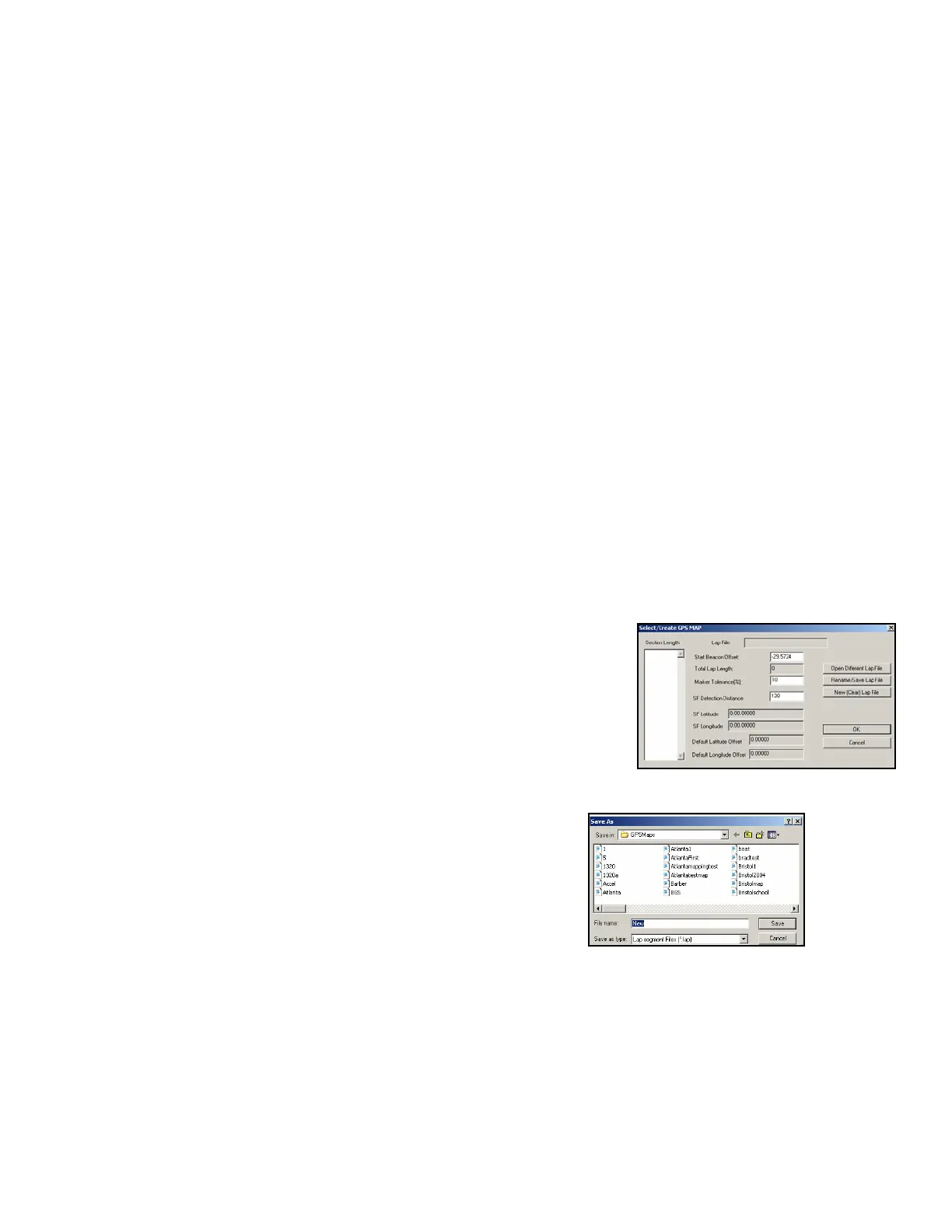
Left click over the Select / Create GPS Map. This will open the Select/Create GPS MAP dialog box.
The user is presented with three choices, which are self explanatory:
1. New (Clear) Lap File: This allows the creation of a new track map.
2. Open Different Lap File: This allows the user to load a
previously created track map.
3. Rename/Save Lap File: This allows the user to rename a
previously created track map or simply save an
existing track map.
For the initial run, we will select New Trackmap and then OK.
The Save As dialog box will now be opened for the user. Simply
type the desired track or location name (example: Road Atlanta)
then select the Save button.
Following this action, the user will be returned to the DataLink software. The Create GPS Trackmap
Runlog page should now display all of the GPS driving data. Remember, at this point the GPS data in
view is all data logged from the start until the end of recording.
53


 To Next Page