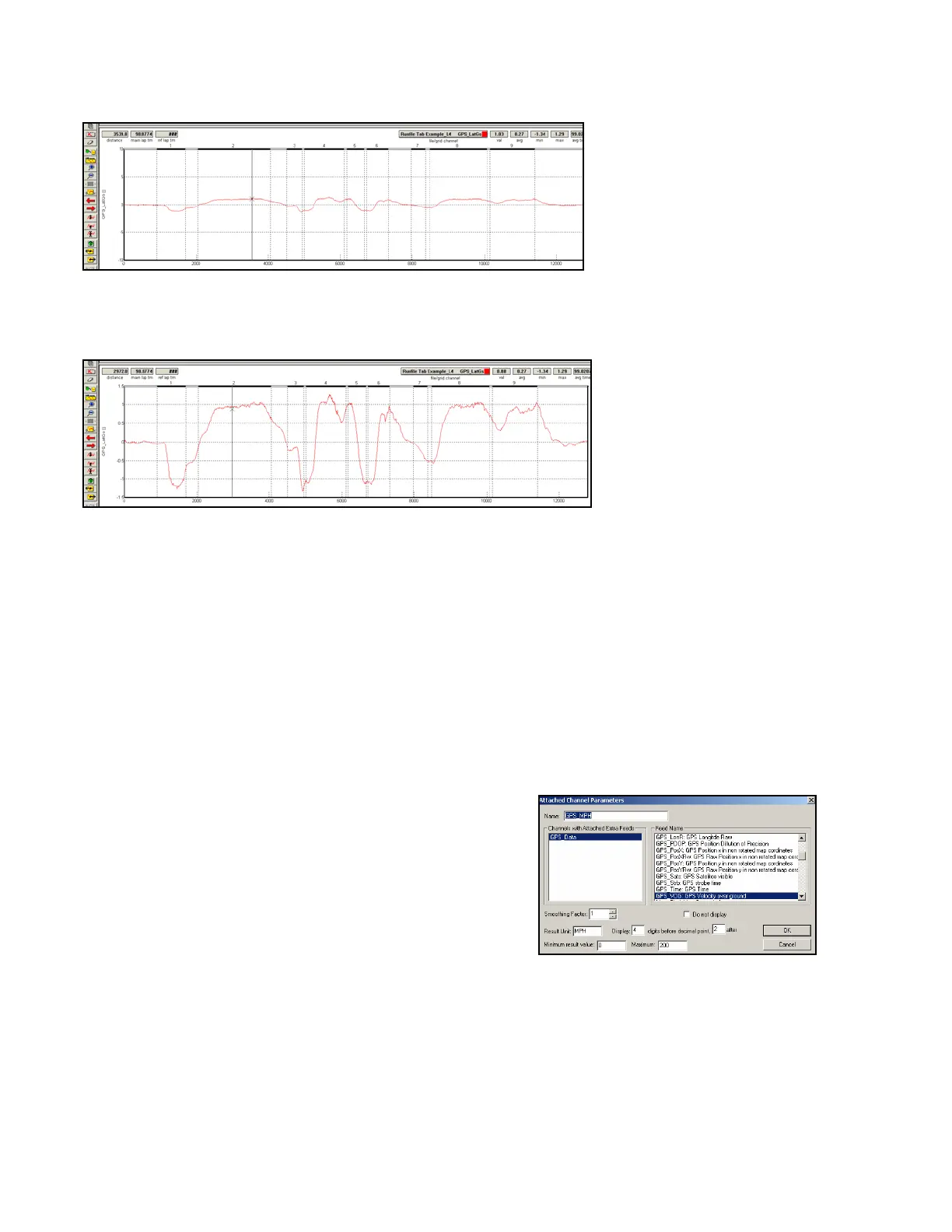
Scaling:
-10 to 10
GRAPH A
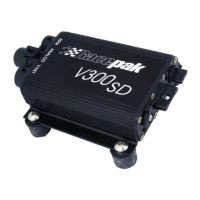
Scaling:
-1.5 to 1.5
GRAPH B
Upon first glance, the data appears to be totally different channels. What appear to be small changes in
GPS_LatGs in Graph A suddenly become quite large and detailed changes in Graph B. To improve
performance using data acquisition, it is important to keep scaling values close to the minimum and
maximum values of the channel. It is very important to insure the same values, for the same channels
are in place. If the above two channels with different scaling values were overlaid, the user could easily
interpret the data in an incorrect manner. Remember, the above data is the same channel from the same
lap, but with different scaling values.
Graph Scaling Values Changed per Channel
The DataLink program provides two methods to change
graph scaling. The first method will change the scaling
for one channel within one file.
To change individual channel scaling:
Place the mouse cursor over the desired Channel Button
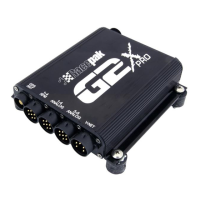
and right click the mouse button. For this example, we
selected GPS_MPH.
The Edit Dialog Box for that channel will be displayed.
The Minimum and Maximum result values correspond to the minimum and maximum values displayed
in the Main Graph area, for that channel. To set the graph to display from 0 to 100 MPH, simply enter
the minimum and maximum values accordingly and select OK
67


 To Next Page