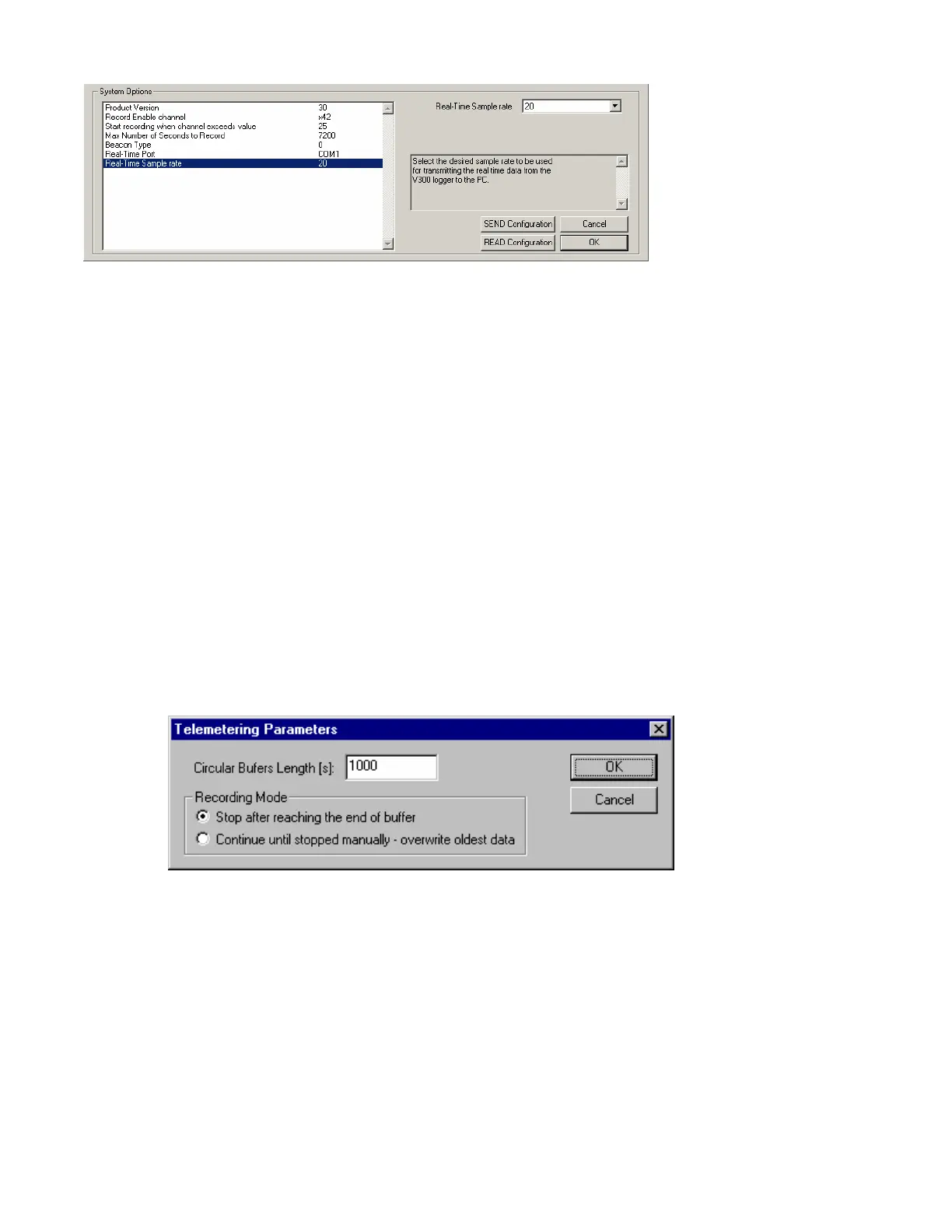
Note: The V_Net Sample rate of each of the modules to be monitored should be equal to or greater than
the real time sample rate. If they are not, the last data points will be repeated during the sample process.
Next select the Real Time Communications Port option and type in the name of the serial
communications port on your PC you will be using to receive the real time data from the V_Net system.
Normally this is the same as the default Logger Com Port set in the initial software installation.
Typically, this is COM1.
After you have edited the options use the Send Configuration button to transmit the setup data to your
data logger. Next select OK to exit the edit box. You will need to turn the power to your data logger
off and back on to allow the changes to take effect. When you have completed the edit, save the
configuration file by clicking the Save icon in the toolbar or selecting the Save menu item located in the
File main menu selection
Entering the DataLink Telemetry File Parameters
The final step in setting up the real time telemetry session is to set the DataLink real time recording
parameters. These parameters are set by selecting the Recording Parameter menu item found in the
Telemetry main menu selection. The following dialog box will be displayed.
The first parameter Circular Buffer Length is used to set the amount of data to record in seconds. The
Recording Mode is used to determine whether the recording will stop when the maximum record time
is reached or whether the oldest data will be overwritten. For example if a Circular Buffer Length of
1000 seconds is entered and stop after reaching end of buffer is selected, the program will record data
for 1000 seconds and stop. If continue until stopped manually-overwrite oldest data is selected the
program will continuously record until stopped by the operator. Only the last 1000 seconds of data will
be stored.
76


 To Next Page