Viewing Real Time Data (Telemetry) on your PC
Data from your G2X data logger can be displayed and recorded real time on your PC computer using the
DataLink program. A telemetry session is regarded much the same as a data file from an on-track run.
The user will be presented with many of the same procedures that are utilized when uploading on-track
data from the Compact Flash memory card.
Although GPS related data channels will appear in a real time telemetry file, the data
for these channels is not currently available during a real time telemetry session.
Therefore, the data will always read zero for all GPS related channels while during
this time.
Telemetry is accomplished by connecting the Communication Serial cable to your PC, via a serial port
or USB / Serial port adapter and the opposite end to the G2X. Before you can view the data, however,
you must first setup the real time parameters in your data logger. To setup your data logger’s real time
configuration, open the G2X_Config file and right click on the G2X Module channel button. An edit
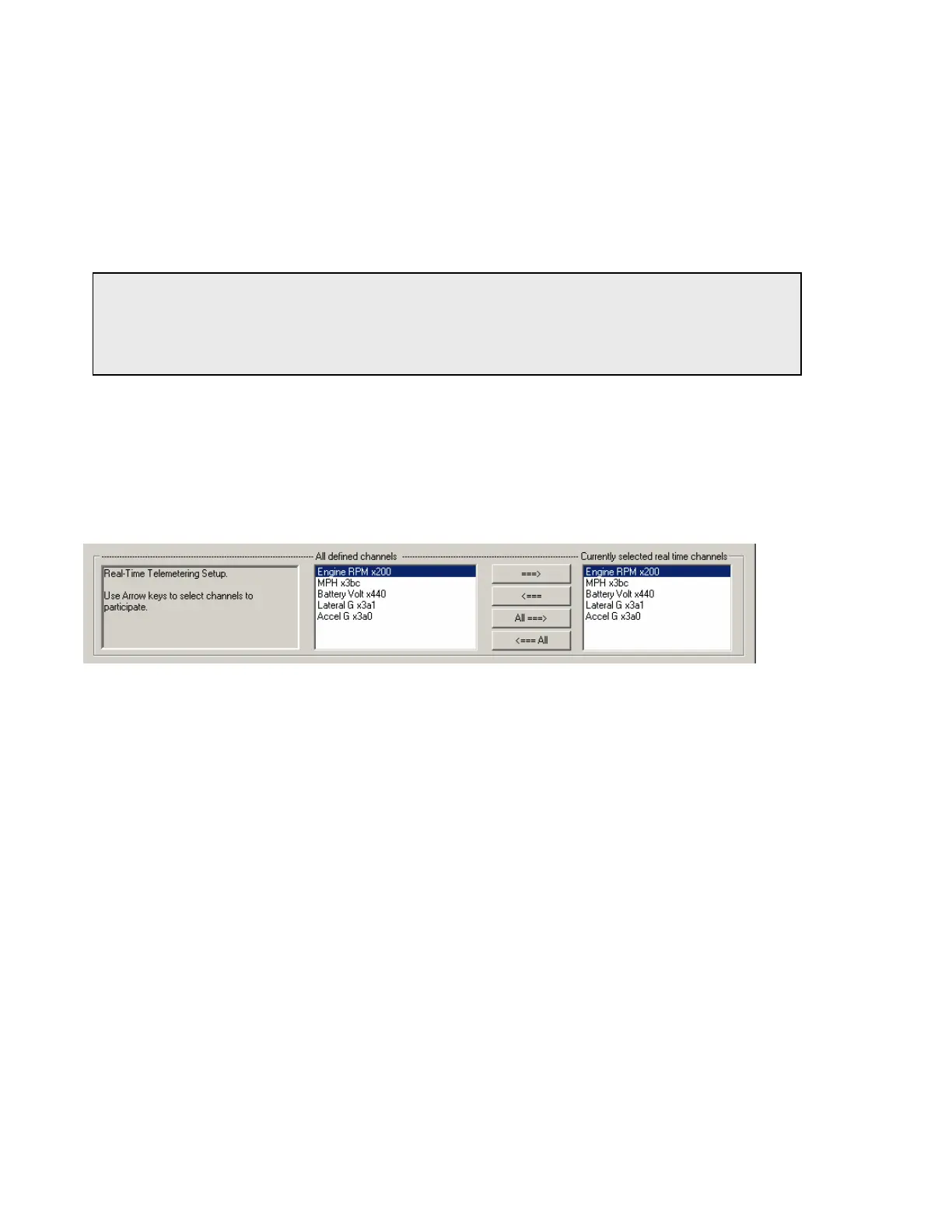
dialog box will be displayed. In the center of the dialog box will be a Real – Time Telemetering Section
as shown below.
Setting up the G2X Real Time Telemetry Parameters
This section will contain two lists. The list on the left-hand side of the telemetry section will include all
of the data channels currently being monitored by your data logger. The list on the right-hand side of
the telemetry sections includes all those channels that will be displayed during a real time telemetry
session.
To add a channel to the telemetry list highlight the name of the channel in the left-hand list and click on
the right arrow Îbutton to add the selected channel to the real-time channel list. To remove a channel
from the real-time channel list highlight the name of the channel in the right hand list and click on the
left arrow buttonÍ. Use the All Æ button to select all of the channels for telemetry. Select Å All to
remove all of the channels from the telemetry list. Only channels in the right hand list will be displayed
during a real time telemetry session.
Next select the Real Time Sample Rate from the options list in the lower left-hand corner of the dialog
box and select the desired real time sample rate as shown on the next page.
75


 To Next Page