The File Save dialog box will then be displayed. Select the Cancel button. Typically, there is no need
to save a telemetry file. A new file tab with the channel data will be opened. Your real time data
session is now ready.
Next, insure the serial communication cable is connected between the G2X data logger and the serial
port on your PC selected above and power is supplied to the G2X unit. The real time session is
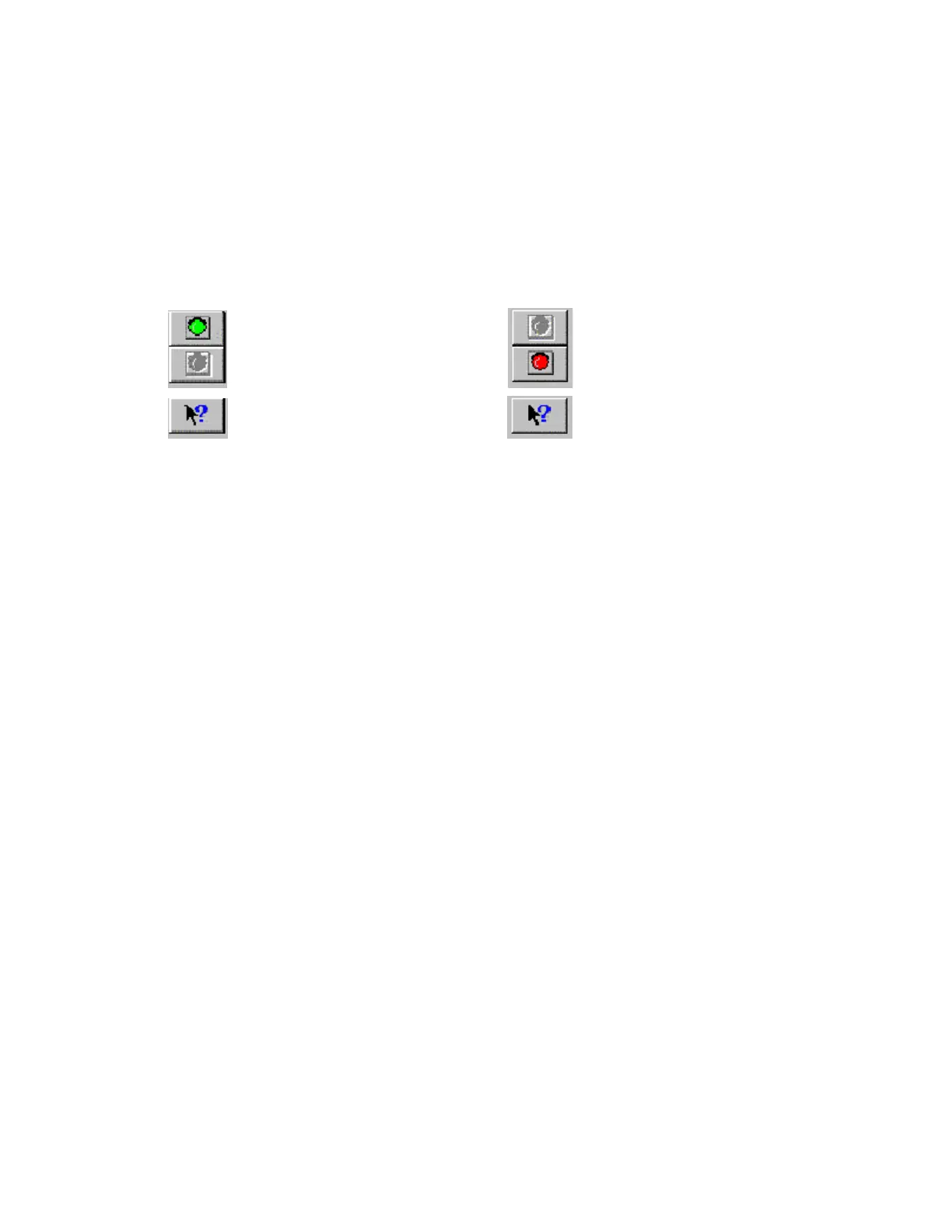
controlled via two icons located above the context sensitive help icon in the left side tool bar. Only one
icon will be active at a time depending on the status of the telemetry session. The Start Data Acquisition
icon is shown active on the left. The Stop Data Acquisition icon is shown active on the right.
Start Data Acquisition - Green Light Stop Data Acquisition - Red Light
To start the real time data acquisition, left click on the Start Data Acquisition Icon at the bottom of the
tool bar. The data acquisition will start at time 0. Once the real time data acquisition has been started the
value of the data channels will be displayed next to the channel button in the top portion of the display
area. To display the data from a channel on the graphics screen simply select the channel by left
clicking on the channel button in the same manner you display data from a recorded file.
To stop the data acquisition left click on the Stop Data Acquisition icon located at the bottom of the
tool bar. The real time data acquisition session will be suspended.
If you wish to continue the real time data acquisition simply click on the Start Data Acquisition icon.
The telemetry session will restart at the same point it was suspended. If you wish to restart the session
from the beginning select Erase from the Telemetry main menu. All previously recorded data will be
erased from the file.
If you wish to save the data, stop the data acquisition and click the Save icon located in the tool bar or
select Save located in the File main menu.
Important: When a telemetry session is started, the G2X remains in the Telemetry mode until
power is removed from the unit. If you wish to change the configuration of the G2X once a telemetry
session has been started, stop the telemetry session as described above and then cycle the power to the
G2X data logger.
78


 To Next Page