The titler can store a title page in memory that can be displayed and recorded at any
time. The built-in character register contains 47 characters for creating titles on two
lines with up to 16 characters per line.
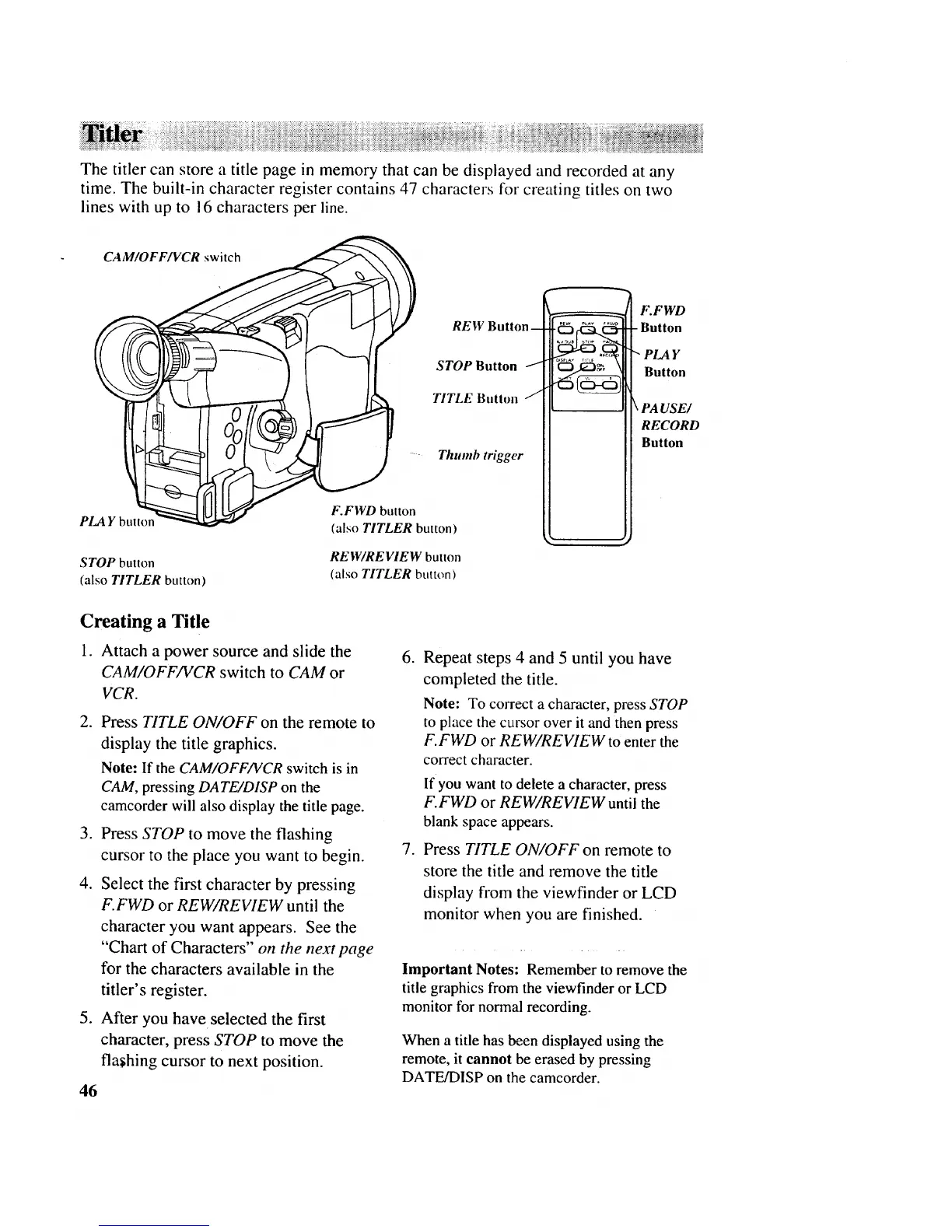
CAM/OFF/VCR switch
F.FWD button
PLAY bultor (also TITLER button)
REW Button--
STOP Button J
TITLE Button j
Thumb trigger
STOP button
(also TITLER button)
RE W/REVIEW button
(also TITLER button)
_ .FWD
Button
B t,oo
I'paVSE/
Creating a Title
1. Attach a power source and slide the
CAM/OFF/VCR switch to CAM or
VCR.
2. Press TITLE ON/OFF on the remote to
display the title graphics.
Note: If the CAM/OFF/VCR switch is in
CAM, pressing DATE/DISP on the
camcorder will also display the title page.
3. Press STOP to move the flashing
cursor to the place you want to begin.
.
Select the first character by pressing
F.FWD or REW/REVIEW until the
character you want appears. See the
"Chart of Characters" on the next page
for the characters available in the
titler's register.
5. After you have selected the first
character, press STOP to move the
flashing cursor to next position.
46
6. Repeat steps 4 and 5 until you have
completed the title.
Note: To correct a character, press STOP
to place the cursor over it and then press
F.FWD or REW/REVIEW to enter the
correct character.
If you want to delete a character, press
F.FWD or REW/REVIEW until the
blank space appears.
7. Press TITLE ON/OFF on remote to
store the title and remove the title
display fi'om the viewfinder or LCD
monitor when you are finished.
Important Notes: Remember to remove the
title graphics from the viewfinder or LCD
monitor for normal recording.
When a title has been displayed using the
remote, it cannot be erased by pressing
DATE/DISP on the camcorder.



 To Next Page