Launching the Software
The installer will guide you through the installation steps. The last step is a prompt to open and launch your
Simplify3D™ Software for the first time.
The software must be activated through an Internet conn
ection after installation. You can deactivate a specific machine at any time by going to Help > Deactivate
Product.
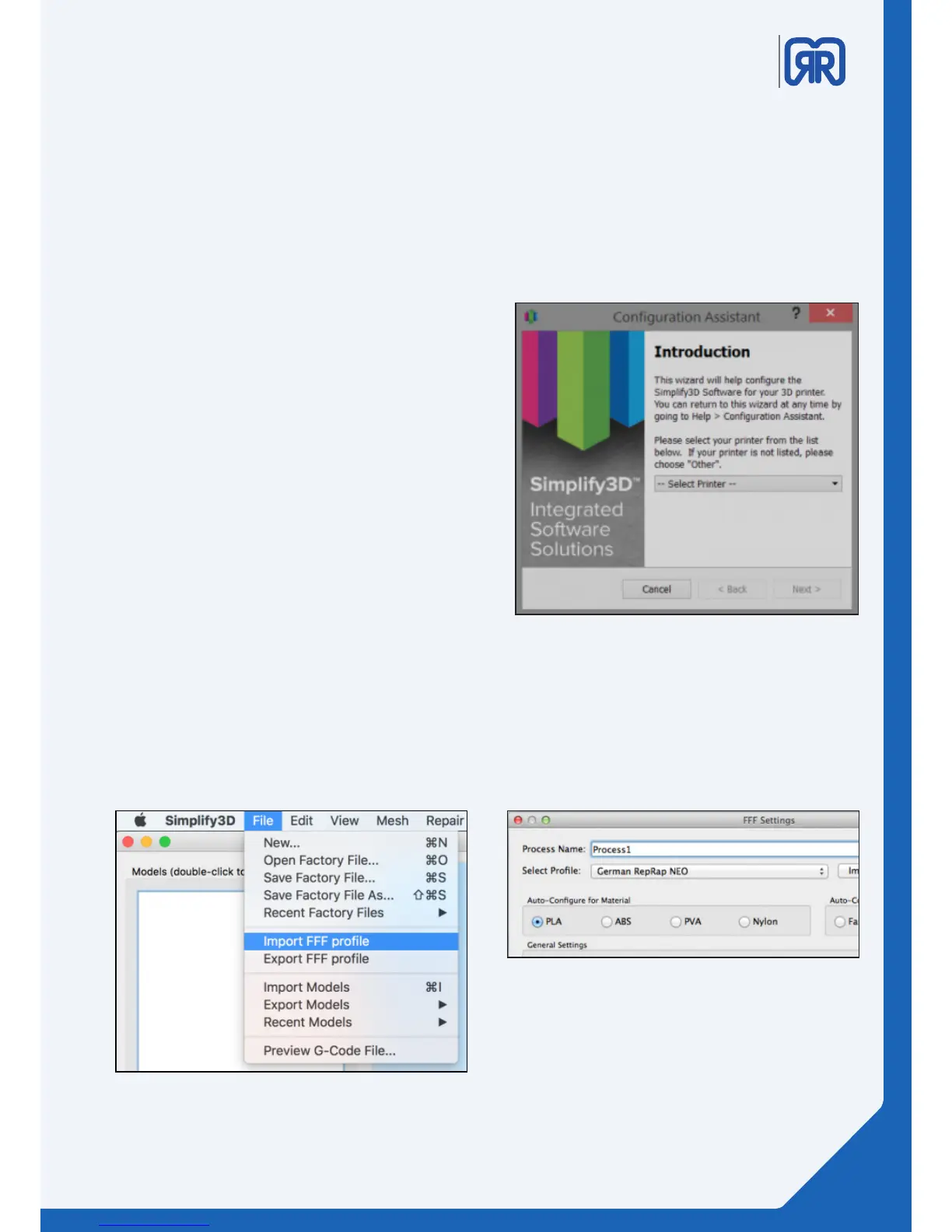
The configuration Assistant
When you open Simplify3D™ for the first time, you
will be greeted by the Configuration Assistant. Select
your printer from the numerous printers listed in the
drop down menu and the Assistant will automatically
configure all of your settings.
If you want to access the Configuration Assi-
stant after installation to change your settings to a
dierent printer, it can be located in the horizontal
Menu Bar under Help > Conguration Assistant.
Conguration assistent
Import proles manually
Furthermore our profiles are available directly to download.
To import the downloaded profile, follow these steps:
• Click on menu “File” “Import FFF-Profile” and choose the downloaded file.
• Open the FFF settings window and check if the profile is visible.
Import prole
Select prole
17/45


 To Next Page