Troubleshoot a problem 110
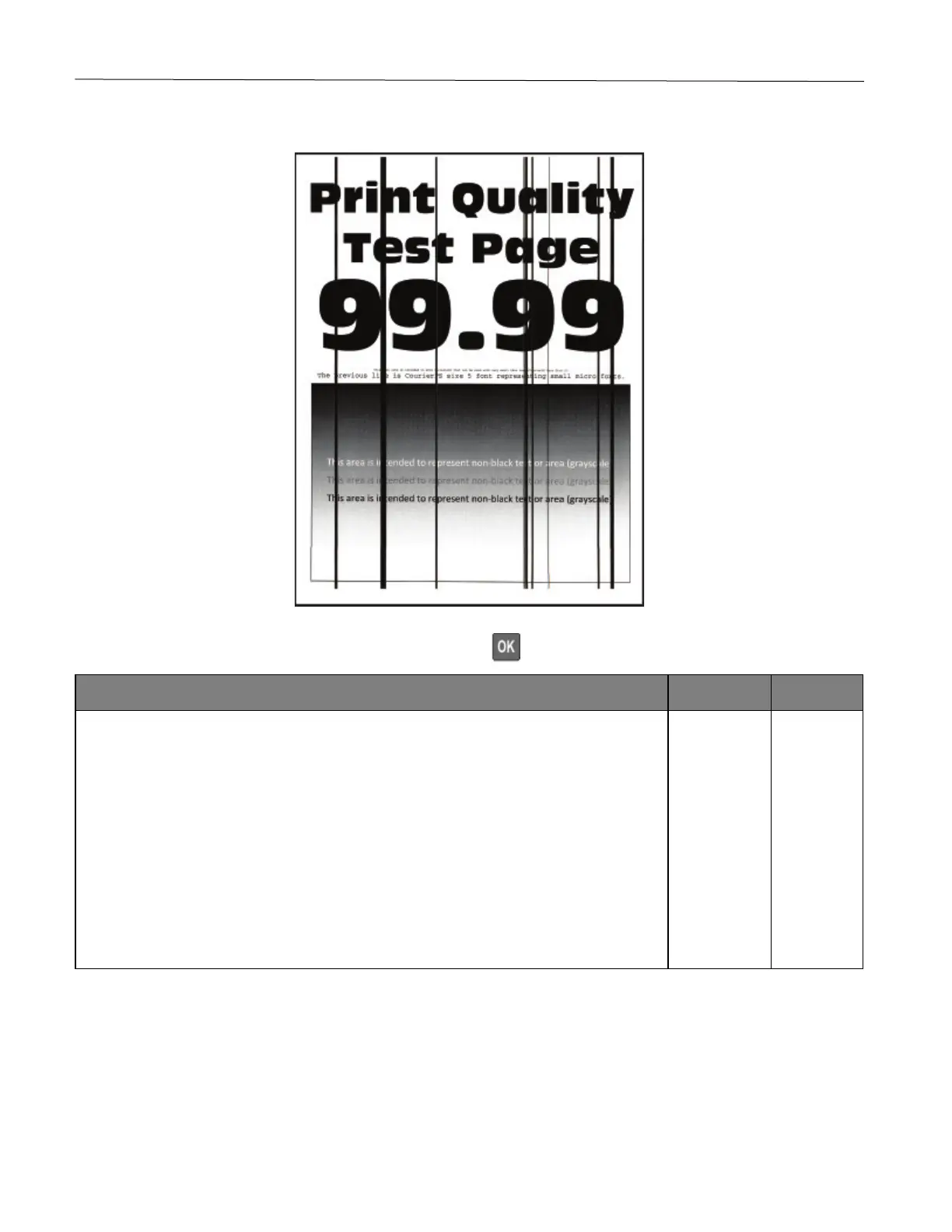
Vertical dark lines
Note: Before solving the problem, print the Print Quality Test Pages. From the control panel, navigate to Settings
> Troubleshooting > Print Quality Test Pages. Press to navigate through the settings.
1 Depending on your operating system, specify the paper type from the Printing
Preferences or Print dialog.
Notes:
• Make sure that the setting matches the paper loaded.
• You can also change the setting on the printer control panel. Navigate to Settings
> Paper > Tray Configuration > Paper Size/Type.
2 Print the document.
Do vertical dark lines appear on prints?
problem is
solved.



 To Next Page