77
Clock and Alarms
Automatically updating the clock
Your radio will normally update the clock automatically when connected to
the internet. If you enter a time setting manually, the radio will calculate a
local time offset which is then stored in memory. Whenever it synchronises
the clock using the internet, including after a power failure, your radio will
then set the clock automatically using this information.
You may wish to use the radio away from the internet, in which case you
may specify that the unit sets its clock from DAB or FM radio broadcasts.
After a power failure the radio will then set its clock the next time that you
turn on the radio in DAB or FM mode.
Alternatively you may specify that the time is not automatically updated.
In this case the clock must always be set manually after a power
interruption.
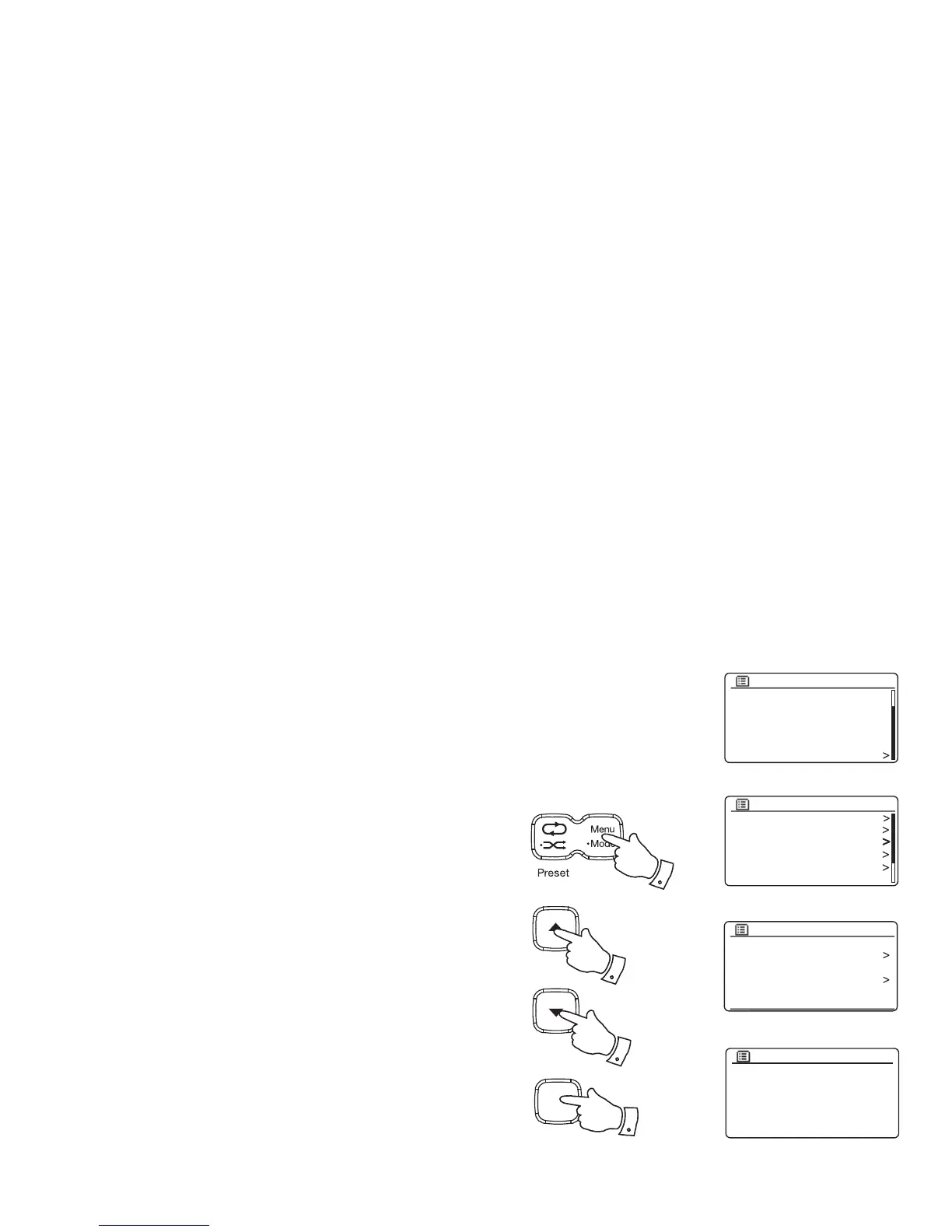
1. With your radio switched on, press the Menu button to access the
menu for the current mode.
2. Press the Tuning Up or Down buttons until 'System settings' is
highlighted on the display. Press the Select button to enter the System
Settings menu.
3. Press the Tuning Up or Down buttons until 'Time/Date' is highlighted
on the display. Press the Select button to enter the time setup.
4. Press the Tuning Up or Down buttons until 'Auto update' is highlighted
on the display. Press the Select button to enter the Auto Update menu.
5. Press the Tuning Up or Down buttons to choose an update option
from 'Update from DAB', 'Update from FM', 'Update from Network'
or 'No update' as required. Press the Select button to confi rm your
choice. The radio will then exit to the previous menu display.
Set Time/Date
Auto update
Set format
Set timezone
Daylight savings
Time/Date
FM
Bluetooth
AUX in
Sleep
Alarms
System settings
Main menu
Equaliser
Network
Time/Date
Brightness
Language
Factory Reset
System settings
Auto update
Update from DAB
Update from FM
Update from Network
No update
*
1
2-5
2-5
Select
i /
2-5



 To Next Page