12 • Soft Panels for Ultritouch Ultritouch+Ultrix User Guide (v1.0)
Destinations Tab
Use the options in the Destinations tab to specify which router outputs will be available in the Destination window
of the soft panel.
Sources Tab
Use the options in the Sources tab to specify which router inputs will be available in the Source window of the soft
panel, and establish their hierarchy.
Salvos Tab
Use the options in the Salvos tab to specify the total number of salvos displayed in the soft panel and their
hierarchy.
Home View Tab
The options in the Home View tab enable you to customize the layout and display settings of the soft panel when it
is loaded to an Ultritouch. From here you determined the order of the drawers and windows, whether the buttons
display icons and labels or just labels, and customize the properties of each drawer and window.
Elements of an Ultritouch Soft Panel
To control an Ultrix router via Ultritouch, load a saved soft panel using the Ultritouch > All Connections interface.
Loading a soft panel to Ultritouch requires a similar method as loading a soft panel in the Ultrix and/or Ultricore
menu system. You select the device in the Ultritouch > All Connections interface, navigate to the specific soft panel
you wish to load, and select it from the provided list. Soft panels are listed in a hierarchy as determined by their
Panel ID.
The layout of the soft panel depends on how it was configured in the Ultrix Panel Editor. The order of the
windows in the soft panel is determined using the options in the Home View tab. Refer to the section “Defining
the Home Page of the Soft Panel” on page 28 for details.
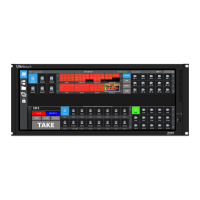
Figure 2.2 Example of an Ultrix Soft Panel Loaded to an Ultritouch
1. Main Toolbar
This toolbar is fixed to the left side of the soft panel as part of the Ultritouch window and provides navigation
buttons to access custom panels, connected devices, and file management. Refer to the Ultritouch User Guide
for details.
2. Home Page
This area is the Home Page of the soft panel and displays the windows defined during the soft panel
configuration. By default, the Ultritouch PB soft panel template includes two drawers (
3), a Destination window
(
4), a Sources window (5), and an Operations window (7). Figure 2.2 shows a customized soft panel that also
includes a Status window (
6) and an Output Monitor window (8). Each of these elements are summarized below.


 To Next Page