Ultritouch+Ultrix User Guide (v1.0) Using Categories • 43
• TAKE becomes available when the navigation results in a valid source selection.
•
PRESET may also be used to add multiple switches to a PRESET cue. The PRESET cue can be then
executed with a single
TAKE command.
7. Tap
TAKE to send the switch request to the router.
Using Group Categories
Group categories allow arbitrary grouping of source and destination names. These groupings are fully customizable
to suit your particular workflow.
Before You Begin
Before you can load a soft panel with Group element, you must first:
1. Define the group categories within the Ultrix database.
2. Configure an Ultritouch soft panel to include a Group window.
Soft Panel Overview
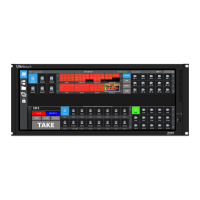
Figure 7.2 provides an example of an Ultritouch soft panel with two group categories defined as EDIT 1 and EDIT
2. Both contain various source and destination names. EDIT 1 also contains a sub-group.
Figure 7.2 Example of a Default Soft Panel Layout with a Group Window
1. Title Bar
If enabled, a title bar will be displayed top most of the screen. The current group navigation will be displayed as
a breadcrumb style upon entering any group.
2. DEST Mode Button
Select this button to show only destinations from any group
3. SRC Mode Button
Select this button to show only sources in any group
4. LEV Mode Button
Select this button to show only levels in any group
5. TOP Button
Select this to navigate to the top most group
6. BACK Button
Select this to navigate back on step in the group hierarchy


 To Next Page