36 • Using Soft Panels Ultritouch+Ultrix User Guide (v1.0)
Using Presets
A preset is a temporary list of crosspoint switches. Presets may be used to cue up a number of different crosspoint
switches, then execute them all with one take command. Before proceeding, ensure that a Preset window is defined
in the soft panel.
The Take mode must be set to Confirm for presets to work. Refer to the section “Adding Operation Features
to the Soft Panel” on page 20 for details on setting this mode.
To use a preset
1. Load a soft panel to the Ultritouch as outlined in the procedure “To load a soft panel on Ultritouch” on
page 34.
2. Tap the
Destination button to include in the switch.
3. Tap the
Source button that you want to include in the switch.
4. Tap
PRESET.
You may need to first tap a Drawer to display the Preset window.
5. Repeat steps 2 to 4 as needed.
6. Tap
TAKE to execute all switches.
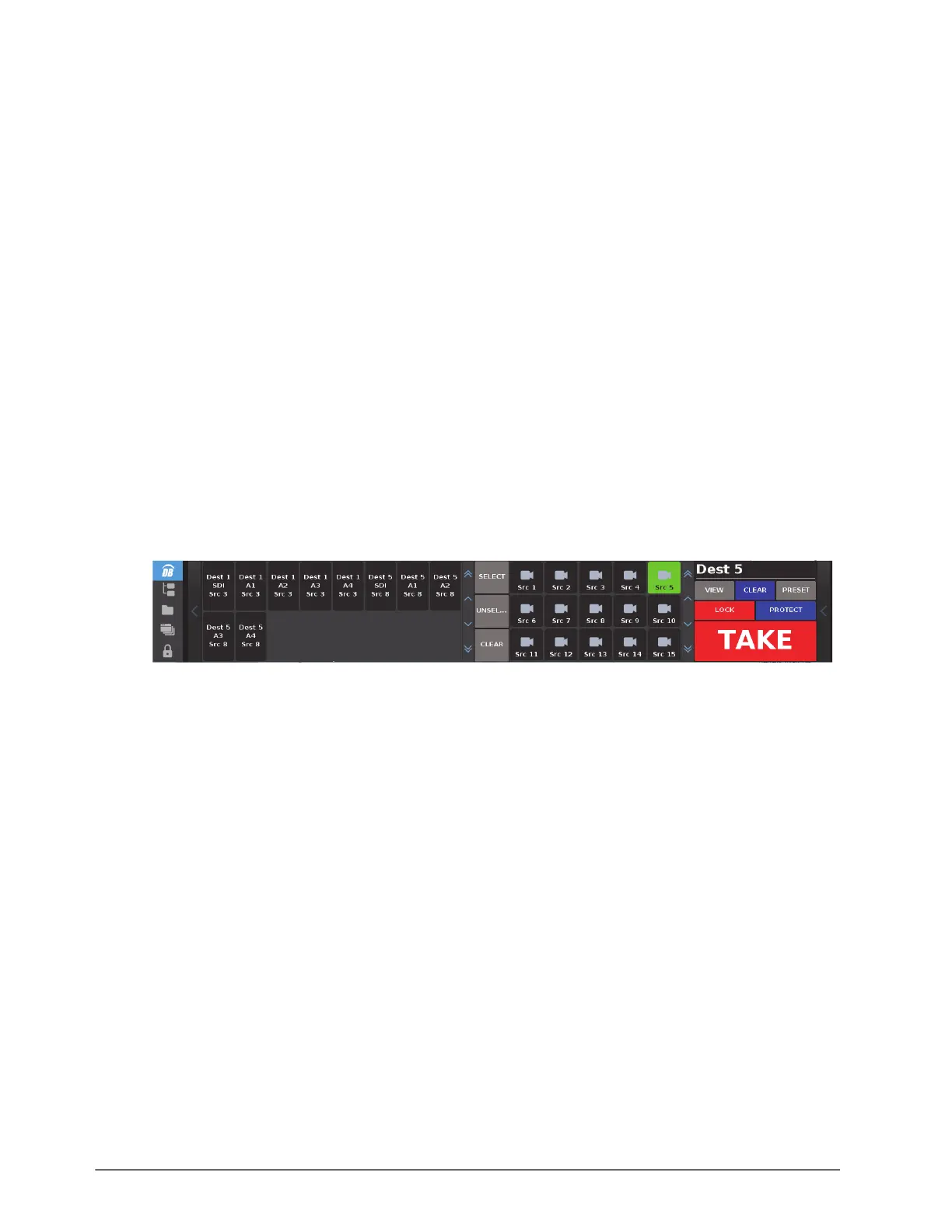
To view the preset list
•Tap VIEW.
The Preset list includes individual switches for every level that was including in the original selection.
To clear the preset list
•Tap CLEAR.
Editing the Preset List
The Preset list all the individual levels of the switch requests currently in preset queue. Individual levels may be
removed from the preset queue by selecting the switch request and tapping
CLEAR in the Preset window.
To edit the preset list
1. Perform one of the following:
•Tap
VIEW on the Operations window; or
• Expand the applicable drawer to display the
PRESET > VIEW button.
2. Tap individual crosspoints.
3. Tap
CLEAR on the Preset window.
Using Salvos
Salvos are a selected series of crosspoints to switch in the routing matrix that are saved and later recalled for use. A
soft panel that includes a Salvos window provides access to the configured salvos in your routing system.
For More Information on...
• creating salvos in your database, refer to the Ultrix User Guide.


 To Next Page