30 • Creating a Soft Panel for Ultritouch Ultritouch+Ultrix User Guide (v1.0)
5. Select a row in the Home Windows table.
Use the Up, Down, Top, Bottom, Sort buttons (located in the toolbar to the right of the table) to move a
highlighted row to the desired position.
6. Click
Add.
The Add Window dialog opens.
7. Use the Window menu to specify the first window to include in the soft panel. Choose from the following:
You cannot have multiples of the same window in either Home windows or Drawer windows.
8. Click
Apply.
The Add Window dialog closes and the Home Windows table updates to include the selection.
9. Repeat steps 5 to 8 for each window you want to include in the soft panel.
10. To customize a window of the soft panel:
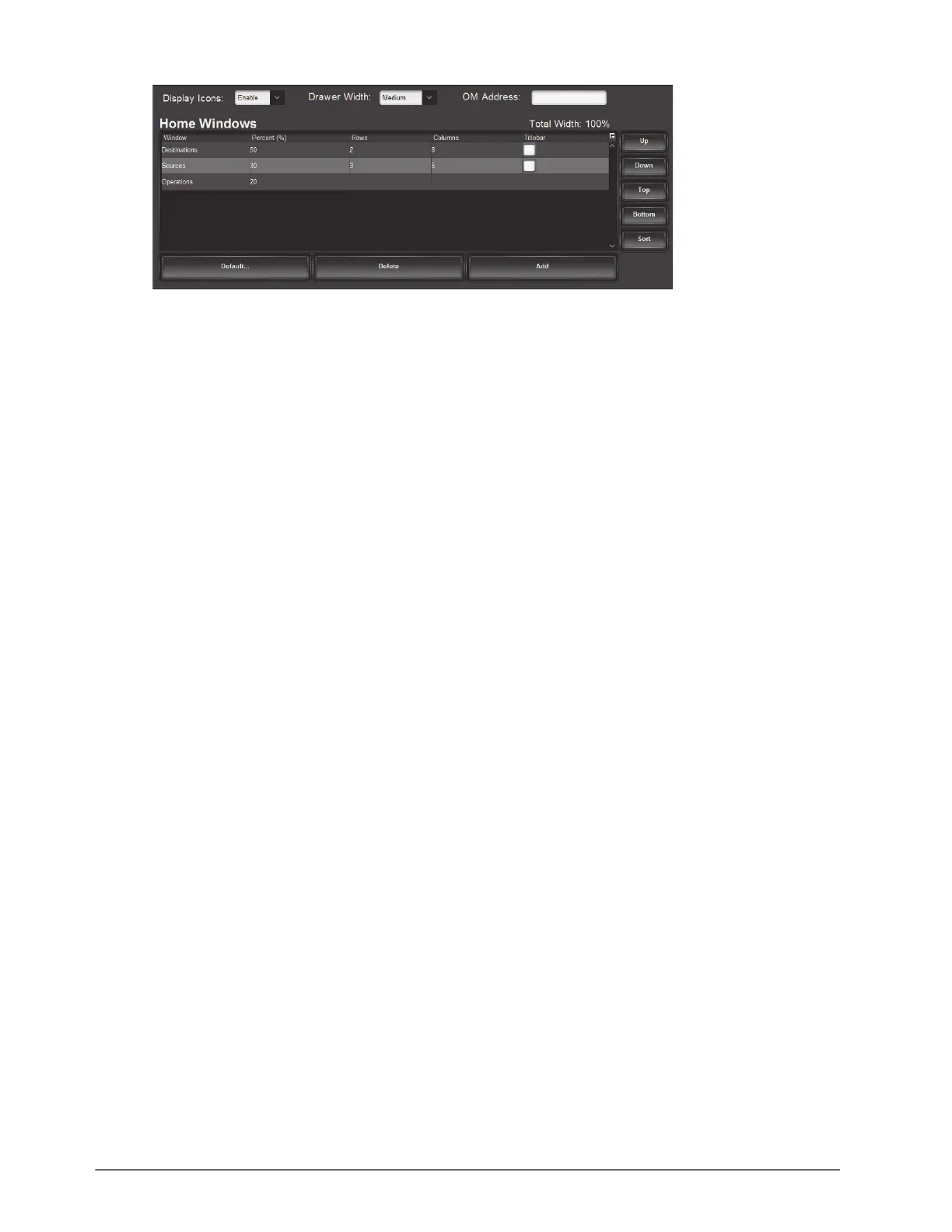
a. Use the Percent (%) field to specify the percentage of the overall soft panel that the window will occupy.
In the example above, the Destinations window is set to 50% while the Sources window is set to 30%.
b. Use the Rows field to specify the number of rows in the panel that the window will occupy.
c. Use the Columns field to specify the total number of columns in the panel that the window will occupy.
d. Select the Titlebar box to display a title bar across the top of the window. A title bar is only available on
some window types.
11. Repeat step 10 for each window of the soft panel you wish to customize.
The Tot al Wi dt h field above the Home Windows table reports the total alloted space in the soft panel. If the text
is set in red, you must adjust the Percent (%) fields to ensure the total width meets 100% (but does not exceed).
Otherwise the soft panel will not properly display on the Ultritouch.
12. Use the Display Icons menu to specify whether the buttons on the soft panel display the default icon images
(Enable), or just the text labels (Disable). The default setting is Enable.
13. Click
Apply.
The Information dialog opens.
14. Click
OK to close the dialog and save your settings.
Defining the Drawers on a Soft Panel
Soft panels to control an Ultrix can also include fly-out menus (drawers) that operate like horizontal drop-down
menus. You can specify what menus, functions, and settings each drawer includes.


 To Next Page