Ultritouch+Ultrix User Guide (v1.0) Using Soft Panels • 33
Using Soft Panels
A soft panel can be as simple or complex in its layout as you require.
Soft Panel Features
The windows and drawers a soft panel includes depends on how you configured your soft panel. The example
presented in this chapter may show a different layout from your soft panels.
Windows
A soft panel is organized into distinct windows, each with a specific function. The number and type of windows
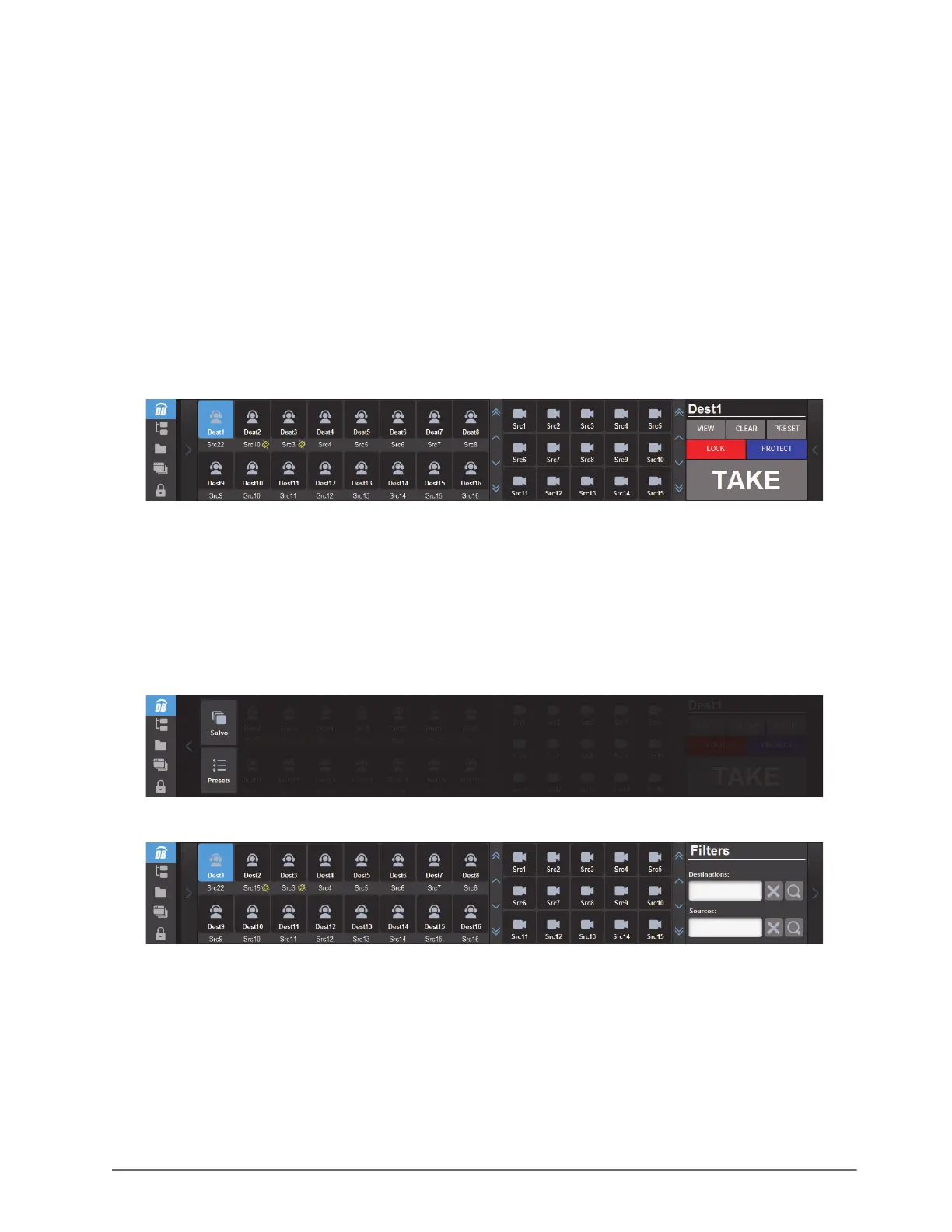
your soft panel includes is determined during its configuration. Figure 6.1 shows a soft panel with three windows
(from left to right): Destinations, Sources, and Operations.
Figure 6.1 Example of a Soft Panel with Three Windows
Drawers
Depending on how you configured your soft panel, some features may be only accessed by tapping a Drawer on the
soft panel. A Drawer may also display as an overlay of other windows.
Figure 6.1 includes two drawers: one on the far left of the soft panel, and one on the far right. When a Drawer is
tapped, the arrow on the drawer points in the opposite direction. Tapping a Drawer displays additional buttons
available for selection (Figure 6.2), or windows. (Figure 6.3)
Figure 6.2 Example of a Drawer Displaying Additional Menu Options on the Left
Figure 6.3 Example of a Drawer Displaying Additional Menu Options on the Right
Accessing the Operations Features
The Operations window can be a fixed window on the soft panel, or assigned to a specific Drawer. Figure 6.4
shows a soft panel with an Operations window. The buttons available in the Operations window depend on the
options enabled when the soft panel was configured. Refer to the section “Operations Window” on page 13 for
details.


 To Next Page