Ultritouch+Ultrix User Guide (v1.0) Using Soft Panels • 35
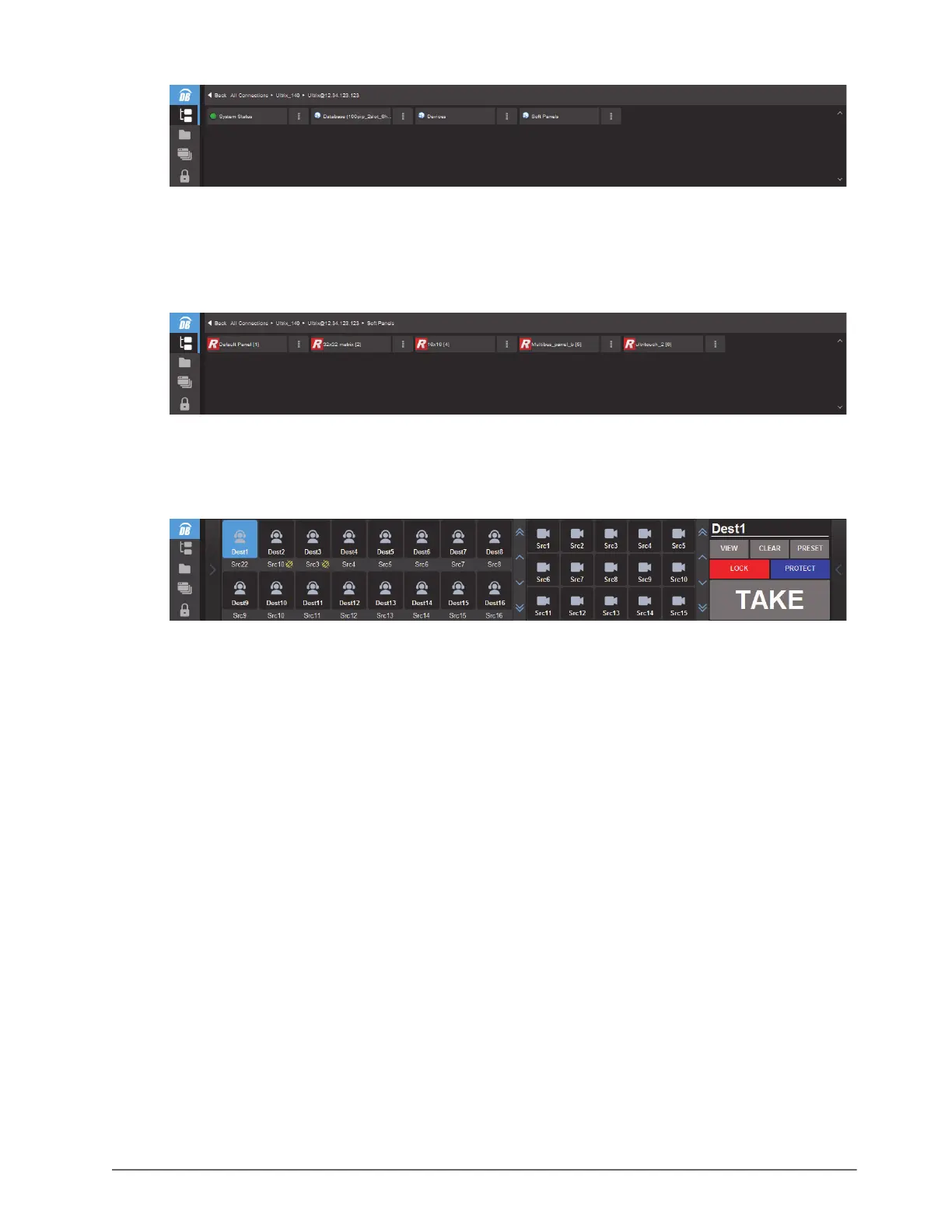
Notice that the top toolbar reports where a breadcrumb trail reports your location in the menus. You can return to
a previous menu by tapping
< Back.
4. Tap
Soft Panels.
A list of available soft panels displays.
5. Tap the soft panel for the Ultritouch you created in “Creating a New Soft Panel for Ultritouch” on page 19.
6. Tap
Open.
The Ultritouch interface updates to display the selected soft panel.
Switching with a Level, Destination, and Source
The Ultritouch soft panels are destination driven: you must first select a destination and then select the required
source to be routed.
To make a crosspoint switch
1. Load a soft panel to the Ultritouch as outlined in the procedure “To load a soft panel on Ultritouch” on
page 34.
2. Tap the button for each level that you want to use.
You may need to first tap a Drawer to display the Status window which includes the Level buttons.
3. Tap the
Destination button to include in the switch.
4. Tap the
Source button that you want to include in the switch.
5. If available, tap
TAKE.
If the Ta ke mode was set to Automatic, crosspoint switches are performed automatically and the TAKE button
does not display. Refer to the section “Adding Operation Features to the Soft Panel” on page 20 for details on
setting this mode.
6. If you want to protect the destination or prevent other users from changing the source selection, tap
PROTECT.


 To Next Page