28 • Creating a Soft Panel for Ultritouch Ultritouch+Ultrix User Guide (v1.0)
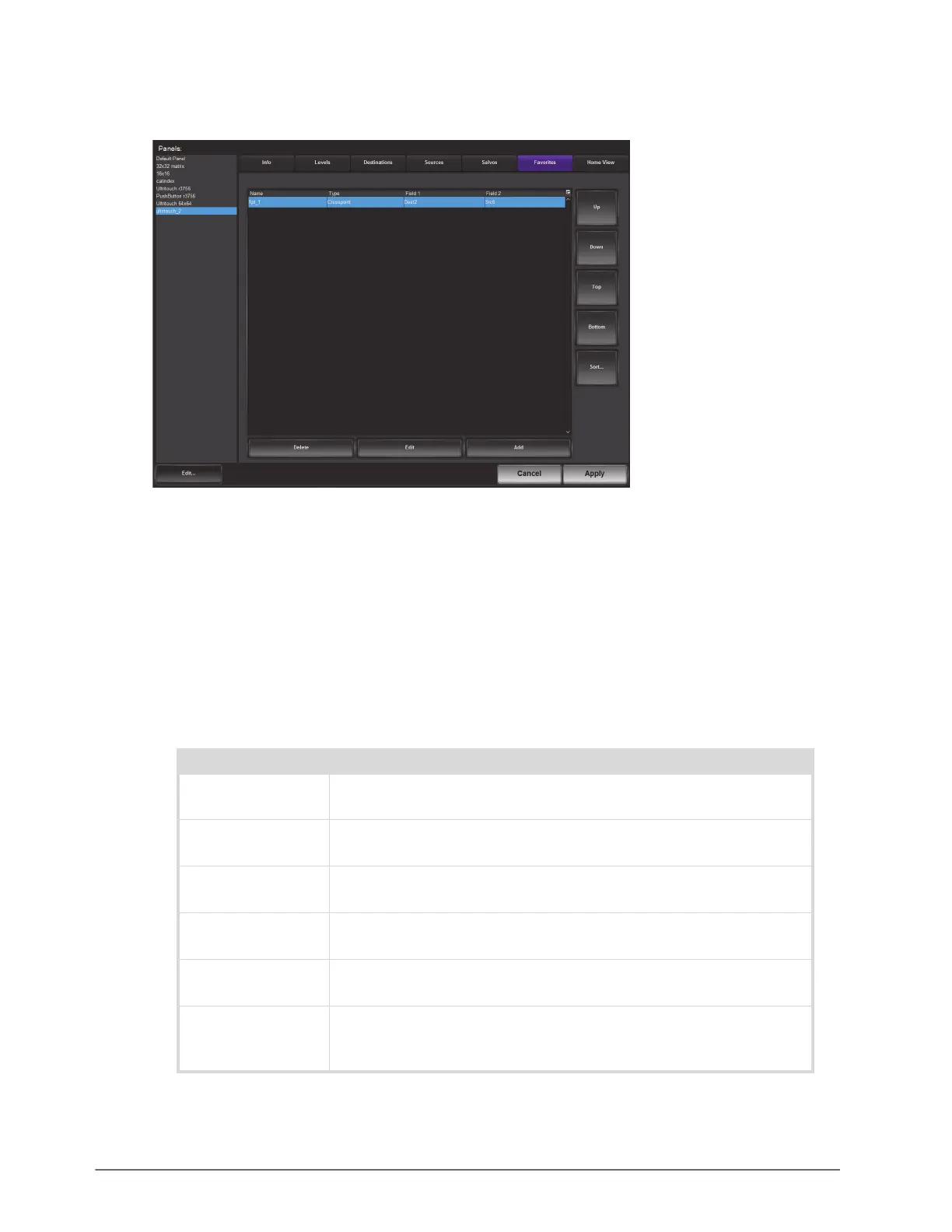
To adjust the layout of the buttons on the soft panel
1. In the Favorites tab, select the row for the
2. Use the right toolbar to move your
3. Click
Apply to save your settings.
Defining the Home Page of the Soft Panel
When creating an Ultritouch soft panel, you also have the option to customize the different areas (windows) of the
panel, and determine the width of each window, drawer, and their elements. A Home Page can be a collection of
windows as defined during the soft panel configuration using the options in the Panels > Home View tab.
Table 5.1 summarizes the options for the types of windows you can assign to the Home Page.
Table 5.1 Home Page — Types of Windows
Window Type Description
Category/Index Displays a Category-Index style of window on the soft panel. Refer to the
section “Using Category/Index Mode” on page 39.
Destinations Displays the destination selection buttons as defined in the procedure
“Destinations for the Soft Panel” on page 22.
Favorites Adds a window of configurable sources, destinations, crosspoints, groups,
and salvos. Refer to the section “Adding a Favorite Button” on page 24.
Filters Displays text filter to find source/destination. For example, the entered text
dest will find all source or destination labels that include dest* and Dest*.
Groups Displays a Group Categories style of window on the soft panel. Refer to the
section “Using Group Categories” on page 43.
Operations Adds a window that organizes the functions for router control (TAKE,
Protect, etc) into buttons as defined using the Info tab. Refer to the
“Elements of an Ultritouch Soft Panel” on page 12 for details.


 To Next Page