22 • Creating a Soft Panel for Ultritouch Ultritouch+Ultrix User Guide (v1.0)
d. Click .
The Assigned list updates to include the selected levels.
7. Use the provided buttons beside the Assigned list to determine the order in which the levels are displayed on
the soft panel.
8. Click
Apply at the bottom of the Panels tab to save your settings.
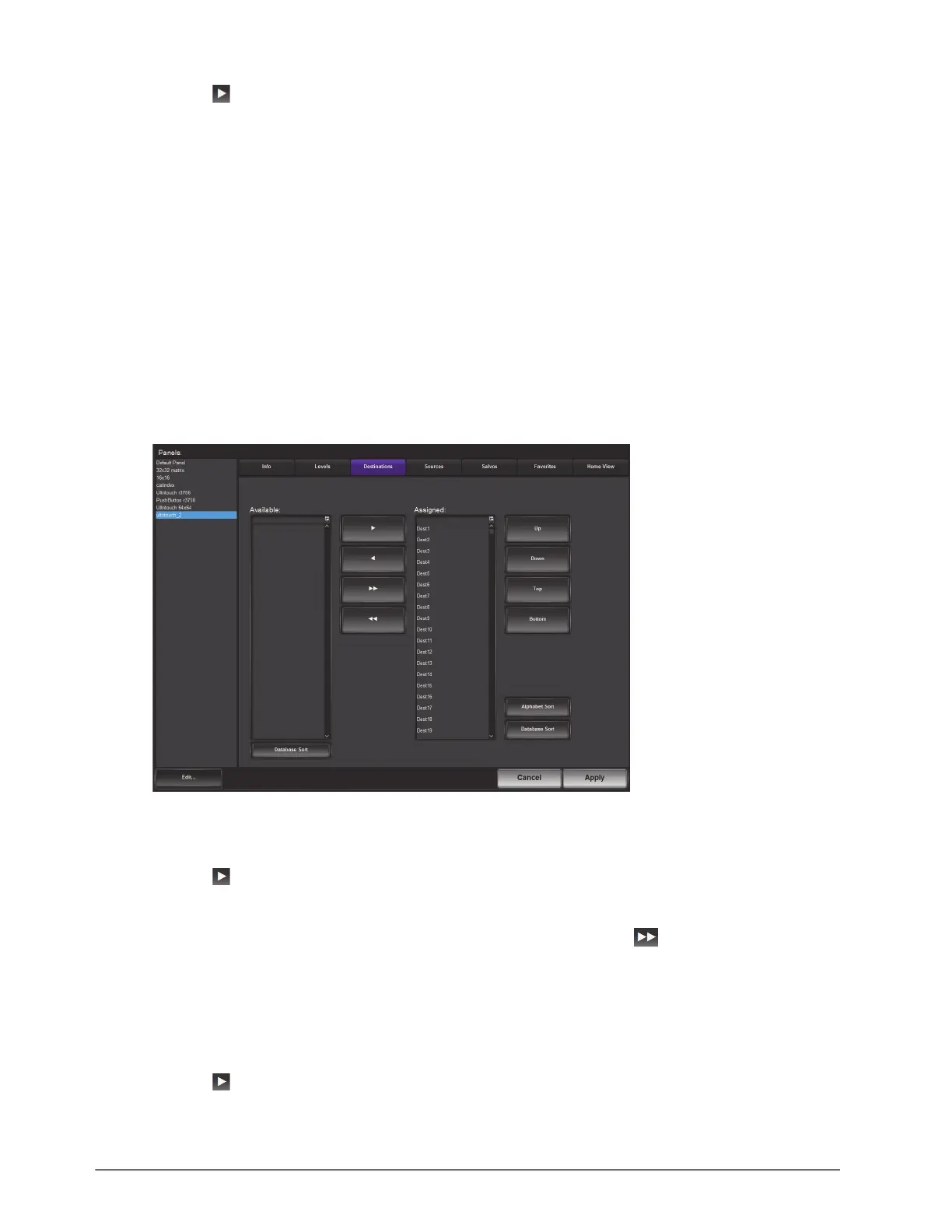
Destinations for the Soft Panel
You can create a soft panel with a specified number of destinations and determine the order in which they are
displayed in the Destinations window of the panel. For example, the router may have 32 destinations but you only
want to make the first 4 outputs selectable on the soft panel. You would then move only the required destinations
from the Available list to the Assigned list.
To specify the destinations for the soft panel
1. Double-click the soft panel name from the Panels list in the left toolbar of the Panels tab.
2. Click
Destinations.
3. To add a destination to the soft panel:
a. From the Available list, select the destination(s) you wish to add to the soft panel.
b. Click .
The Assigned list updates to include the selected destination(s).
4. To assign all the available destinations in the database to the soft panel, click .
5. To assign multiple destinations to the soft panel:
a. From the Available list, select the first destination you wish to add to the soft panel.
b. Press
Shift.
c. From the Available list, select the other destination(s) you wish to add to the soft panel.
d. Click .
The Assigned list updates to include the selected destinations.


 To Next Page