44 • Using Categories Ultritouch+Ultrix User Guide (v1.0)
7. Central Area
The central/main area of the screen displays the groups and any configured source/destination/level buttons. The
Groups are identified by the folder icon.
A group category is only visible if it contains defined contents for the current mode selected. For example, if the
current select mode is DEST, and group EDIT 2 contains no destinations, then the EDIT 2 group will not be
navigable in DEST mode.
Using Group Categories on a Soft Panel
This section outlines how to perform a simple crosspoint switch via a soft panel using Group categories. There are
three steps you must perform before sending the switch request to the router:
1. Select the required level(s). There are two methods for selecting a level: using the group category defined
levels, or using the status window.
2. Select the required destination.
3. Select the required source.
To select the required levels for the operation
• Using the group category defined levels:
a. Tap
LEV.
b. Tap the required level(s).
A selected level will highlight blue. To unselect, tap again.
• Using the status window:
a. Open the status window (if needed)
b. Tap the required level(s).
Omitting a level selection will mean the switch request will use the current level selection from a previous
operation.
To select the required destination
1. Tap DEST.
2. Navigate to the group.
3. Tap the required destination.
To select the required source
1. Tap SRC.
2. Navigate to the group.
3. Tap the required source.
To perform the switch
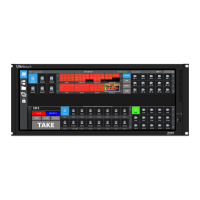
•If the TAKE operation is set to Confirm via soft panel configuration, the TAKE button (on the Operations
window) must be tapped to send the switch request to the router.
•If the
TAKE operations is set to Direct, the switch request is sent immediately upon selecting the required source.


 To Next Page