24 • Creating a Soft Panel for Ultritouch Ultritouch+Ultrix User Guide (v1.0)
Salvos for the Soft Panel
Before you can add salvos to a soft panel, you must configure them as outlined in the Ultrix User Guide.
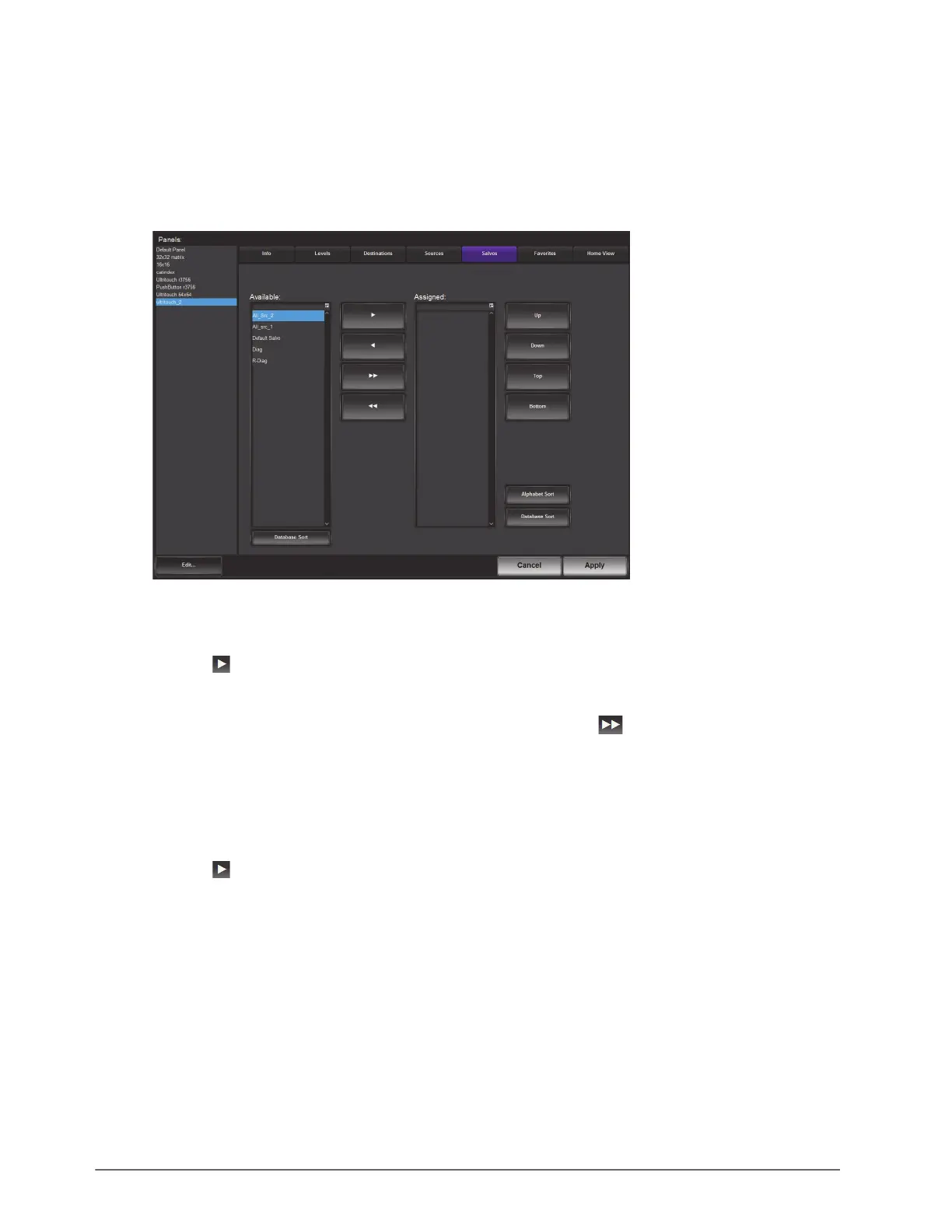
To specify the salvos available on the soft panel
1. Double-click the soft panel name from the Panels list in the left toolbar of the Panels tab.
2. Click
Salvos.
3. To add a salvo to the soft panel:
a. From the Available list, select the salvo you wish to add to the soft panel.
b. Click .
The Assigned list updates to include the selected source(s).
4. To assign all the available salvos in the database to the soft panel, click .
5. To assign multiple salvos to the soft panel:
a. From the Available list, select the first salvo you wish to add to the soft panel.
b. Press
Shift.
c. From the Available list, select the other salvo(s) you wish to add to the soft panel.
d. Click .
The Assigned list updates to include the selected salvos.
6. Use the provided buttons beside the Assigned list to determine the order in which the salvos are displayed on
the soft panel.
7. Click
Apply at the bottom of the Panels tab to save your settings.
Adding a Favorite Button
The Favorites tab allows placement of common used items to aid in quick navigation on systems with many pages
of sources and destinations.
The Favorites tab consists of a table of user defined favorites and buttons to aid their position and sorting. A
Favorite may be deleted, edited, or deleted from the soft panel using the buttons on the tab.


 To Next Page