Ultritouch+Ultrix User Guide (v1.0) Creating a Soft Panel for Ultritouch • 31
To define the drawer elements of the soft panel
1. Double-click the soft panel name from the Panels list in the left toolbar of the Panels tab.
2. Click
Home View.
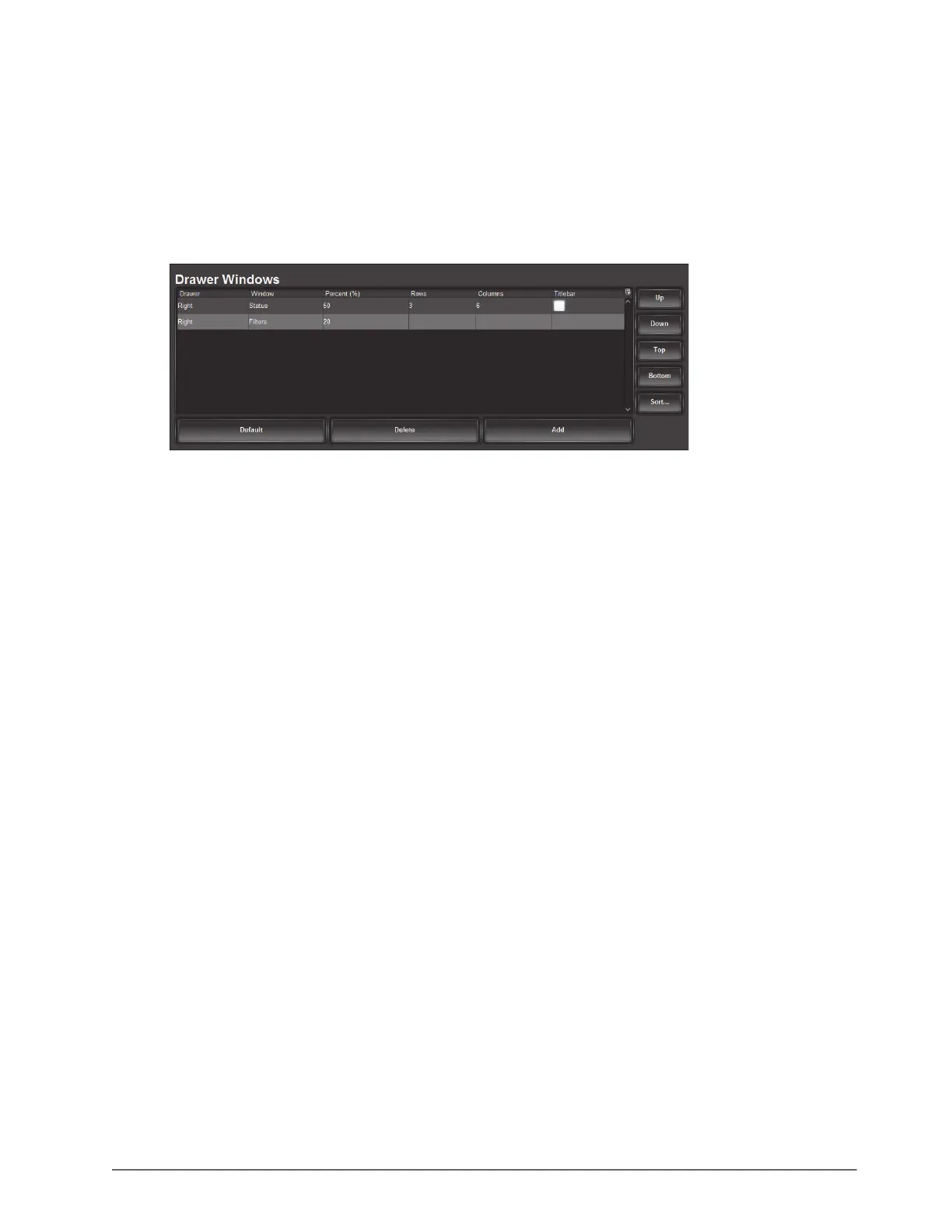
3. Locate the Drawer Windows area of the tab.
By default the Drawer window is populated with a right-side Status window and right-side Filters window, both
occupying 50% of screen each. When multiple windows are assigned to either left or right drawers, the user must
first select the drawer handle, then the window that is required.
4. Select a row in the Drawer Windows table.
The order of the rows in the Drawer Windows table determine the order of the windows that display on the soft
panel. For example, if the first row is assigned to Sources, the first window next to the main toolbar of the soft
panel will display the Sources buttons.
5. Click
Add.
The Add Drawer dialog opens.
6. Use the Type menu to specify the location of the drawer, in relation to the window it will be assigned to.
For example, if you select Type > Left and Window > Sources, the drawer will display on the left side of the
Sources window.
7. Use the Window menu to specify the window to assign to the drawer to.
8. Click
Apply.
The Add Window dialog closes and the Drawer Windows table updates to include the selection.
9. Repeat steps 5 to 8 for each drawer you want to include in the soft panel.
10. To customize a drawer size:
a. Use the Width field to specify the percentage of the allocated drawer space.
b. Use the Rows field to specify the number of rows in the drawer will display.
c. Use the Columns field to specify the total number of columns in the drawer will display.
You can also use the Drawer Width menu, located near the top of the Home View tab, to specify the width of
the drawer handle size.
11. Repeat step 10 for each drawer of the soft panel you wish to re-size.
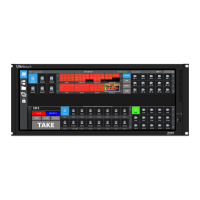
In the example below, the Right drawer is assigned to the Status window, and the Left drawer is assigned to the
Salvos window.


 To Next Page