Ultritouch+Ultrix User Guide (v1.0) Using Categories • 41
The Information dialog opens.
13. Click
OK to close the dialog and save your settings.
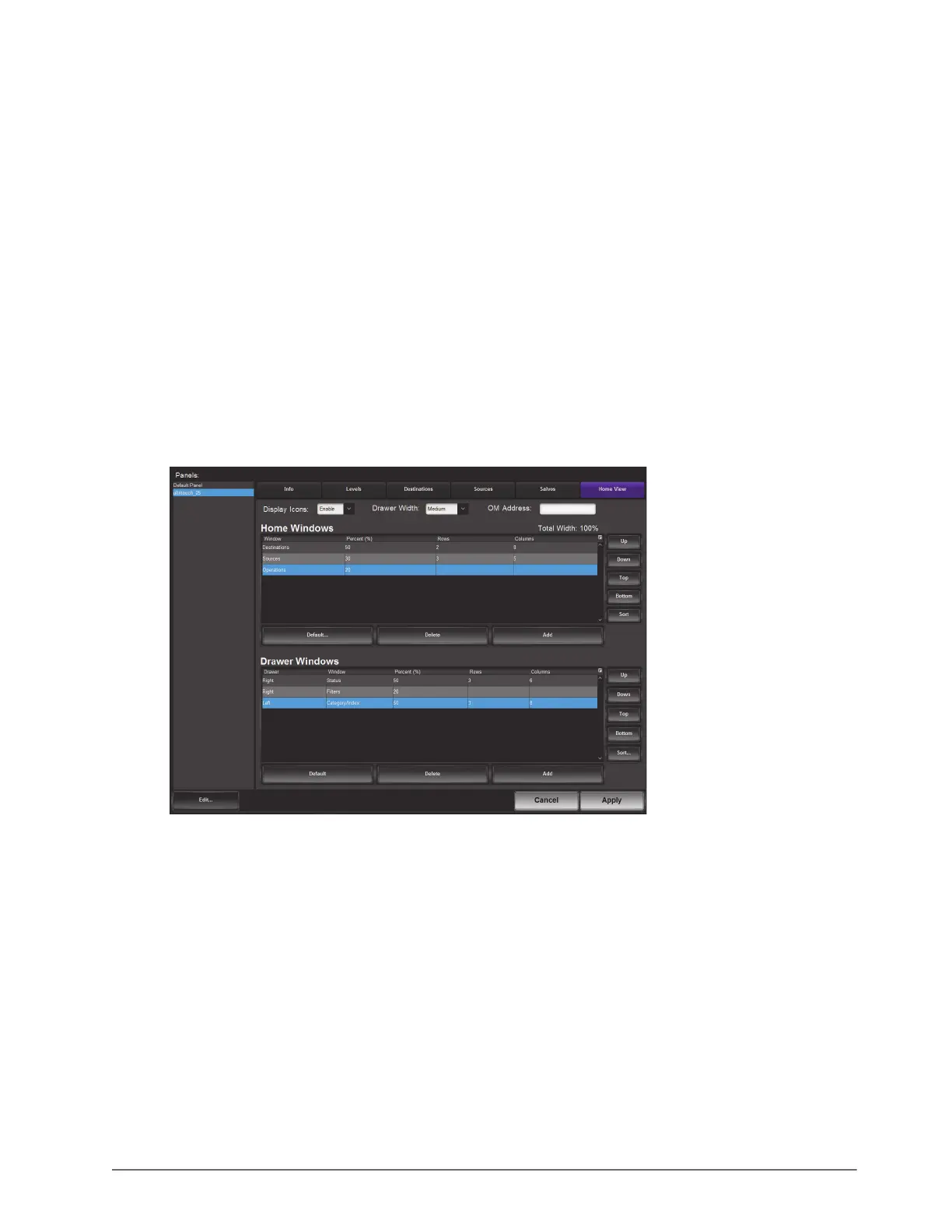
To create a new Ultritouch soft panel with a Category/Index window in a drawer
1. Create a soft panel as outlined in the procedure “To create a new soft panel for Ultritouch” on page 19.
2. Edit the soft panel as outlined in the procedure “To edit the soft panel operational features” on page 20.
3. Click
Home View.
4. Locate the Drawer Windows table in the Home View tab.
5. Click
Add.
The Add Drawer Window dialog opens.
6. Use the Type menu to specify whether the Category/Index window will be displayed on the Left Drawer or
Right Drawer.
7. Use the Window menu to select Category/Index.
8. Click
Apply.
The Add Window dialog closes and a new row displays in the Drawer Windows table.
9. Use the
Up, Down, Top, and/or Bottom buttons to position the Category/Index row within the table. This will
determine where the window is located on the drawer.
10. Use the Percent (%) field to specify the percentage of the overall drawer that the Category/Index window will
occupy.
11. Use the Rows field to specify the number of rows in the drawer that the Category/Index window will occupy.
12. Use the Columns field to specify the total number of columns in the drawer that the Category/Index window
will occupy.
13. Click
Apply.
The Information dialog opens.
14. Click
OK to close the dialog and save your settings.


 To Next Page