6.5 con::cube Connection Types
If one or several con::cube shall be integrated into one network, each device needs it’s own IP address and also it’s own
computer name. By default the DHCP service is activated on the con::cube, therefore an IP address for the con::cube will be
allocated automatically from the DHCP server of the network to which the con::cube is connected. The actual IP address of the
con::cube will be displayed when pushing on the s::can logo on the lower right hand side of the moni::tool display.
IfneededtheDHCPservicecanbedeactivatedandthecon::cubecanbesettoaxedIPaddress.Thismightbenecessaryif
a direct connection from the con::cube to your notebook shall be established. In this case perform the following steps:
Disable the Use DHCP checkbox to deactivate the DHCP Server option.
Ensure your PC is equipped with a properly installed network card and you
have the user rights required to change network settings.
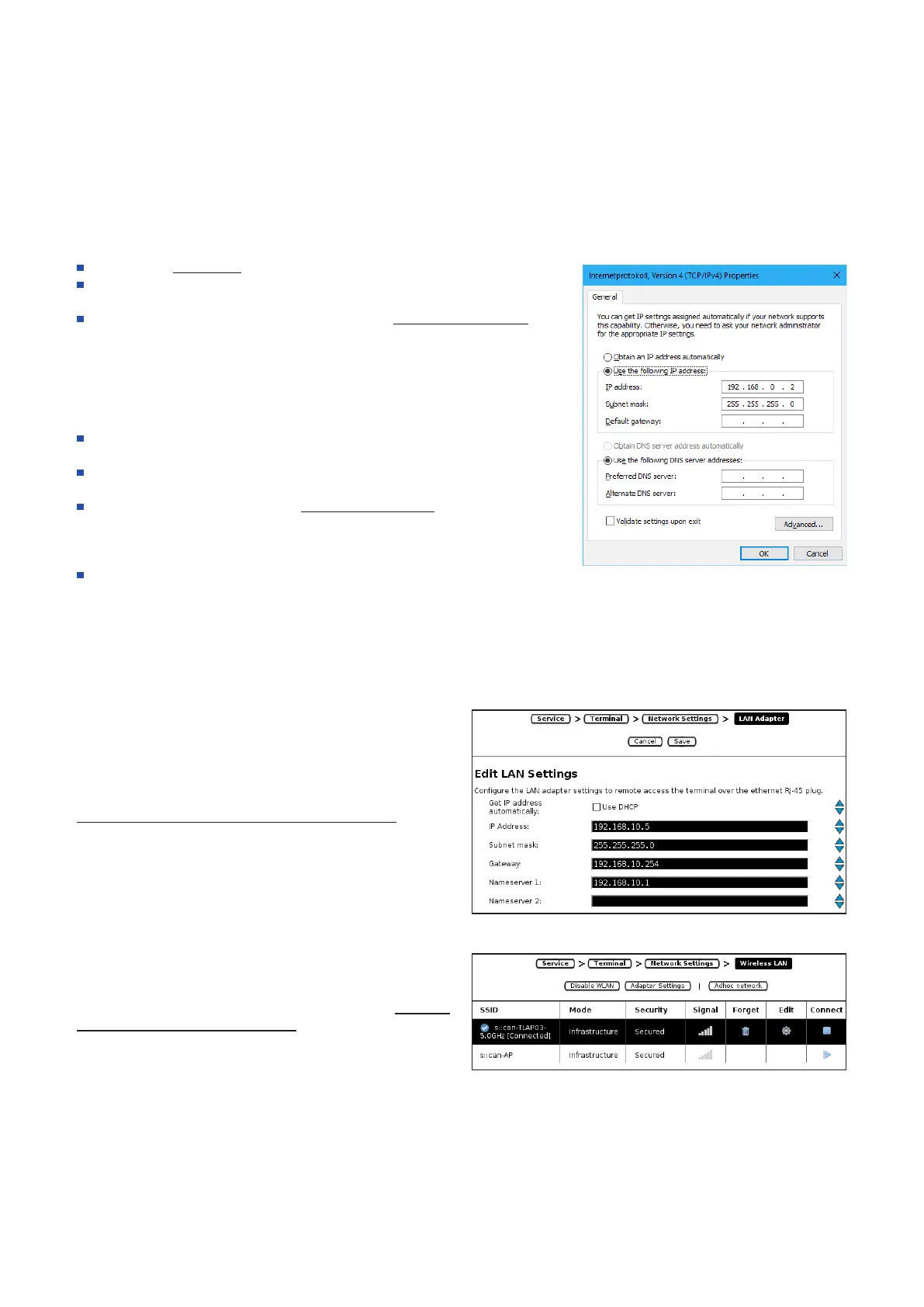
Congure the IP address of your PC in the Network environment also
to a xed one, using the same settings as for the con::cube except the
last number of the IP address. The example below shows a possible
conguration:
IP address of the con::cube: 192.168.10.12
IP address of the PC: 192.168.10.2
Subnet mask for both devices: 255.255.255.0
Connect your network cable (RJ45) to the con::cube and to the PC when
working via LAN (see section 6.5.1).
Alternatively activate the WLAN on your notebook and on the con::cube
(see section 6.5.2).
Search for the con::cube in the Network environment of the PC. You can
either use the IP address or the computer name of the con::cube for
searching. The computer name ex factory can be found on the included
acceptancecerticate.
In case a logon is needed use:
User: scan
Password: scan (case sensitive)
6.5.1 Connectivity via Network Cable (RJ45)
Connect the con::cube into the local area network (LAN) by
plugging a network cable of the LAN into the ethernet socket
of the con::cube (RJ45 - marked with no.6 in the gure in
section 3.3).
Ifneeded,itcanbeconguredviathemoni::toolmenuitem
Service / Terminal / Network Settings / LAN Adapter.
To ensure proper operation also with older types of PC /
notebook, s::can recommends to use a cross-linked RJ45
cable for connection.
6.5.2 Connectivity via WLAN
The con::cube is equipped with an internal WLAN modem.
The antenna is included in the housing cover. When you
enable the WLAN modem via the moni::tool menu Service /
Terminal / Network Settings / WLAN all available connections
are displayed.
con::cube D-330, 01-2020 Release Copyright © s::can Messtechnik GmbH
www.s-can.at20 / 42


 To Next Page