6.5.4 Connectivity via VPN
Thecon::cubecanbeconnectedtoaVPNserver.s::canoersthepossibilitytoconnectyourcon::cubetothes::canVPN
server (item-no. S-VPN-HOSTING). Please ask your local s::can Sales Partner for further details.
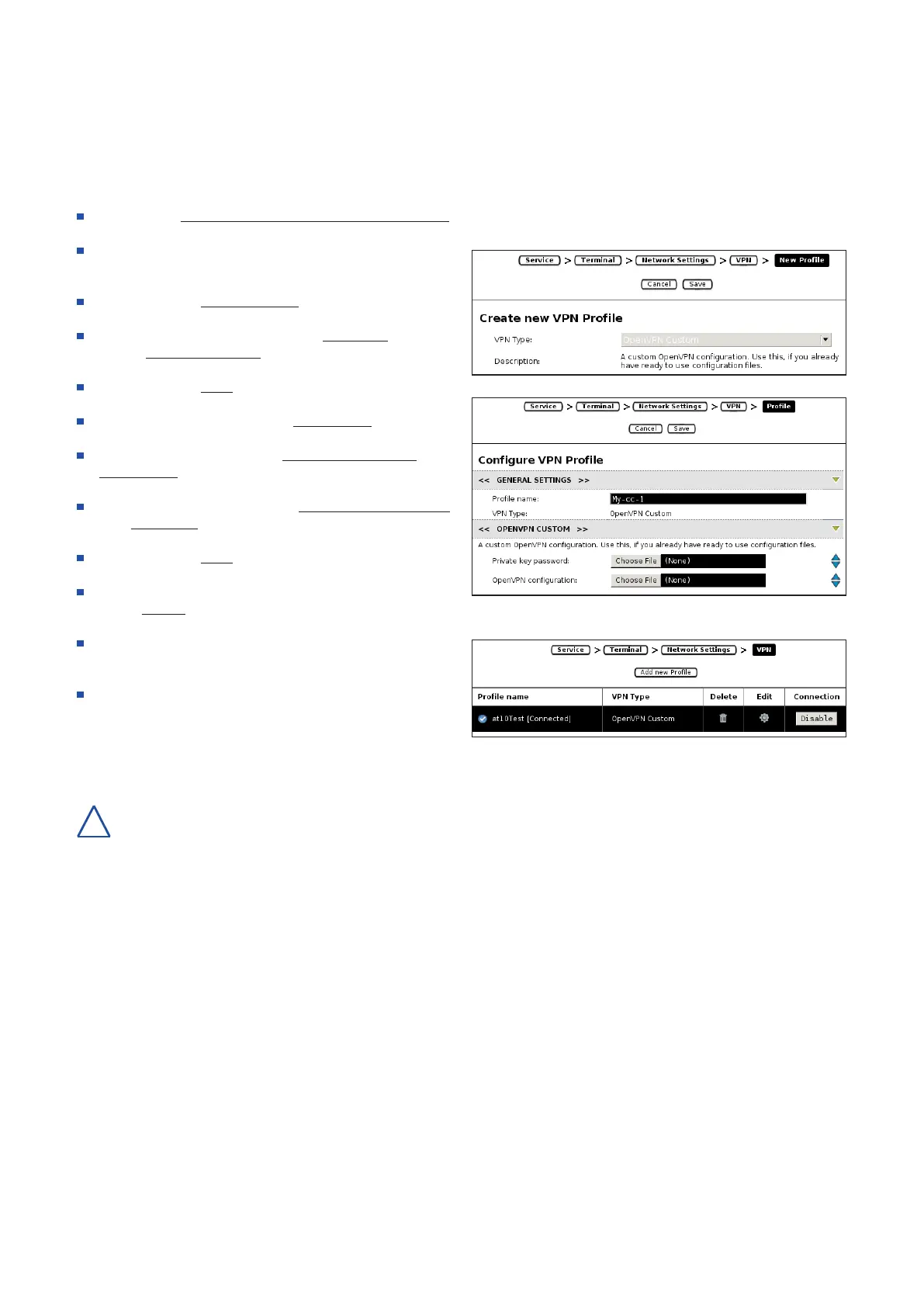
ThecongurationofaVPNproleonthecon::cubeisperformedbythefollowingsteps:
Select menu Service / Terminal / Network Settings / VPNtoopenthecongurationscreen.
IncaseanyVPNproleexistsalready,selectthisprole
and delete it by pushing the trash icon.
Push the button Add new Prole.
Within the next window select the VPN Type, which is
always OpenVPN Custom.
Push the button Save.
Within the next window enter a Prole name.
SelectthelecontainingthePrivate key password (e.g.
password.txt).
Select the le containing the OpenVPN conguration
(e.g. client.ovpn).
Push the button Save.
Nowthenewproleshouldbelistedinthetable.Pushthe
button Enabletoactivatetheprole.
Once the con::cube is connected to the VPN the display
willlooklikethegureontheright.
The static IP address of the VPN connection will be
displayed after pushing the s::can logo in the lower right
corner.
Aspecicnotecanbedownloadedfromthes::canCustomerPortal,explaininghowaVPNconnectioncanbesetup
on a mobile phole or tablett.
con::cube D-330, 01-2020 Release Copyright © s::can Messtechnik GmbH
www.s-can.at22 / 42
!


 To Next Page