© Safe Fleet | 2020 | All rights reserved | Part #: 700-1213 R1
DH4C Installation Guide
p. 25
DH4C Basic Conguration
Title and Display
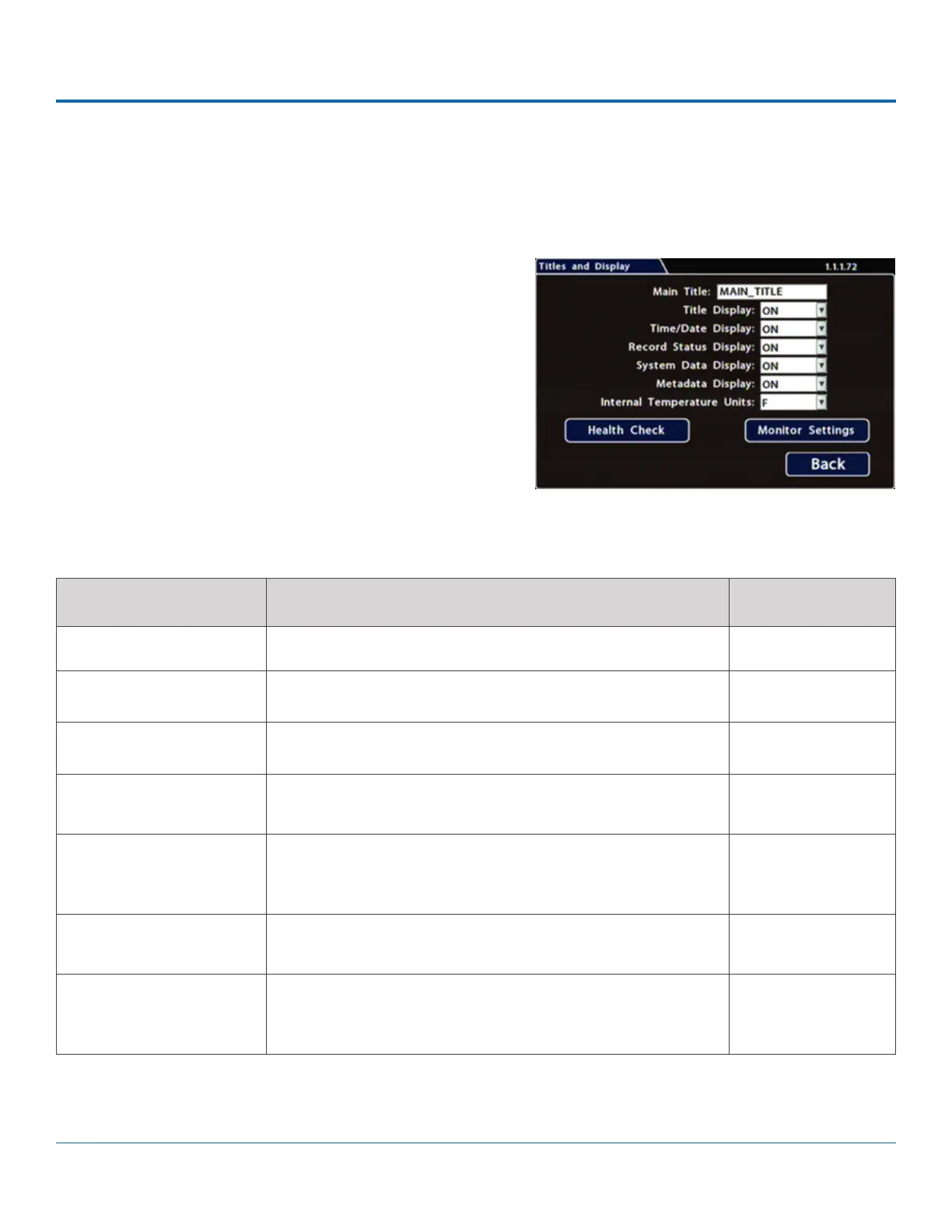
All options are set to display by default. You can turn OFF items that are not of interest so the related text will not appear.
To update Date/Time settings::
1. Select Title/Display to open the tab.
2. Enter the bus number in the Main Title eld (if it is not
already there).
For details on using the On-screen keyboard, see Using On-
screen Keyboards.
3. Choose the desired display settings, as described in Menu
Options, below.
For information about display items, see Metadata Details,
below.
MENU ITEM DESCRIPTION VALUE [DEFAULT]
Main Title Enter the bus number MAIN_TITLE
Titles Display Display/hide Main Title and Camera Titles [ON], OFF
Time/Date Display Display/hide time and date [ON], OFF
Record Status Display Display/hide DVR recording status (LIVE=showing camera
feeds, RECORD=storing video, V.LOSS=video loss).
[ON], OFF
System Data Display Display/hide DVR system metadata: HDD Size (primary
recording media), % Full HDD (primary media), Voltage,
Firmware Version, Fan Failure, and Internal Temperature.
[ON], OFF
Metadata Display Display/hide DVR metadata: Signals, GPS, Speed, Ignition State,
GSensor, and Alarm Count.
[ON], OFF
Internal Temperature Units If Metadata Display is ON, display the ambient temperature
inside the DVR in degrees. Select F (Fahrenheit) in the USA or C
(Celsius) in Canada.
[F], C
Menu Options


 To Next Page