© Safe Fleet | 2020 | All rights reserved | Part #: 700-1213 R1
DH4C Installation Guide
p. 9
DH4C Installation
To update the Firmware version:
1. Power up the DVR using the vehicle ignition.
2. Insert the USB memory device with the new rmware version into the USB port on the DVR.
3. After the DVR starts up, right-click in the On-screen Display
and select
Conguration System Program Update
4. In the Program Update tab, click Update. A conrmation
window appears.
5. Click Yes to proceed or No to cancel. Yes starts the
rmware update, and a progress bar displays the percentage
complete.
6. Once the update is nished, the DVR automatically restarts.
7. Remove the USB memory device.
Completing Upgrade
After restarting, the DVR may take up to 3 minutes to load and complete the upgrade. Wait until the DVR nishes
loading.
Firmware Updates
Firmware controls how DVR features operate, including the Playback and Conguration menu displays. Safe Fleet Technical
Support may direct you to install a rmware update when new features are added or specic issues are addressed.
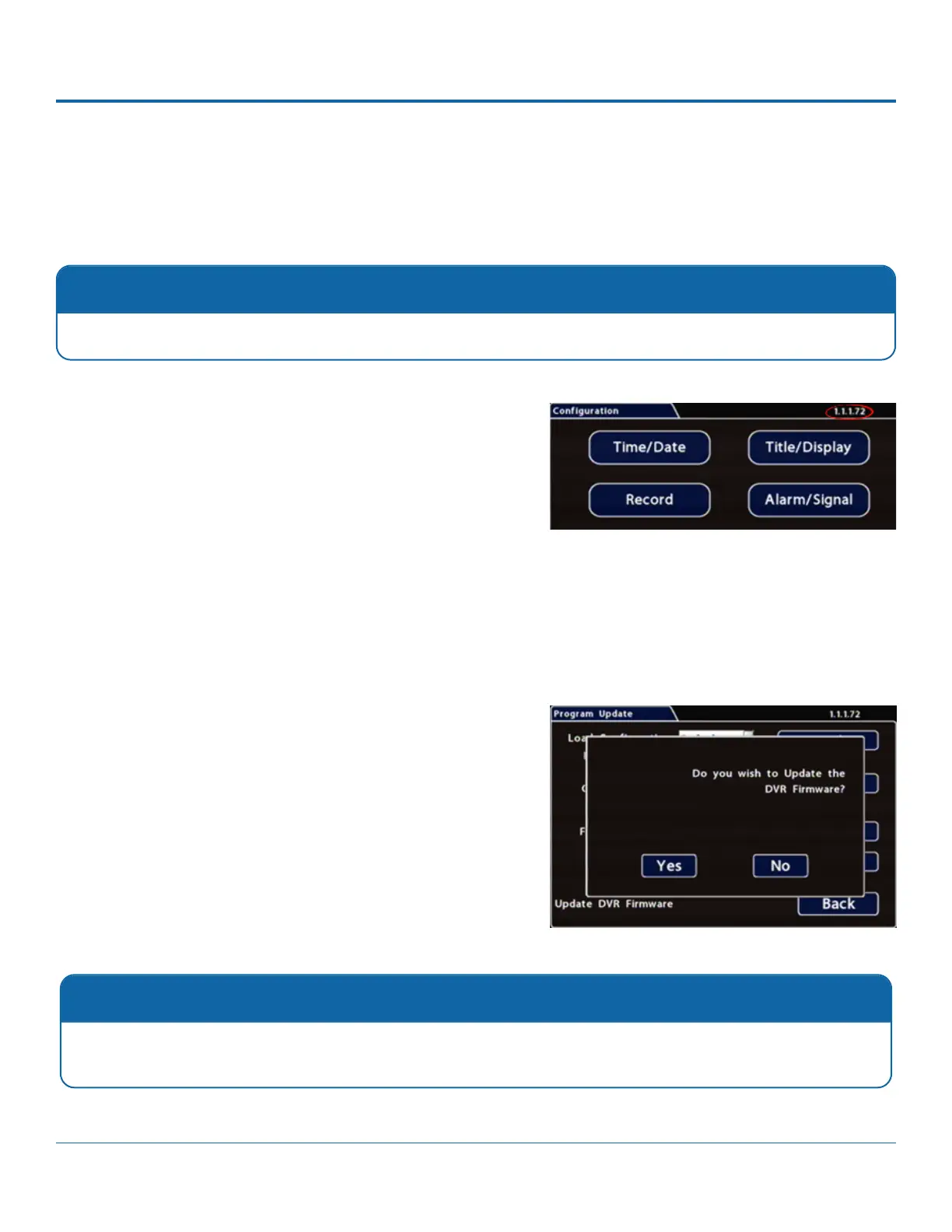
The current rmware version appears in the top-right corner
of every Conguration menu. For instructions on opening the
Conguration menus, see DH4C Administration: Accessing the On-
Screen Display.
Firmware Updates
Only install rmware updates as directed by Safe Fleet Technical Support.


 To Next Page