© Safe Fleet | 2020 | All rights reserved | Part #: 700-1213 R1
DH4C Installation Guide
p. 32
DH4C Basic Conguration
Copying DVR Conguration
Understanding Conguration Files
A conguration le preserves a particular DVR setup, so you can apply the settings to other DVRs in a single operation. You
create a named conguration le, which contains all a DVR's current Conguration menu settings.
If you need more than one system setup for your eet (for example, a specic number of cameras and viewpoints for different
vehicle congurations), build a separate conguration le for each situation.
You can load a conguration le onto DVRs during installation or when changes are required, and all settings are applied
automatically.
Copying DVR Settings
Before copying conguration, ensure the DVR is set up for specic vehicle type and mobile surveillance requirements, including
camera names/channels, recording parameters, Alarm and Signal assignments, system preferences, and networking details.
For more information, see DH4C Conguration: Setting up the DVR.
This procedure requires physical access to the DVR you want to copy settings from, a portable video monitor, a USB mouse,
and a USB storage device formatted by a Windows computer using the FAT.
3. Right-click anywhere in the OSD view to access the Main
Menu.
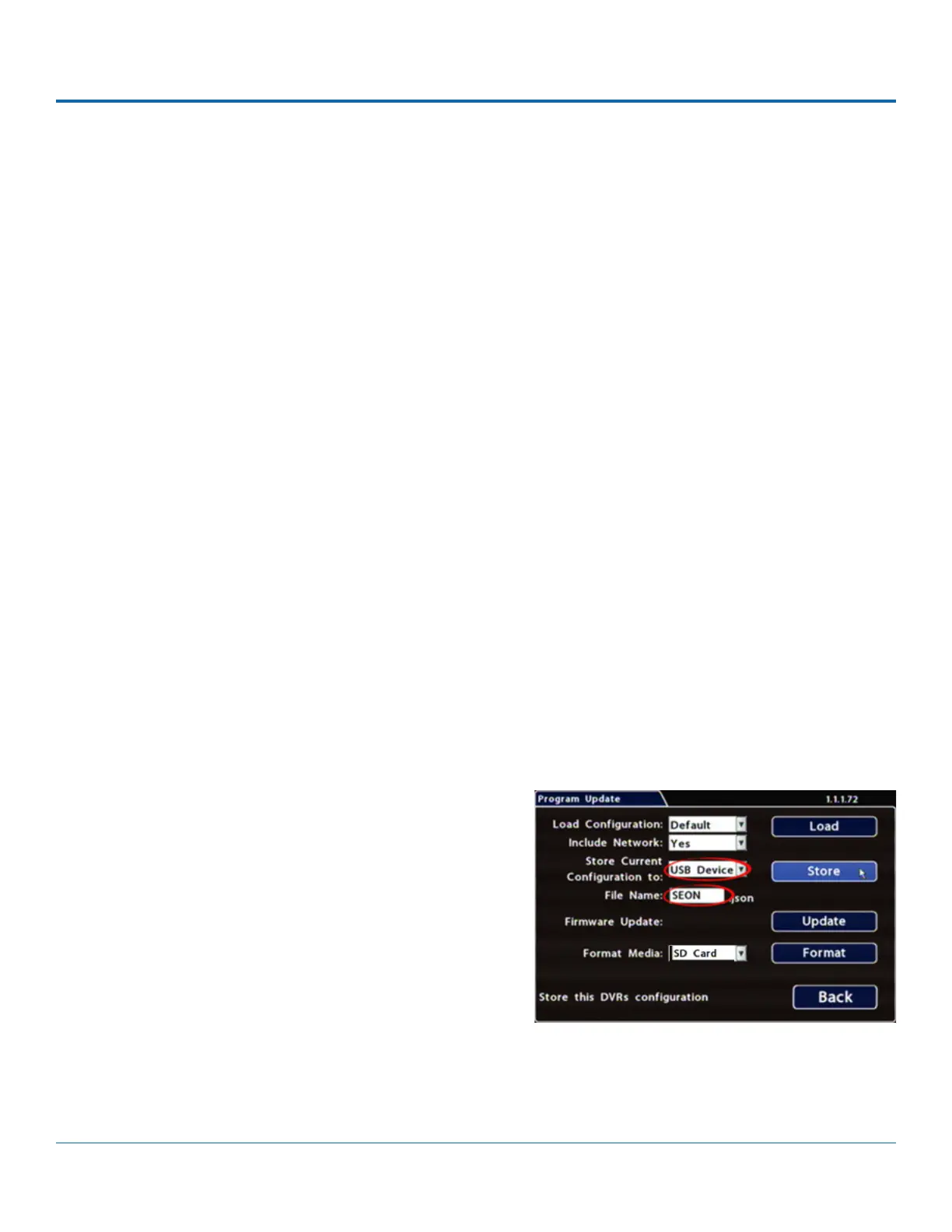
4. Select Conguration System Program Update.
5. In the Store Current Conguration to: pull-down menu,
select USB Device.
6. Click the File Name eld and use the on-screen keyboard to
change the conguration le name (maximum 4 characters).
Best practice is to choose a name that references the eet
and/or conguration type (e.g. "SB5C" for a school bus with
5 cameras).
7. Click Store. In the conrmation that appears, click Yes.
8. Click OK. The conguration le is created on the USB device.
To create a conguration le:
1. Insert the USB storage device in the USB port on the DVR's front panel. For more information, see DH4C Operation:
Front and Rear Panel Features.
2. Access the OSD (On-Screen Display). For details, see DH4C Administration: Accessing the On-Screen Display.


 To Next Page