© Safe Fleet | 2020 | All rights reserved | Part #: 700-1213 R1
DH4C Installation Guide
p. 43
DH4C Advanced Conguration
GPS Fencing
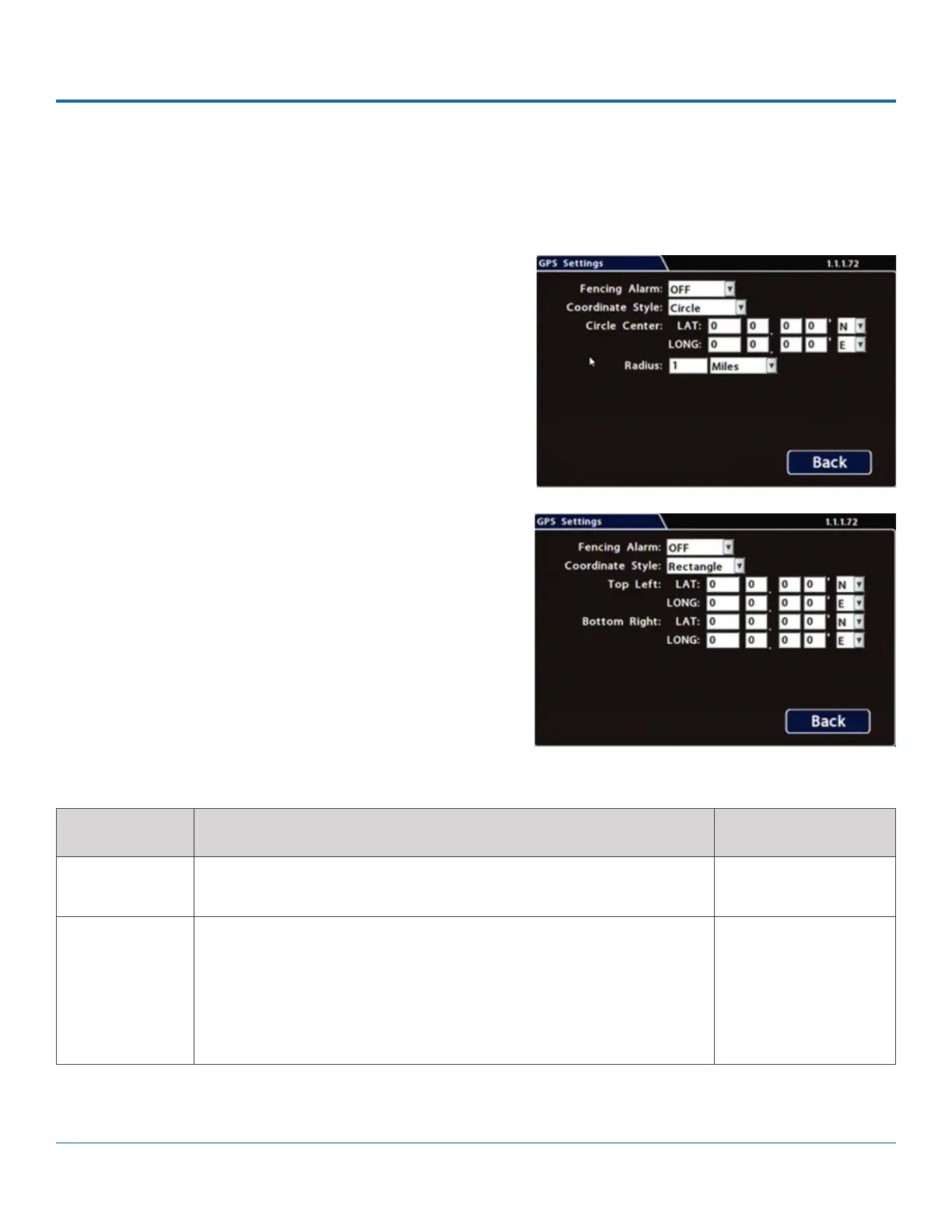
Conguring GPS Settings
To congure GPS Settings:
1. Select Alarm/Signal GPS to open the tab.
2. Congure speed settings as desired. For details, see
Menu Options, below.
3. Click Back to save settings, then click Back again to
return to the Conguration menu.
ITEM DESCRIPTION VALUE [DEFAULT]
Fencing Alarm ALM settings trigger the selected Alarm when the vehicle crosses the
fencing boundary, as dened by the selected coordinate style.
[OFF], ALM1 - ALM4
Coordinate
Style
Circle - sets the area for GPS fencing by identifying the center point and
radius. This option only displays "Circle center" and "Radius" data entry
elds.
Rectangle - Sets the area for GPS fencing by upper left and lower right
rectangular coordinates. This option only displays the "Top Left" and
"Bottom Right" data entry elds.
[Circle], Rectangle
Menu Options


 To Next Page