© Safe Fleet | 2020 | All rights reserved | Part #: 700-1213 R1
DH4C Installation Guide
p. 46
DH4C Advanced Conguration
ITEM DESCRIPTION VALUE [DEFAULT]
Password
Enable
When set to ON, local access to the DVR On-screen Display (including all DVR
control, conguration, and playback features) requires the System Settings
password.
[OFF], ON
Password Maximum 8 digits. [11111111]
Audio Output
Channel
Select the audio channel output through AUDIO RCA connector on the DVR front
panel.
[1], 2-6
Diagnostic
Indicator
Select the type of system status indicator installed in the vehicle (for more
information, see DH4C Operation: DVR Status).
[Button], RGY
Illum, RGY Button
Language Select a language for the DVR On-screen Display and vMax Web UI. [English], Spanish,
French, Dutch,
German
Menu Options
Monitor Settings
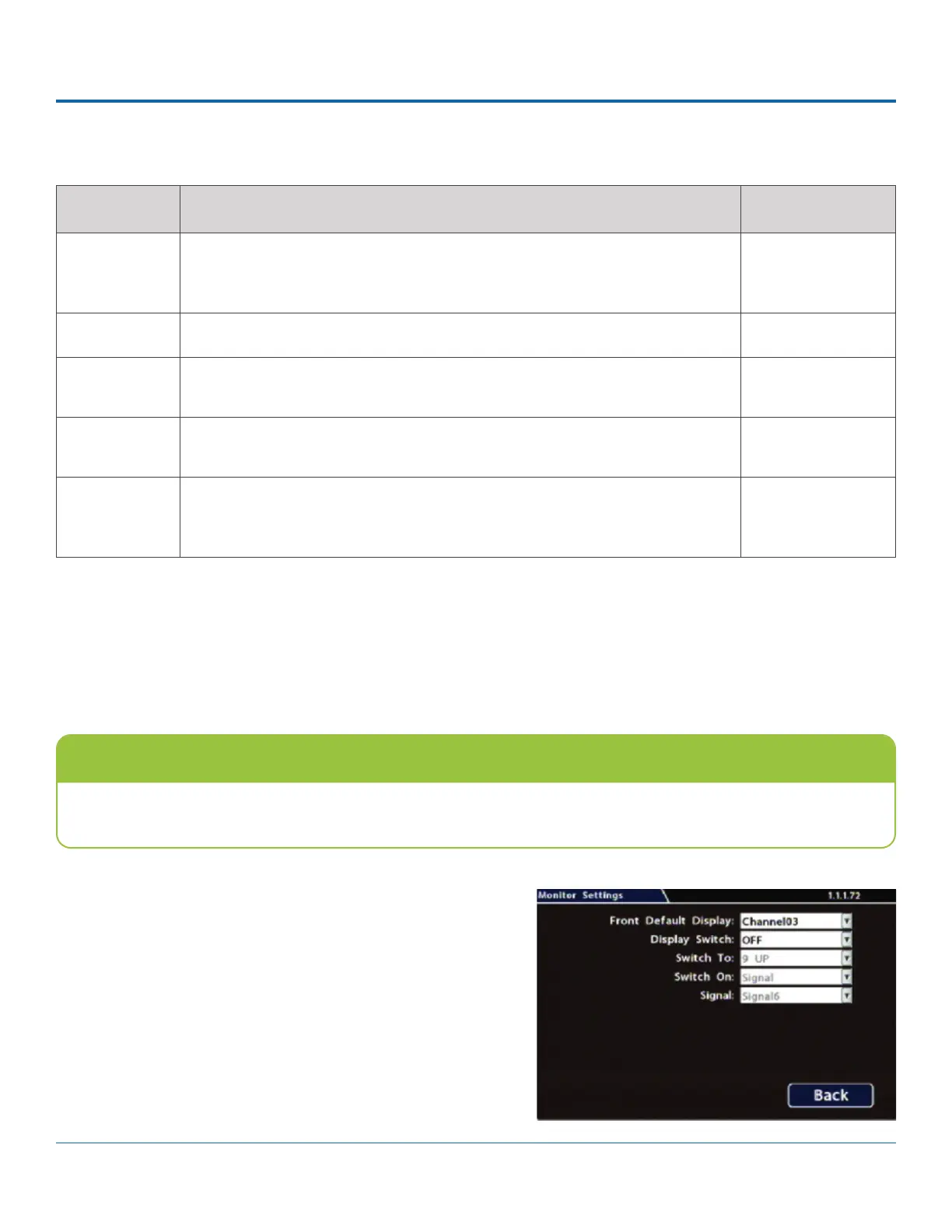
Conguring Monitor Settings
Monitor Settings control camera feeds sent to the Video Out RCA jack on the DVR front panel.
To congure Monitor Settings:
1. Select Title/Display Monitor Settings to open the tab.
2. Congure options as required. For details, see Menu
Options, below.
3. Click Back to save settings, then click Back again to
return to the Conguration menu.
Custom Monitor Displays
Monitor Settings can support custom implementations such as an entry/exit bus door camera with a dedicated moni-
tor to advertise the fact that riders are under surveillance.


 To Next Page