© Safe Fleet | 2020 | All rights reserved | Part #: 700-1213 R1
DH4C Installation Guide
p. 33
DH4C Basic Conguration
Applying DVR Settings
For new DVR installations, apply predened settings from a conguration le on a USB memory stick.
Once a DVR is set up, you can also upload a new conguration le by connecting to the DVR over a network, or via a video
management application if the DVR is equipped with wireless capabilities. Video management applications can also perform
batch updates on multiple DVRs (for more information, see the Commander and Depot Manager guides).
IMPORTANT
Do not edit or copy DVR conguration locally when making updates over a network.
5. Select Conguration System Program Update.
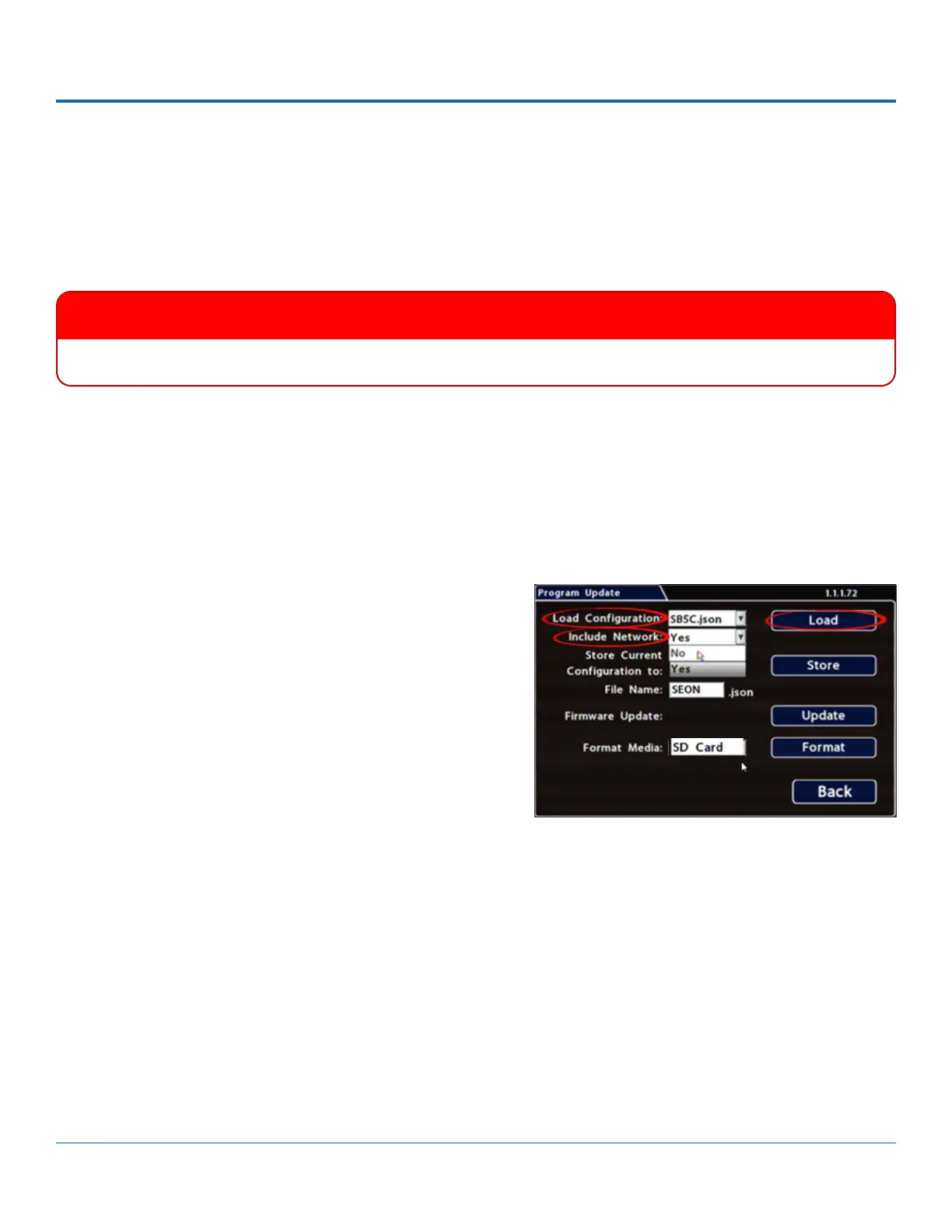
6. Use the Load Conguration menu to select the desired le.
Note: only the 10 most recent conguration les in the root
folder of the USB drive are available from the drop-down
menu.
7. From the Include Network pull-down menu, select whether
or not to overwrite DVR network settings:
• No keeps existing DVR network settings.
• Yes overwrites DVR network settings with conguration
from the le.
To copy conguration to a DVR from a USB storage device:
1. Power up the DVR using the vehicle ignition.
2. Connect the portable video monitor and USB mouse.
3. Insert a USB storage device containing a conguration le into the USB port on the DVR.
4. From the On-Screen Display, right-click anywhere in Live view to display the Main Menu.
8. Click Load, then select Yes in the conrmation dialog to proceed.
9. Click Back in the Program Update and System Settings tabs to return to the Conguration Menu.
10. Remove the USB memory device.
11. Conrm that the new conguration settings have been applied.
Open the Conguration menu and verify all Time/Date settings. Also be sure to update vehicle-specic conguration,
including:
• Title/Display Main Title - generally contains the bus #/vehicle ID where the DVR is installed
• Network conguration (if the DVR is equipped with wireless capabilities)
• Alarm/Signal G-Sensor calibration
For more information, see DH4C Conguration: Setting up the DVR.


 To Next Page