System Map: Left View 1 - 11
Quick Start Guide
1
System Map: Left View
1
5
2
4 6
3
7
Changing DVD Regional Codes
Go to the Control Panel and double-click System >
Hardware (tab), click Device Manager, then click
the + next to DVD/CD-ROM drives. Double-click on
the DVD-ROM device to bring up the Properties di-
alogue box, and select the DVD Region (tab) to
bring up the control panel to allow you to adjust the
regional code (see “DVD Regional Codes” on
page 2 - 5).
DVD region detection is device dependent, not OS-
dependent. You can select your module’s region
code 5 times. The fifth selection is permanent. This
cannot be altered even if you change your operating
system or you use the module in another computer.
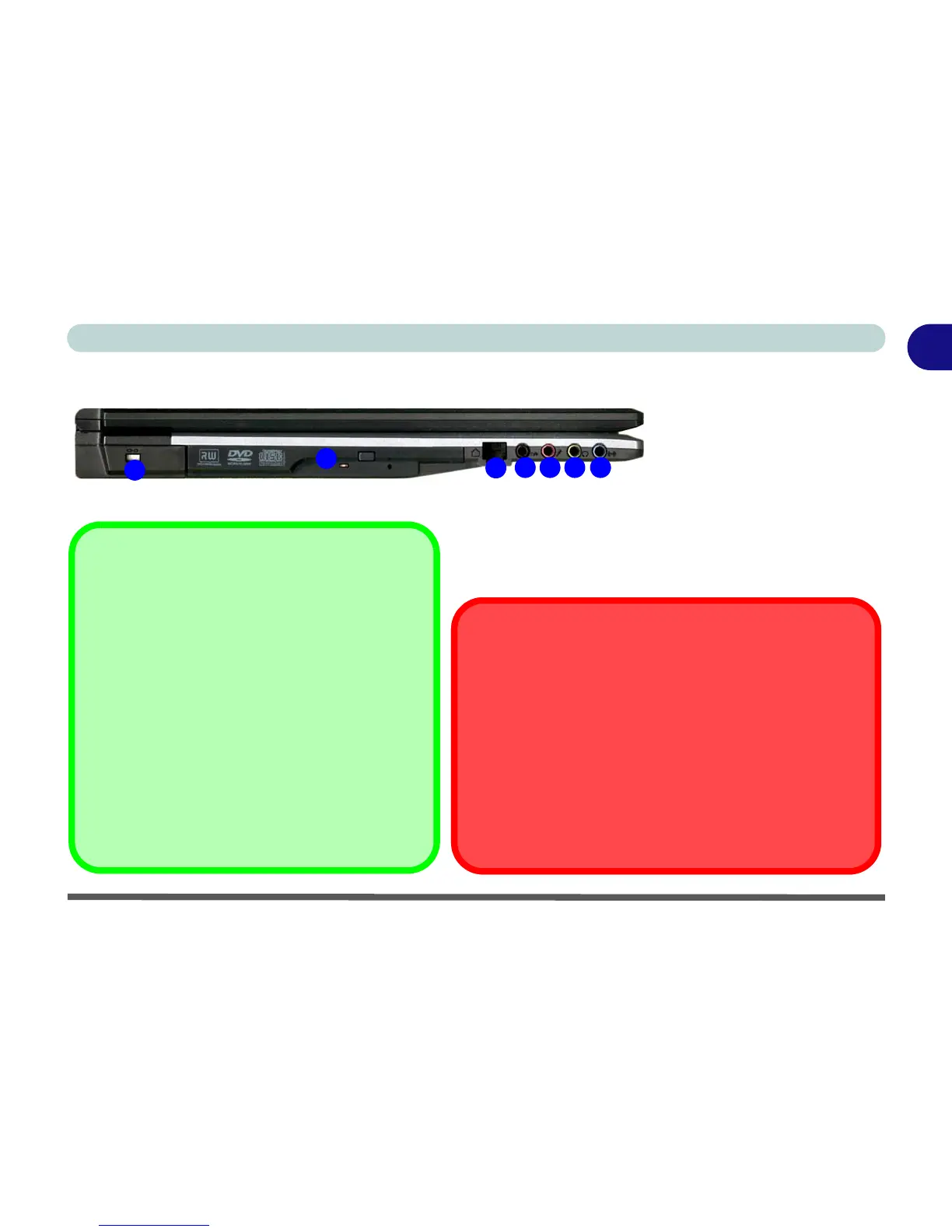
Figure 1 - 5 - Left View
1. Security Lock Slot
2. Optical Device Drive Bay
(see page 2 - 3)
3. RJ-11 Modem Jack
4. S/PDIF-Out Jack
5. Microphone-In Jack
6. Headphone-Out Jack
7. Line-In Jack
CD Emergency Eject
If you need to manually eject a CD/DVD (e.g. due to an unex-
pected power interruption) you may push the end of a straight-
ened paper clip into the emergency eject hole. Do not use a
sharpened pencil or similar object that may break and become
lodged in the hole.
Media Warning
Don’t try to remove a floppy disk/CD/DVD while the system is
accessing it. This may cause the system to “crash”.



 To Next Page