P003948 Uscan User Manual Page | 16
Basic Device Control
The Uscan communicates with the user in a number of ways.
Menus
Screens and windows
Message boxes
Icons
Navigate by using the touch screen, using common control gestures such as tap, drag, pinch, spread, and
swipe.
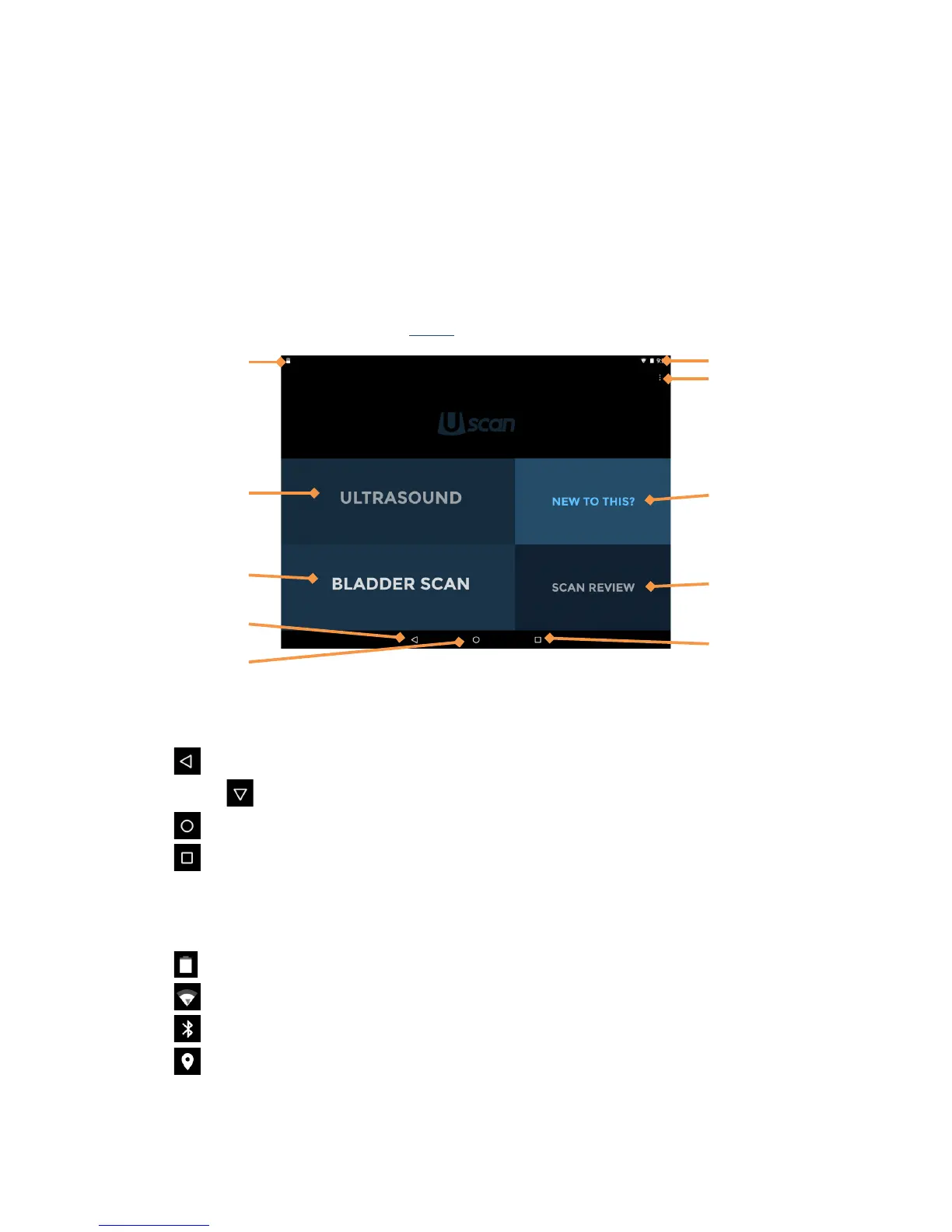
The system controls and status are shown in
Fig 2.3.
Fig 2.3 Uscan Home Screen
System Controls
Three system controls are always avail
able at the bottom of the screen:
Back – tap to return to a previous screen.
Hide –
shown when a keyboard is active. Tap to hide a keyboard.
Home – tap to return to the Home screen.
Tasks – tap to display background tasks (this should not be used except by administrators or
service staff).
System Status Icons
System status icons are shown at the top right of the sc
reen:
Tablet (or phone) battery status.
Wi-Fi status.
Bluetooth status (used for wireless printing and bar code scanning).
Location services – The device GPS is active and transmitting.


 To Next Page