P003948 Uscan User Manual Page | 50
From the Home screen, tap and select Settings.
Select Administration the
n select Restrict Viewing Images during Bladder Scanning.
The ultrasound scanning password w
ill be required to view images during bladder scanning.
Data Recording Restrictions
The Uscan enables institutions to restrict saving, printing, and exporting ultrasound and/or bladder data.
To restrict Ultrasound Data Recording:
From the Home
screen, tap and select Settings.
Select Administration the
n select Ultrasound Data under Recording.
Select Do not allow recording to rest
rict recording ultrasound data.
To restrict Bladder Data Recording:
From the Home
screen, tap and select Settings.
Select Administration the
n select Bladder Data under Recording.
Select Allow rec
ording volume only to restrict recording bladder images but allow recording volumes.
Select Do not allow recording to rest
rict recording all bladder data.
Storage Access Restrictions
To restrict access to exported images via USB:
From the Home
screen, tap and select Settings.
Select Administration the
n select Restrict access to exported images via USB under Storage Access.
Device Tracking
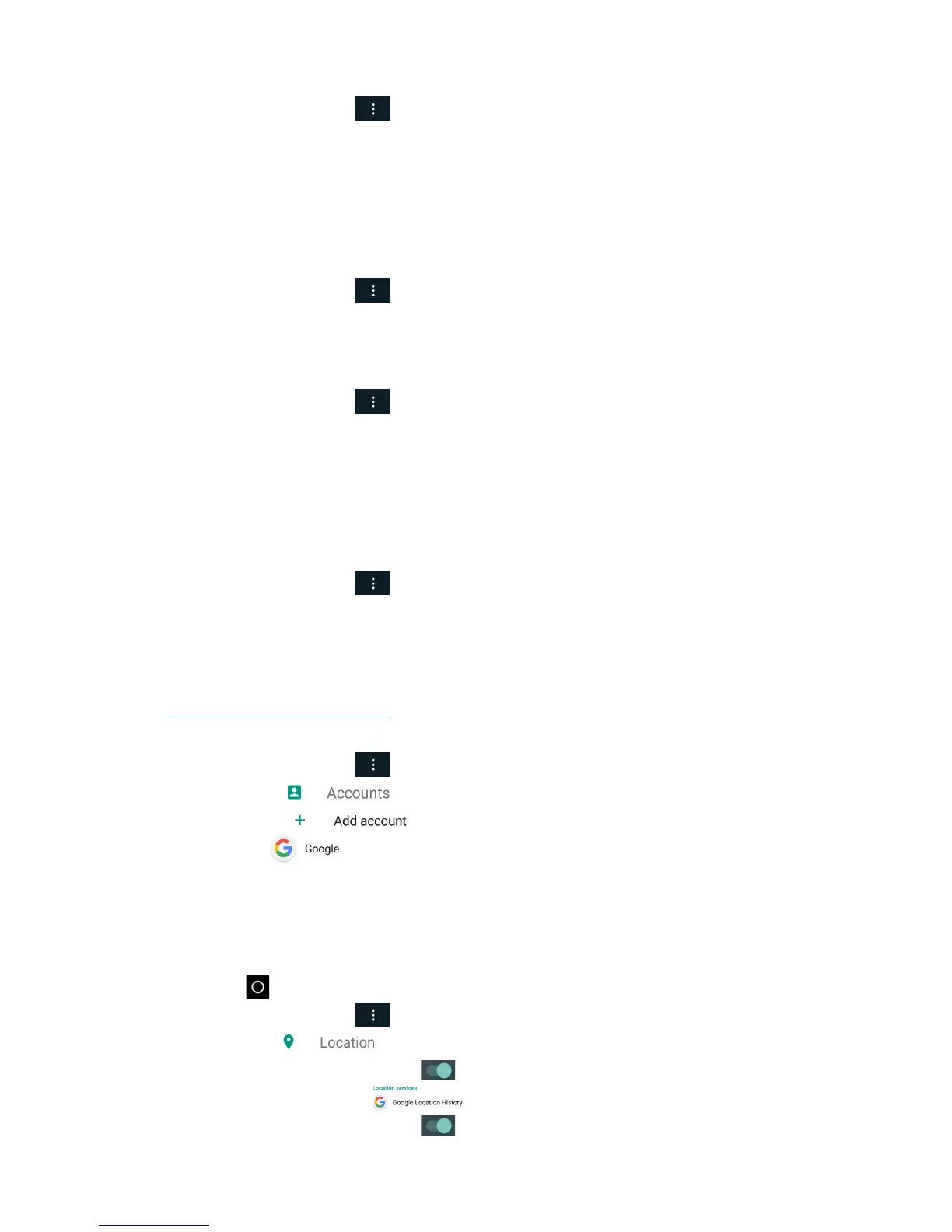
To track a device it needs to be connected to Wi-Fi and linked to a Google account.
Go to
https://accounts.google.com/signup on a computer to create a Google account.
To setup tracking perform the following on the Usc
an display:
From the Home
screen, tap and select Settings then select System Settings.
Select Accounts
Tap Add Account
Select Google
Enter your Google email and tap Next.
Enter your password and tap Next.
Optional – uncheck Google Se
rvices. Tap Next.
Select “No Thanks” for Payment Info.
Tap Next.
Tap Home
to return to the Uscan Home screen.
From the Home
screen, tap and select Settings then select System Settings.
Select Location
Slide the on-screen button to the right
to turn Location Services on.
Tap Go
ogle Location History
Slide the on-screen button to the right
to turn on Google Location History.


 To Next Page