P003948 Uscan User Manual Page | 49
User Management
From the Home screen, tap and select Settings.
Select Administration the
n select Manage Users.
Tap the
icon in the top right of the screen.
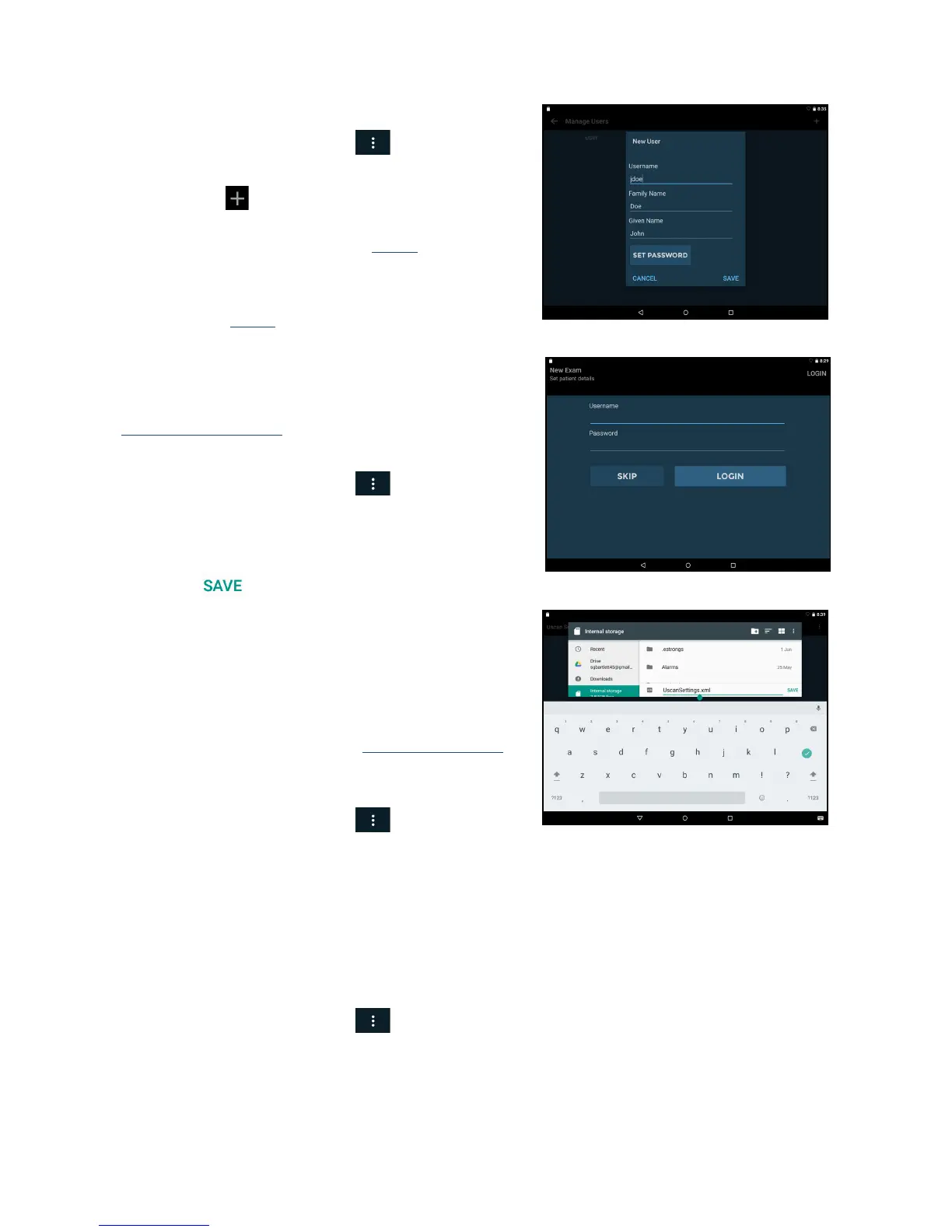
Enter a Username, Family name,
Given name, and if
required set the password (see Fig
9.1).
Tap Sa
ve to finish.
The user will need to enter a user name and password to save
pati
ent data (see Fig
9.2).
Multiple Device Setup
To setup multiple devices with identical preferences and users,
first configure one device with the required settings (see
Preference SetupSettings).
Export the settings to a file:
From the Home
screen, tap and select Settings.
Select Administration the
n select Settings
Management.
Select Export
Uscan Settings.
Tap
to write the settings to an xml file.
Copy the xml file from the tablet or handheld display
to a host comput
er (for example by connecting the
tablet to a computer by a USB cable and copying the
file from the tablet to the computer).
On each of the other syst
ems to be setup, import the settings:
Turn the tablet or handheld disp
lay on and follow the
initial setup instructions (see
Setting up the System).
Copy the xml file from the host computer to the
display local st
orage.
From the Home
screen, tap and select Settings.
Select Administration the
n select Settings
Management.
Select Import Scan
Settings.
Select the xml file to import.
Ultrasound Scanning Restrictions
To setup a password for accessing ultrasound scanning functionality:
From the Home
screen, tap and select Settings.
Select Administration the
n select Restrict Ultrasound Scanning.
Enter a password for accessing ultrasound functionality
. Ensure you record the password in a secure
location and do not forget or lose it.
To require ultrasound scanning passw
ord for viewing images during bladder scanning:


 To Next Page