P003948 Uscan User Manual Page | 19
Network Printer Setup (Optional)
Network printing enables the Mopria Print Service. The
Mopria Print Service enables printing to Mopria certified
multifunction printers from many manufacturers which are
on a connected WiFi network (see
www.mopria.org).
Follow the instructions below to setup network printing:
Tap
Uscan menu and select Settings.
Tap S
ystem Settings.
Scroll down and tap Pri
nting.
Tap Mopria Print
Service.
Slide the on-screen button
to the right to turn
Mopria Printing on.
Tap Home
to return to Uscan Home screen.
Tap
Uscan menu and select Settings.
Tap P
rinting.
Tap P
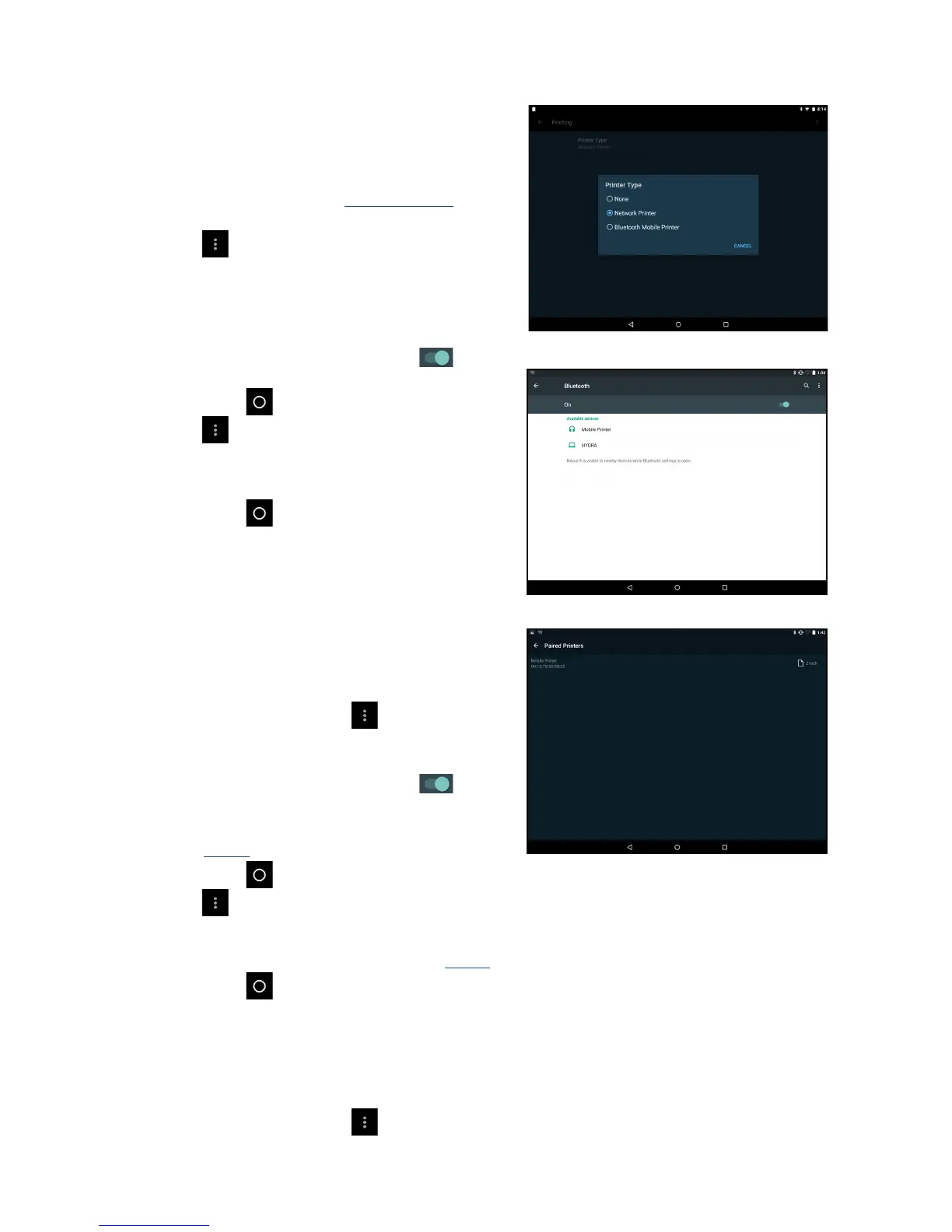
rinter Type and select Network Printing.
Tap Home
to return to Uscan Home screen.
A printer icon will be shown on all bladder and
ultras
ound images when Network Printing is
selected.
Bluetooth Printer Setup (Optional)
An optional Bluetooth printer is available. Turn the
wireless printer on and then follow the instructions below
to setup the printer:
From the Home
screen tap Uscan menu and
select S
ettings. Tap System Settings. Tap
Bluetooth.
Slide the on-screen button
to the right to turn
Bluetooth on.
Select Mobile Printer to pair it wi
th the system
(see
Fig 2.4).
Tap Home
to return to Uscan Home screen.
Tap
Uscan menu and select Settings.
Tap P
rinting. Tap Printer Type and select Bluetooth Mobile Printer. Tap Bluetooth Printer.
Select the paired printer from the list (see
Fig 2.5).
Tap Home
to return to Uscan Home screen.
Bar Code Scanner Setup (Optional)
An optional wireless bar code scanner is supported in some countries. Bar code scanning using the device
camera is also supported. To setup the wireless bar code scanner turn the bar code scanner on and follow the
instructions below:
From the Home
screen tap Uscan menu, select Settings, and select System Settings.


 To Next Page