CHAPTER 7
TROUBLESHOOTING YOUR INTERACTIVEFLATPANEL
36 smarttech.com/kb/170642
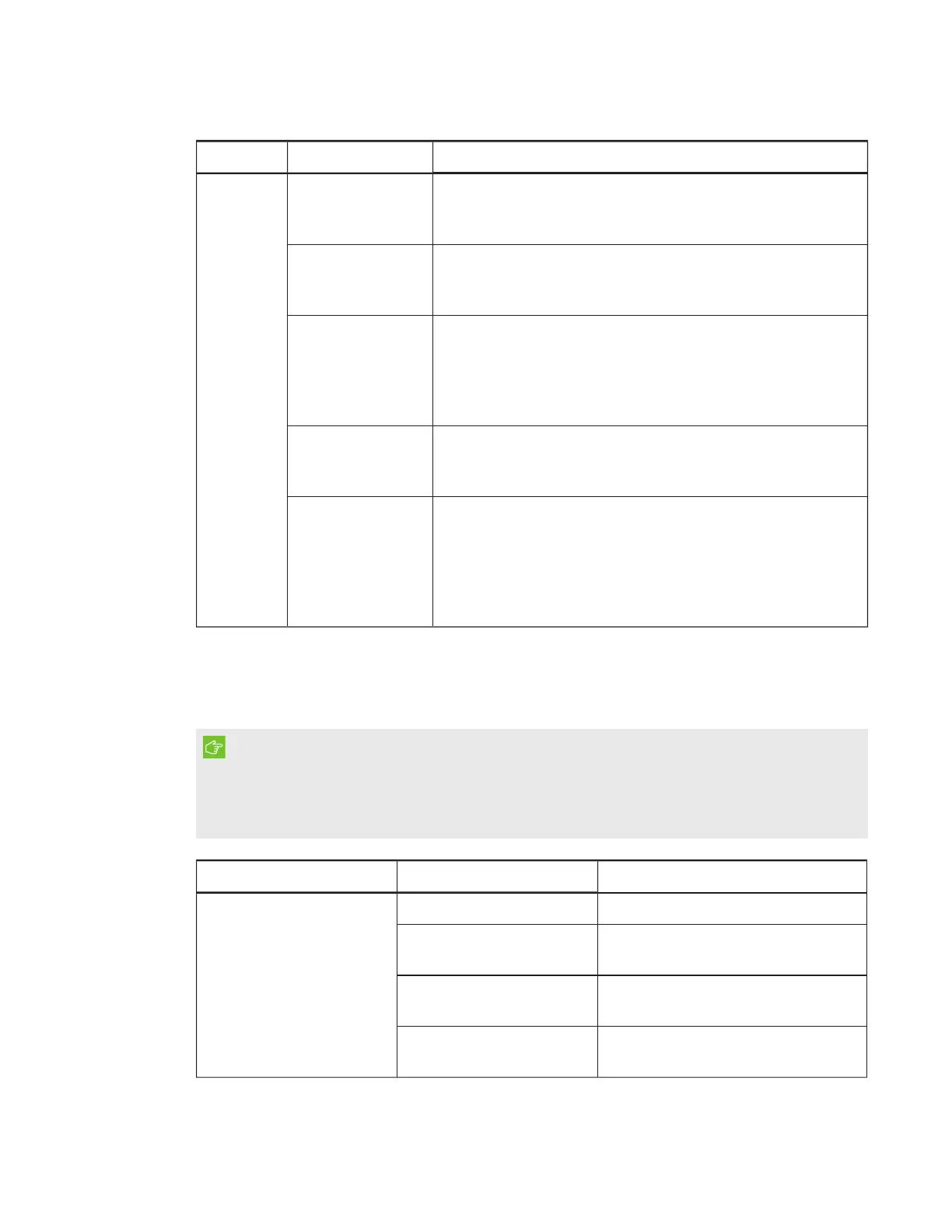
Symptom Causes Solution
An area of
the screen
doesn’t
respond to
your touch
or when
you draw
digital ink,
the lines
are broken.
Something is
blocking the
cameras.
Ensure nothing is taped to the screen.
Something is on
the reflective tape
channel.
Remove items from the reflective tape channel.
Your finger or pen
is skipping as you
draw. This is most
common on the
upstroke.
Use consistent pressure while drawing digital ink.
Bright lights are
interfering with the
cameras.
Close blinds or shades or dim all halogen lights and LEDs.
Your cameras
require calibration,
possibly because
of a temperature
change in the
room.
Calibrate your interactive flat panel (see page25).
Resolving audio issues
IMPORTANT
Ensure that you can see your computer’s desktop and that you have touch control and digital ink
before using this table. If not, resolve those issues before completing the steps in the table
below.
Symptom Causes Solution
Sound doesn’t play when
you play a sound file.
Your computer is muted. Turn off the mute setting.
Your computer’s volume is
too low.
Turn up the volume on your
computer.
Your interactive flat panel is
muted.
Turn off the mute setting using the
front control panel.
Your interactive flat panel’s
volume is too low.
Turn the volume up using the front
control panel.



 To Next Page