CHAPTER 7
TROUBLESHOOTING YOUR INTERACTIVEFLATPANEL
35 smarttech.com/kb/170642
Resolving touch control and digital ink issues
Use the following troubleshooting table if you can see your computer desktop on your interactive
flat panel, but you don’t have touch control over the desktop.
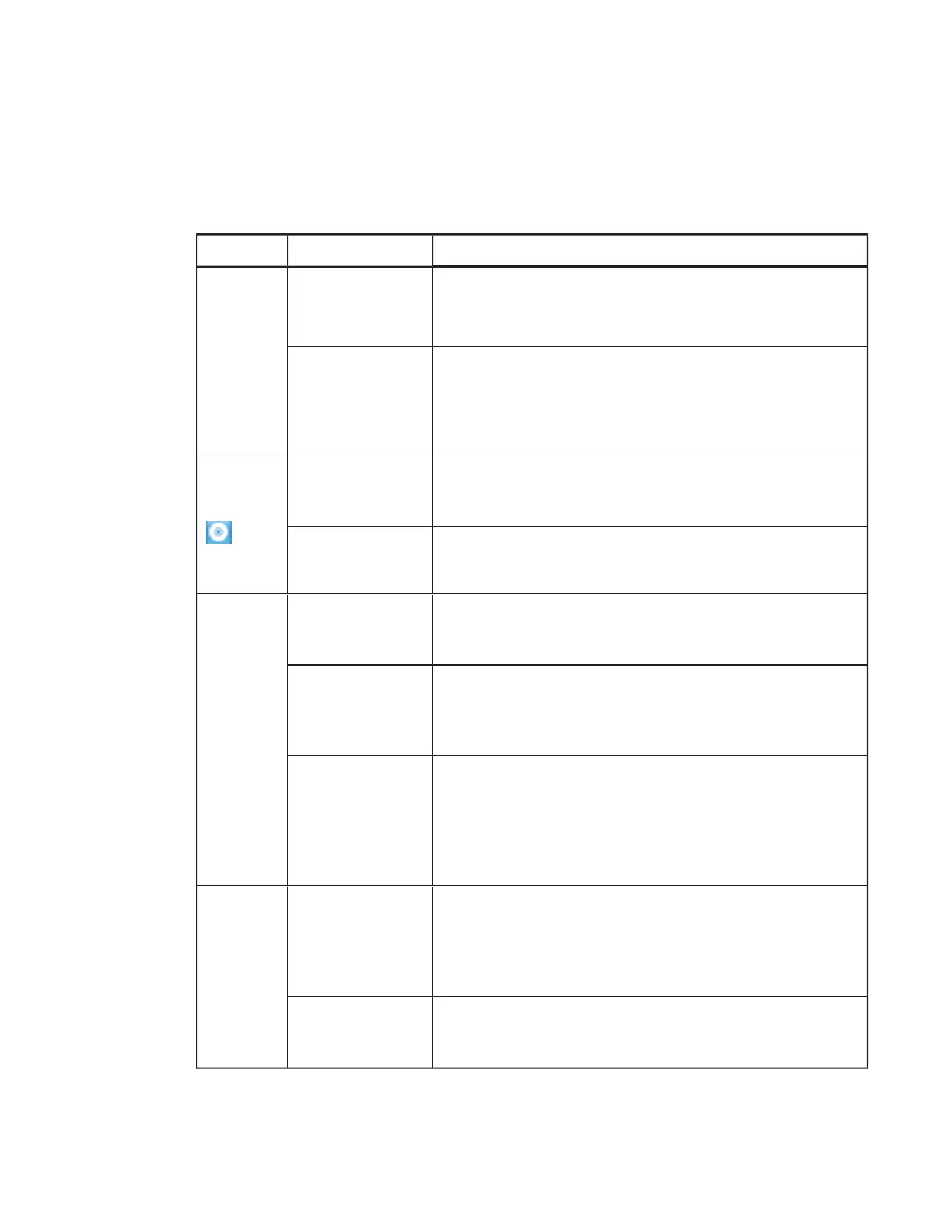
Symptom Causes Solution
When you
touch the
screen, no
pointer
appears
and you’re
unable to
move
icons.
SMARTProductDri
vers isn’t current.
Update SMARTProductDrivers (see page24).
There’s no USB
connection from
the computer to
the interactive flat
panel.
Verify your connections (see page14).
The
SMARTBo
ard icon
doesn’t
appear.
SMARTProductDri
vers isn’t installed.
Download and install SMARTProductDrivers from
smarttech.com/downloads.
SMARTProductDri
vers isn’t running.
Start SMARTBoard Tools following the steps in the Help (see
page7).
Touch
interactivit
y is slow.
Your computer is
running too many
applications.
Close some open applications.
Your computer
doesn’t meet
system
requirements.
Upgrade your computer or replace it with another computer
that meets system requirements.
You haven’t used a
USB 2.0 cable to
connect your
interactive flat
panel to your
computer.
Use a USB 2.0 cable and ensure it’s connected to the USB
receptacle.
When you
touch the
screen, the
pointer
appears in
the wrong
location.
You aren’t touching
the screen at a
right angle.
For more information, see
Touching and drawing on your
SMART Board interactive whiteboard is inaccurate
(
http://knowledgebase.force.com/articles/TROUBLESHOOTIN
G/Touching-and-drawing-on-your-SMART-Board-interactive-
whiteboard-is-inaccurate-1378705217746).
Your interactive flat
panel isn’t
oriented.
Orient your interactive flat panel (see page24.)



 To Next Page