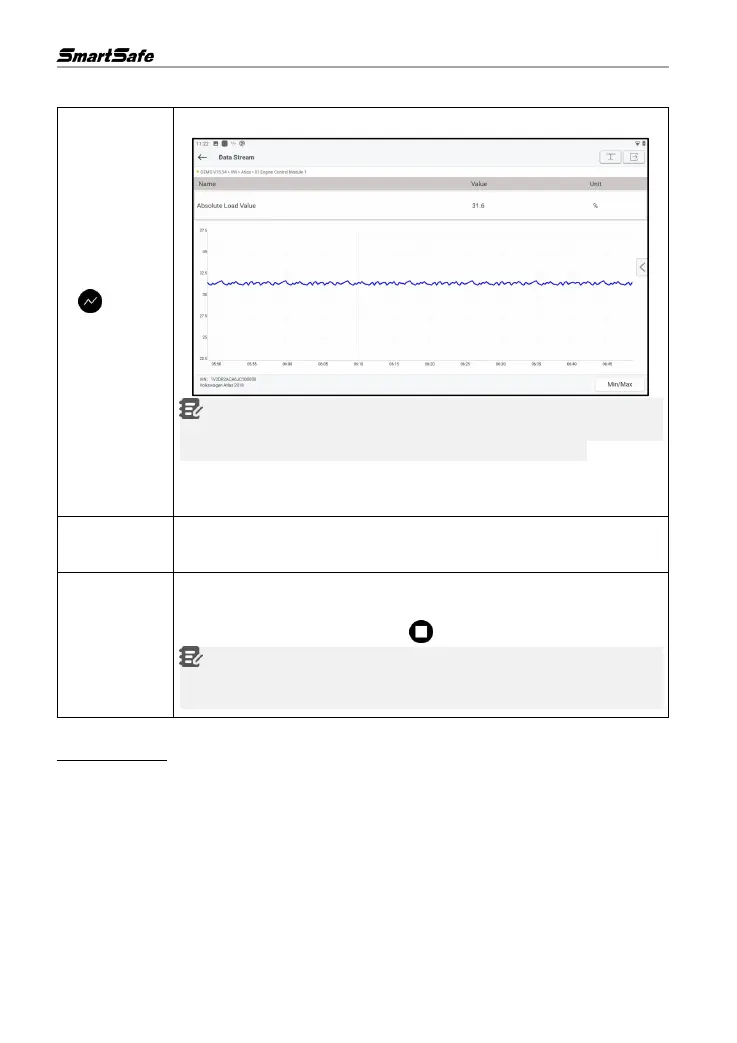
Screen Button Description:
Click to display the current (single) data stream as a waveform graph.
Note: The waveform can be zoomed in or out. Tap the screen with two
fingers (thumb and index finger, for example), then slide the fingers to adjust
the distance between the fingers to zoom in and out of the screen.
•
• Min/Max Limit: Click to set the maximum/minimum value. Once the running
value exceeds the set value, the system will issue a warning.
Click to save the current data stream values as a report. All saved test reports
can be viewed by clicking Reports in the main interface.
Click to start recording inspection data. Recorded inspection data can provide
an important reference when technicians troubleshoot vehicle problems. If you
want to stop reading, click the button in front of the progress bar.
Notes: The saved file is named after the model + the VCI device serial
number + the system time at which recording started. To better distinguish
filenames, configure the correct system time.
E. Actuation test
The function is mainly used to test whether the execution elements in the electronic control system
can work properly.
4.2.3 Choose to Scan
This function is used to select the vehicle electronic control system required by the user for
scanning. In the test option selection interface, check the check box in front of the system to be
scanned, and then tap Choose to Scan to start scanning the selected system.



 To Next Page