BTP-2002NP User’s Manual
7 Troubleshooting
If the printer does not operate correctly, refer to the troubleshooting table below. If there are still
problems that cannot be solved, please contact your local distributor or a manufacturer technician for
assistance.
7.1 Clearing Paper Jams
When encountering a cutter malfunction due to paper jams or unexpected power off, do not open the
top cover of the printer by force because the sliding blade of the cutter might have not gone back to
its original position and have blocked the cover. Open the top cover by force will damage the cutter.
In case of such a malfunction of the cutter, please follow instructions below to solve the problem.
1) Power off the printer.
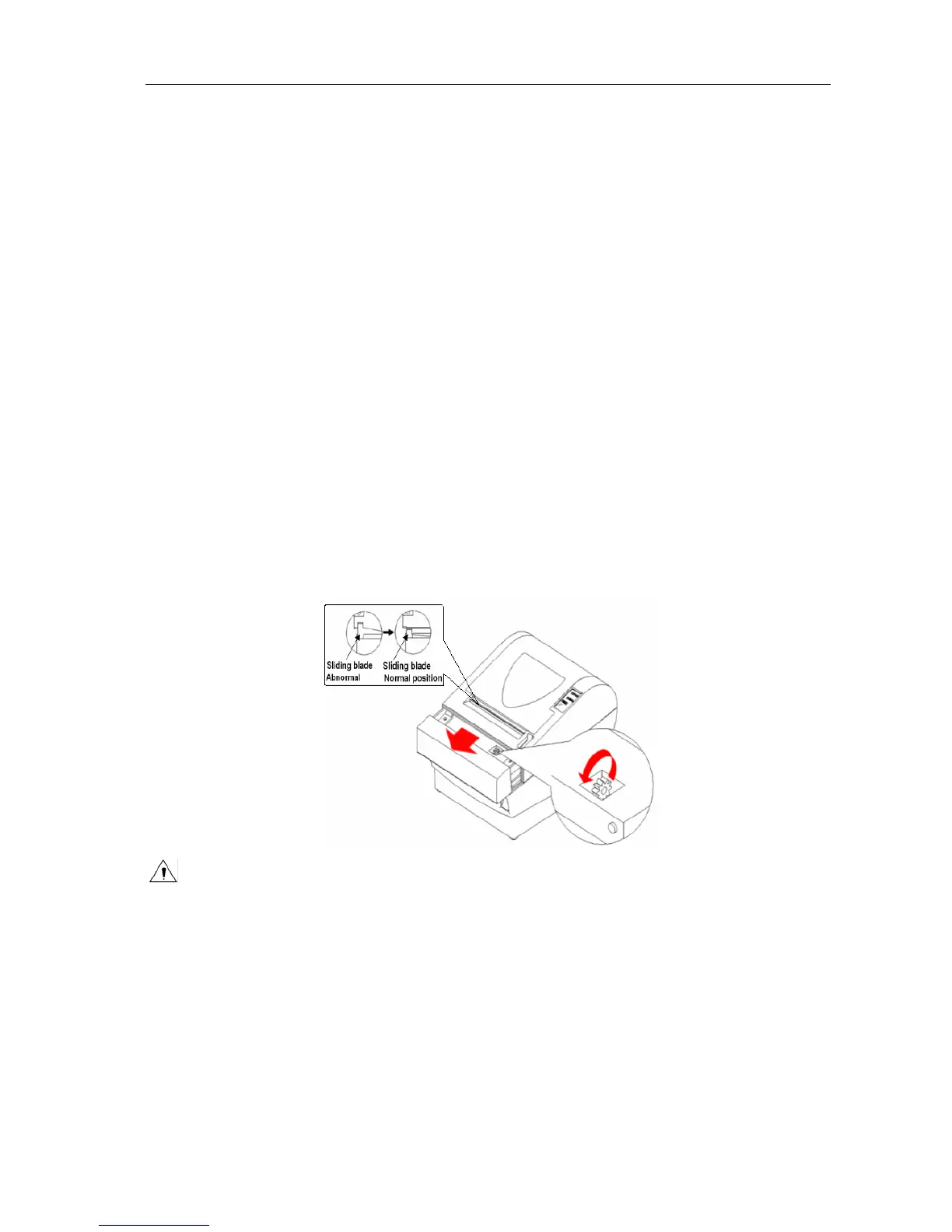
2) Remove the cutter cover (the cutter cover is the part with brand name) as in the figure below.
A wheel-knob will be exposed. If the cutter works in full cut mode, turn the wheel-knob
towards the front of the printer as shown in the figure below.
3) If the auto cutter works in partial cut mode, turn the wheel-knob towards the back of the
printer.
4) When turning the wheel-knob observe the movement of the sliding blade through the paper
exit. Do not stop turning before the sliding blade is completely separated from the stationary
blade (which is mounted in the top-cover). Then open the top cover to clear paper jams.
Caution
Usually, at the beginning of turning the wheel-knob, the sliding blade will move slowly as if it
does not move. But in fact it does. Therefore, keep turning while carefully observing its
movement of the sliding blade.
In case of being unable to turn the knob towards the front of the printer as shown in figure
above, turn it in the back direction.
- 19 -


 To Next Page