93
GB
Printing from a PC (PC mode)
Notes
• In case the installation window is
not automatically displayed, double-
click the “Setup.exe” of the CD-
ROM.
• Depending on the PC system
environments, the Microsoft Data
Access Component 2.7 and Jet 1.0
should be installed during the
PictureGear Studio installation. If
so, the dialog box used for installing
the programs will be displayed
automatically; Follow the on-screen
instructions proceed with the
installation.
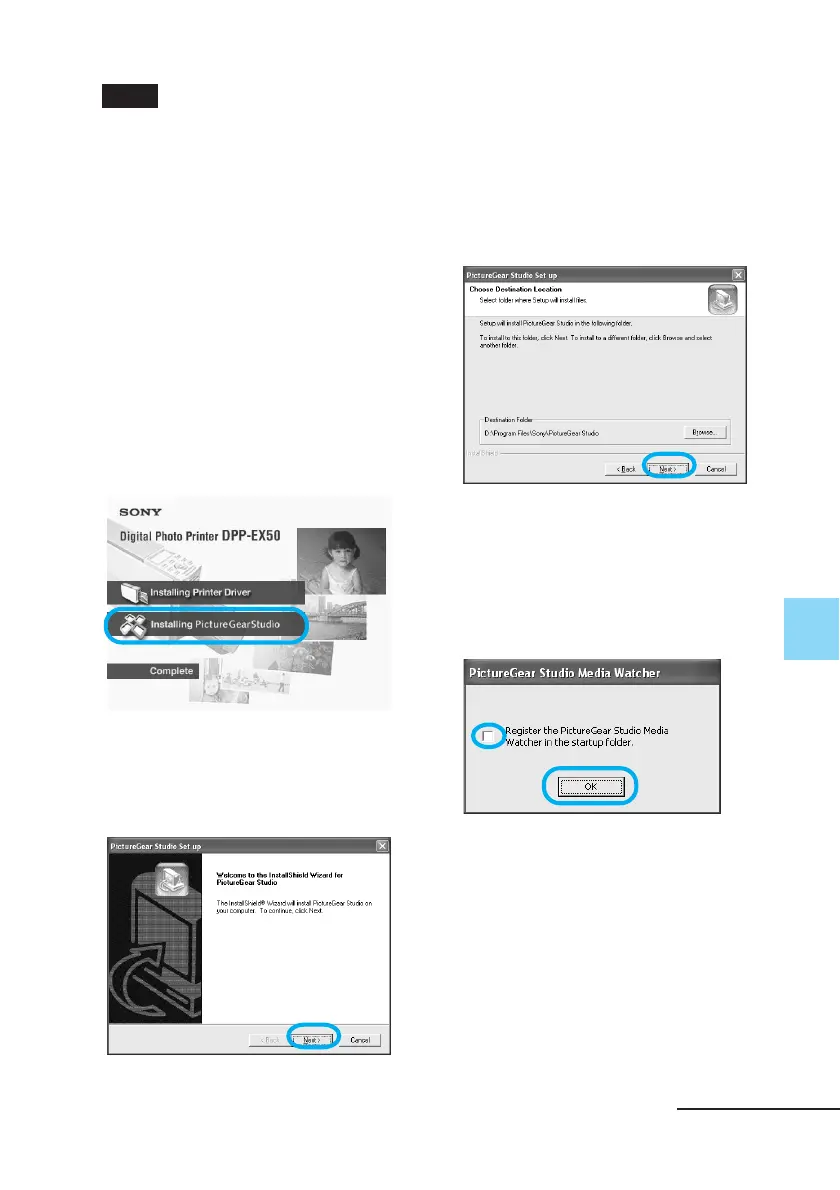
3 Double-click “Installing
PictureGear Studio.”
The “PictureGear Studio Setup”
dialog box appears.
4 Click “Next.”
The dialog box to specify the
destination folder is displayed.
5 Check the destination and
then click “Next.”
To specify a different destination
folder, click “Browse,”
The “PictureGear Studio media
watch tool” dialog box is displayed.
6 To register the Media
Watcher, check “Register the
PictureGear Studio Media
Watcher in the startup folder”
and then click “OK.”
When the installation is completed,
the installation complete dialog box
is displayed.
Continued



 To Next Page