Help Guide
IC Recorder
ICD-TX800
Playing a file
You can select a file from the HOME menu for playback.
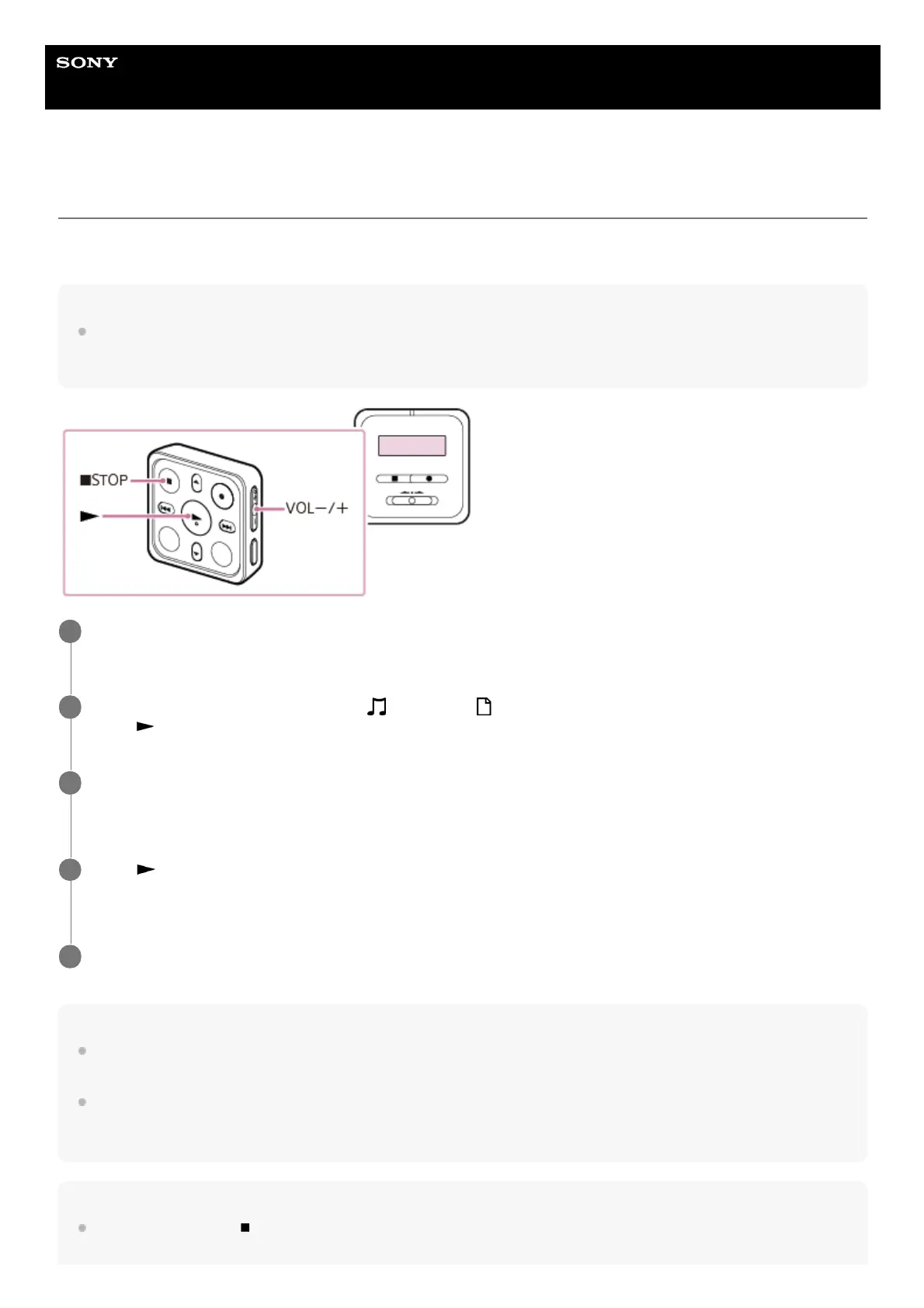
Operate the remote control and follow the steps below:
Note
Your IC recorder is not equipped with built-in speakers. To listen to audio, connect the supplied stereo headphones to your IC
recorder with the dedicated headphone cable that is also supplied with the IC recorder. Then, operate the remote control to play a
file.
Note
For the customers in Europe only:
When you try to adjust the volume to a level that exceeds the specified level, the “Check The Volume Level” message appears.
Your IC recorder does not support the Bluetooth profiles (A2DP and AVRCP). Therefore, the external device that is connected to
the IC recorder via a Bluetooth connection, such as a Bluetooth audio device or a smartphone, cannot play the audio files that are
stored on the IC recorder. Only the IC recorder can play such files.
Hint
To stop playback, press
STOP.
Connect the supplied stereo headphones to the USB/Headphone connector on the IC recorder with the
dedicated headphone cable that is also supplied with the IC recorder.
1
Operate the remote control to select “
Music” or “ Recorded Files” on the HOME menu, and then
press
.
2
Search and select a file.
For instructions on searching a file, see Selecting a file.
3
Press
.
Playback starts.
4
Press VOL -/+ to adjust the playback volume.
5


 To Next Page