Help Guide
IC Recorder
ICD-TX800
Deleting a folder
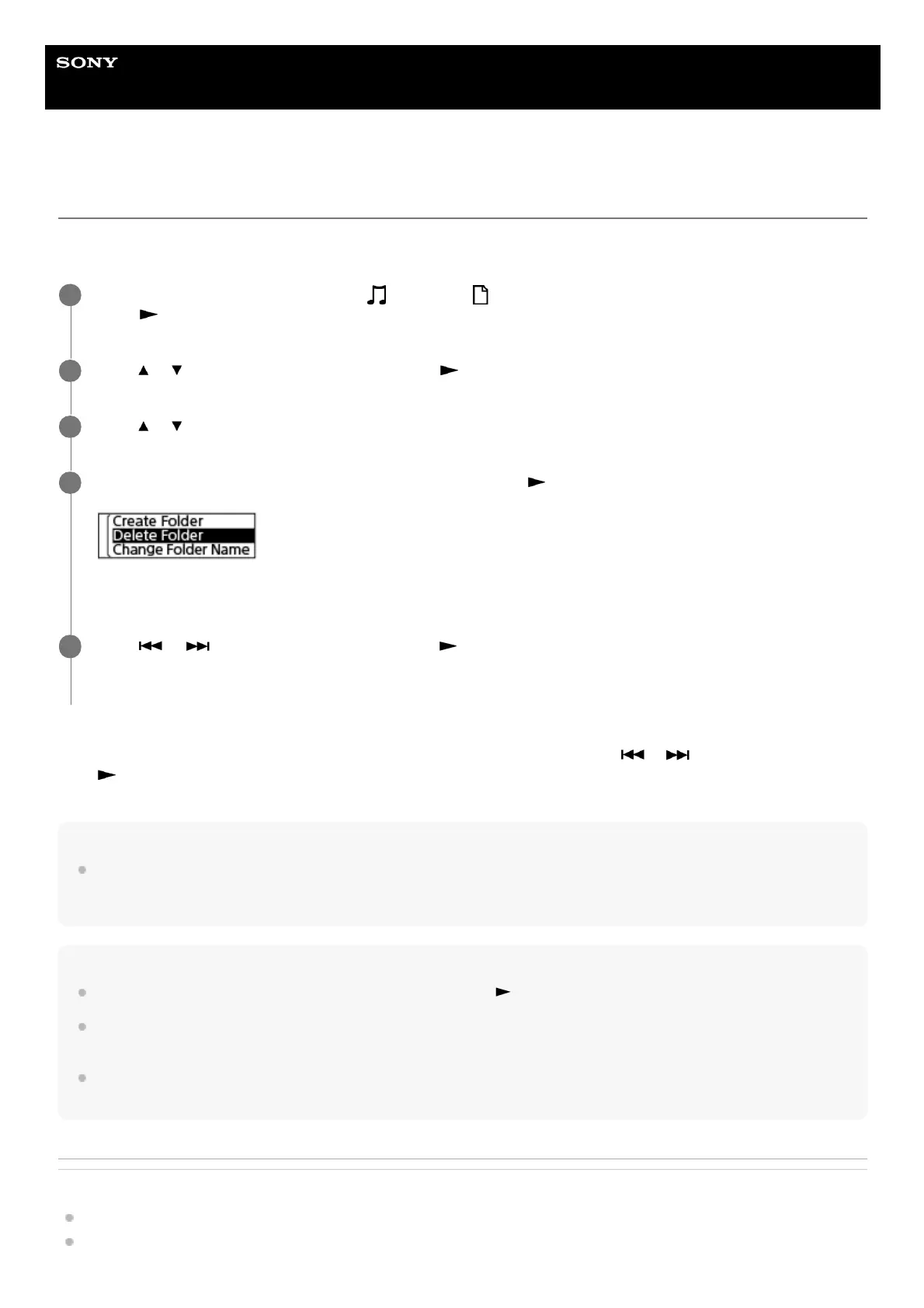
You can select a folder and delete it.
Operate the remote control and follow the steps below:
If the selected folder contains files, “Delete All Files in This Folder?” appears. Press
or to select “Yes,” and then
press
to delete the folder and its files. If the selected folder contains sub-folders, however, you cannot delete the sub-
folders and their files.
Note
If the selected folder contains protected files, an attempt to delete the folder only deletes unprotected files, leaving the folder and
the protected files undeleted. Remove the protection from such files first, then delete the folder. For instructions on removing
protection, see Protecting a file.
Hint
To cancel the deleting process, select “No” in step 5, and then press
.
If you delete the current storage folder for recorded files, “Switch Recording Folder” appears on the display window and
“FOLDER01” (default destination folder) is assigned as the new storage folder for recorded files.
If you delete all of the storage folders for recorded files, “No Folders - Creating New Recording Folder” appears on the display
window and “FOLDER01” is automatically created.
Related Topic
Deleting a file
Deleting all files in the searched folder or list
Operate the remote control to select “
Music” or “ Recorded Files” on the HOME menu, and then
press
.
1
Press
or to select “Folders,” and then press .
2
Press
or to select the desired folder.
3
Select “Delete Folder” on the OPTION menu, and then press
.
“Delete?” appears on the display window.
4
Press
or to select “Yes,” and then press .
The selected folder is deleted.
5


 To Next Page