Help Guide
IC Recorder
ICD-TX800
Deleting a file
You can select a file and delete it.
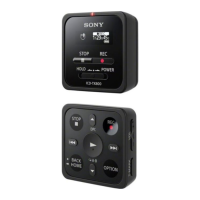
Operate the remote control and follow the steps below:
Note
Once you have deleted a file, you will not be able to restore it.
Note
To listen to the audio of a file, connect the supplied stereo headphones to your IC recorder.
You cannot delete a protected file. To delete a protected file, remove the protection from the file first, then delete the file. For
instructions on removing protection, see Protecting a file.
Hint
To cancel the deleting process, select “No” in step 3, and then press
.
To delete a part of a file, first divide the file into two files, select the file you want to delete, and proceed with step 2 and step 3.
For instructions on dividing a file, see Dividing a file at the current playback point.
Related Topic
Selecting a file
Deleting all files in the searched folder or list
Deleting a folder
4-699-323-32(1) Copyright 2017 Sony Corporation
Operate the remote control to select a file you want to delete.
1
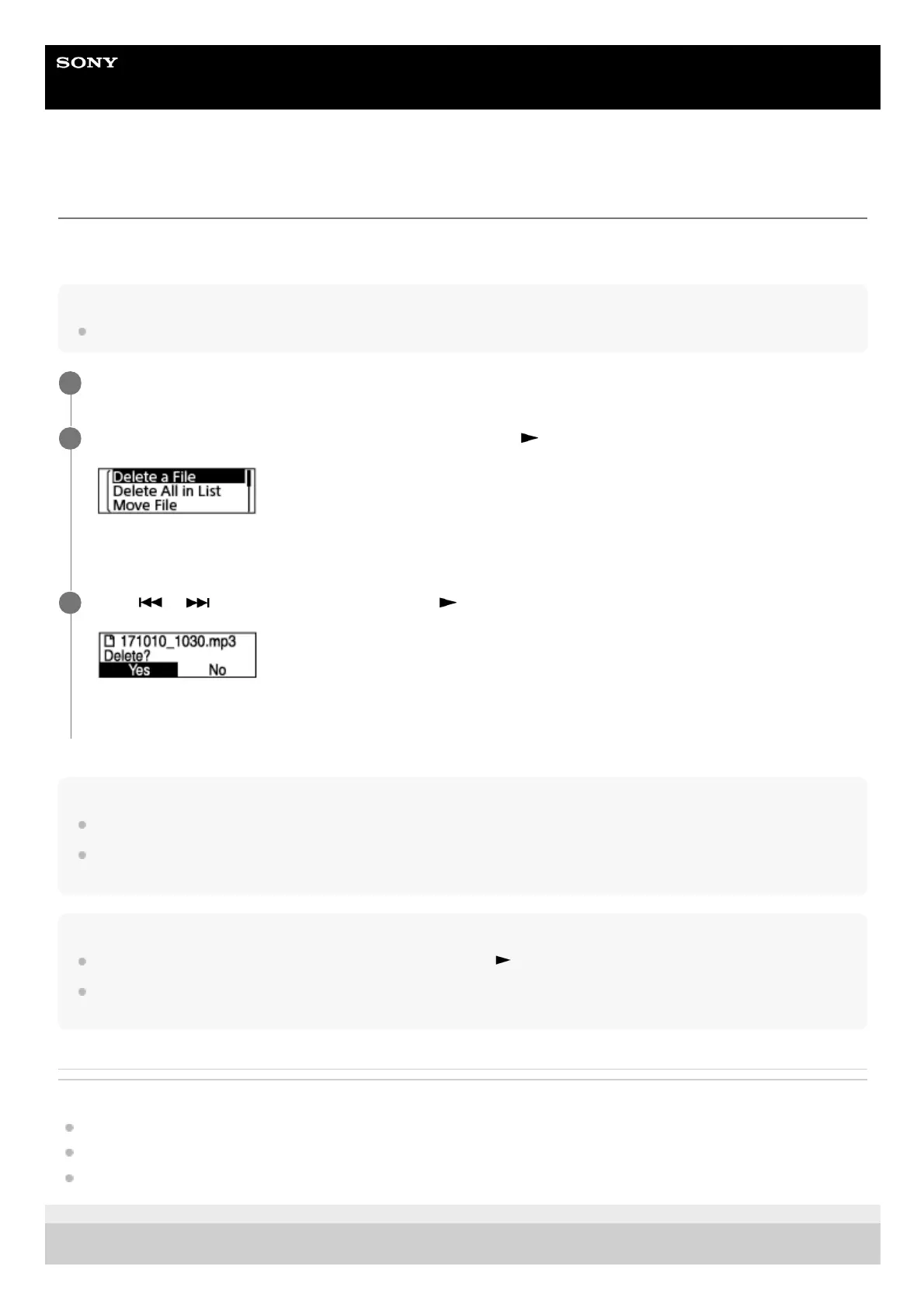
Select “Delete a File” on the OPTION menu, and then press
.
“Delete?” appears and the specified file plays for confirmation.
2
Press
or to select “Yes,” and then press .
“Please Wait” appears on the display window and the selected file will be deleted.
3


 To Next Page