- 10 -
Using the text services
10
DIGITAL
MODE
R
EC
1
4
7
3
6
9
2
5
8
0
DIGITAL
OK
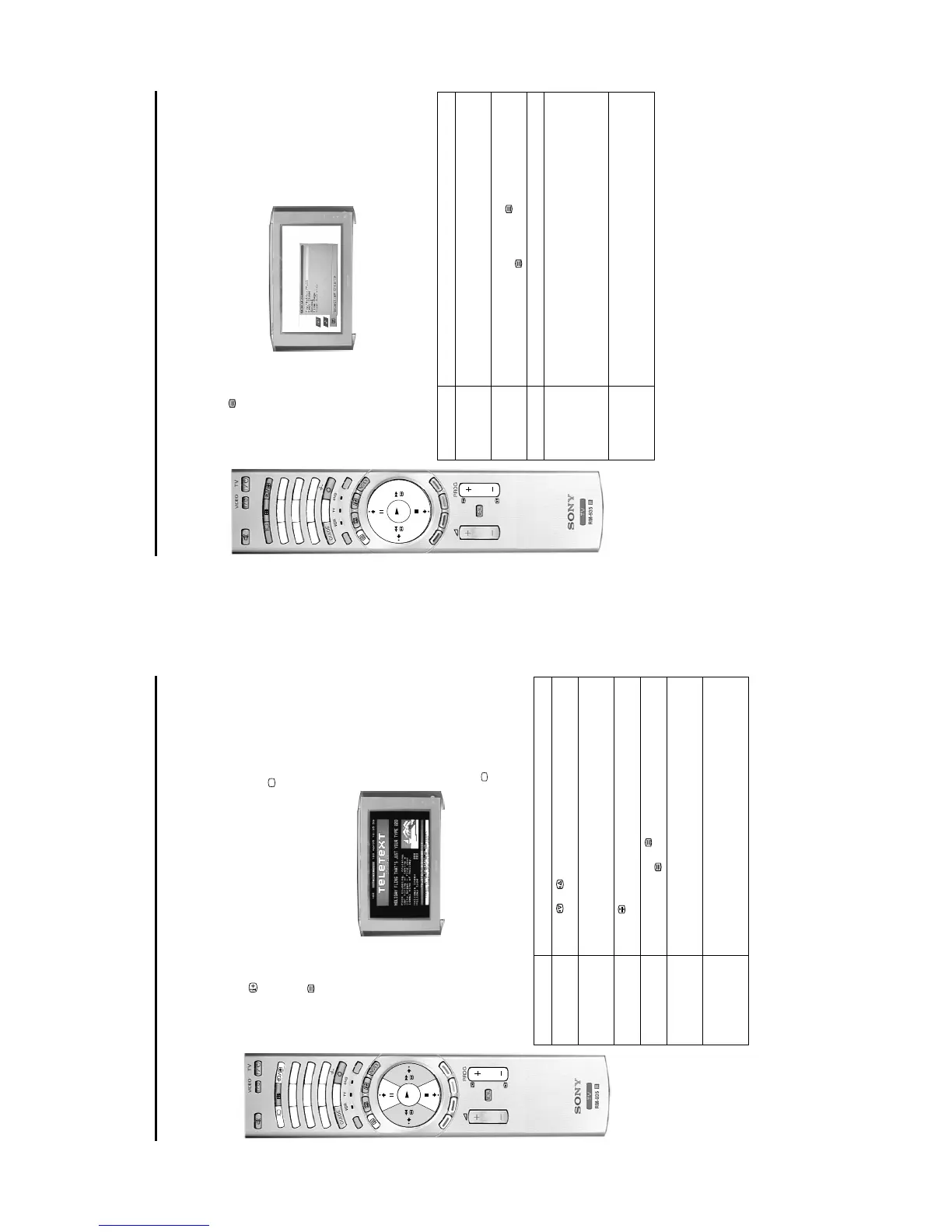
Using a conventional text service
Most analogue TV channels broadcast a text service. The index page (usually page 100) provides
information on how to use the service. Please ensure you are receiving a strong signal or some text errors
may occur.
Switching on the text service
1. Press the button on the remote control to check if you are in analogue mode. If you are watching
a digital programme an Info display appears on screen providing brief details for the current and next
programme. To change to analogue programmes press the DIGITAL/ button.
2. Select the TV programme which carries the text service you wish to view.
3. Press the button on the remote control to enter the text mode.
4. Press the numbered buttons to enter a three digit number for the text page you wish to view. Your
selected page appears on screen.
5. Enter more 3 digit page numbers as required.
6. When you have finished viewing the text service, press the DIGITAL/ button to remove the text
display from the screen.
How to use the text features
Text Features How to select
To select the next or
preceding page
Press the or button.
To select a sub page A text page can consist of several sub pages. In this case an information box
is displayed at the bottom of the screen showing the number of sub pages
available. Select the sub pages by pressing the V or v button.
To keep a page on
display
Press the button. Press again to cancel.
To use mix mode When in text mode press the button. The text page is superimposed onto
the picture. Press the button again to return to TV mode.
To use Fastext Fastext allows you to access pages with one button push. When Fastext is
available, four coloured items appear at the bottom of the screen. Press the
corresponding button on the remote control to display the page.
To use the Page
Catching feature
Select a page that contains several page numbers (e.g. the index page), then
press the OK button. Press the V or v button to highlight the page number
required, then press the OK button again. Your selected page appears on
screen.
Using the text services
11
DIGITAL
M
O
D
E
REC
1
4
7
3
6
9
2
5
8
0
OK
Using a conventional text service
Using the text menu
You can access more features by using the text menu:
1. Press the button on your remote control to enter the conventional text mode.
2. With the text display on screen, press the MENU button to display the ‘text’ menu.
3. Press the V or v button to highlight your desired feature, then press the b button to select.
4. Press the MENU button to remove the text menu from the screen.
The following table explains each feature and its function.
Feature Function
Top/Bottom/Full This feature allows you to enlarge sections of the displayed page. Press the V
button to enlarge upper half of the page or v to enlarge the bottom half. Press the
OK button to return page to normal size. Press B button to return to the text menu.
Text Clear Use this feature to view the TV programme whilst the text service is searching for
a page. Once the page has been found, a blue symbol appears in the top left
corner of the screen. Press the button to view the page.
Reveal Select this to reveal hidden information on the page (such as answers to a quiz).
Time Page This feature allows a time-coded text page (such as an alarm page), to be
displayed at a set time. When selected, the ‘Time Page’ sub menu is displayed.
Enter the desired page number and the time you want the page to appear using
the remote control buttons 0 - 9, then press OK button to confirm the settings.
The TV then exits the text mode and the time is displayed in the top left corner of
the screen. At your requested time the text page is displayed.
Page Overview
(Only for TOPText
broadcasts)
TOP-Text pages are divided into two columns. The first column shows ‘blocks’ of
pages and the second shows ‘groups’ of pages. Press b or B button to select the
desired column, then press V or v button to select the relevant ‘group’ or ‘block’ of
pages. Press the OK button to display the chosen pages.






 To Next Page