- 11 -
TV menu system
23
The following pages explain the TV set up menus and their operation. Although most of these menus can be accessed whilst
watching digital programmes, we recommend you switch to analogue mode to view all the menus. To check which mode you are in,
press the button on the remote control. If you are watching a digital programme, an Info display appears on screen providing brief
details for the current and next programme. If this happens, press the DIGITAL/ button on the remote control to switch to the
traditional analogue channels.
M
O
DE
REC
OK
D
IG
IT
A
L
D
IG
IT
A
L
M
O
DE
MENU
OK
REC
D
IG
IT
A
L
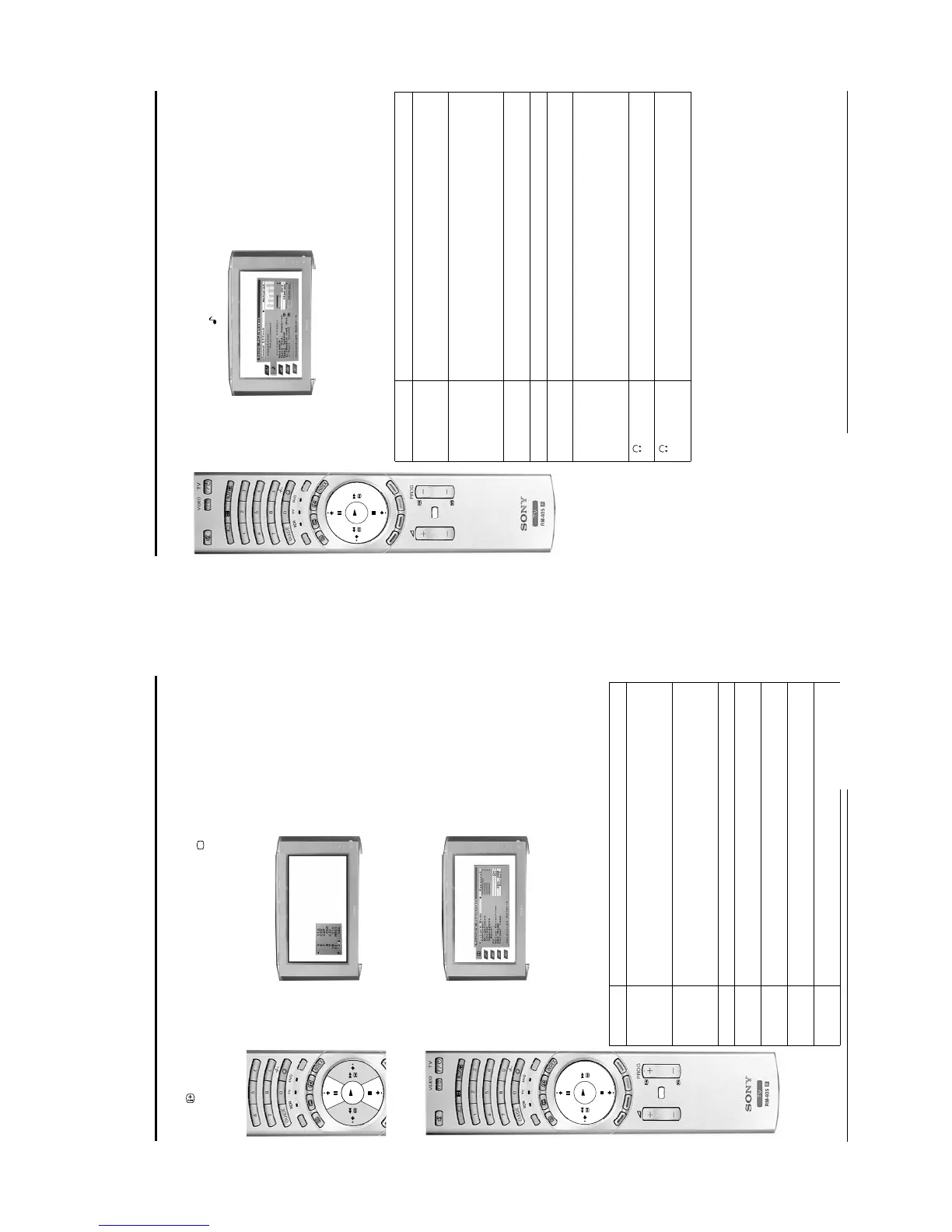
The programme index table is an easy way to search for a programme you wish to view.
1. Press the OK button to display the programme list on screen.
2. Press the V or v button to scroll through the list until the programme number you wish to view is
highlighted, then press the OK button to display that programme on screen.
Adjusting the picture
Option Adjustment/Effect
Picture Mode Press V or v button to select Live, Personal, Movie or Game mode. Live, Movie and
Game have had their picture levels preset to suit their intended functions, whilst
Personal mode allows you to set your own levels of brightness, sharpness and
colour.
Contrast
Brightness
Colour
Sharpness
Press B or b button to increase or decrease the levels to suit personal taste. You can
only adjust the Colour, Brightness and Sharpness if you have selected ‘Personal’ in
‘Picture Mode’ option.
Reset Resets picture to factory preset levels.
AI (artificial
intelligence)
Press V or v button to turn On or Off. When set to On, the TV will monitor the picture
and limit any sudden increases in brightness and contrast.
Noise
Detection
Press V or v button to switch On or Off. When set to On, this option can sometimes
reduce the noise level apparent on a weak signal.
DRC
Mode
Press V or v button to set the desired picture resolution. Set to ‘Off’ for basic picture
quality, ‘DRC50’ for improved resolution or ‘DRC100’ for optimum picture resolution.
Colour Tone Press V or v button to alter the tint of the colour to suit your taste. Choose from
Warm, Normal or Cool.
1. Press the MENU button to display the main menu, then press the b button to highlight ‘Picture Mode’.
2. Press the V or v button to highlight the option you require then press the b button to confirm.
The table below explains the function of each option and which buttons to press for adjustment. Once
adjustment has been finalised, press the OK button to store.
3. Press the MENU button when you wish to remove the menu from the screen.
Using the programme index table
TV menu system
24
DIG
ITAL
DIG
ITAL
MODE
MENU
OK
REC
D
IG
ITA
L
Adjusting the sound
1. Press the MENU button to display the main menu.
2. Press the v button to highlight the icon, then press the b button to highlight ’Sound Effect’.
3. Press the V or v button to select the option you wish to adjust, then press the b button to confirm.
The table below explains the function of each option and which buttons to press for adjustment. Once
adjustment has been finalised, press the OK button to store.
4. Press the MENU button when you wish to remove the menu from the screen.
Option Adjustment/Effect
Sound Effect Press V or v button to select from Personal, Dolby V*, Natural**, or Dynamic**.
When Dolby V. is selected, the TV simulates the full effects of Dolby Surround
sound when receiving a Dolby broadcast.
Equaliser
Adjustment
(only available if
Sound Effect is set
to ‘Personal’).
This option allows you to alter the sound by adjusting the 5 frequency bands
which control the overall sound effect. Press the B or b buttons to select each
band, then press V or v button to adjust the frequency level. Once the desired
adjustment is made press the OK button to store.
Virtual Effect Changes the level of surround sound effect when listening to a Dolby surround
sound broadcast. (only when Dolby V has been selected in Sound Effect option)
Balance Press B or b button to set the balance to desired level.
Auto Vol. Control Press V or v button to set to On or Off. When set to On, the volume remains
constant even if the broadcast level changes (during adverts for example).
Dual Sound When receiving bilingual broadcasts: Press V or v button to choose A to listen to
the first language or B to listen to the second language.
When receiving Stereo broadcasts: Press V or v button to choose Mono or
Stereo.
Note: When NICAM is broadcast the word ‘NICAM’ appears in the menu.
Audio-out Vol. Press B or b button to increase or decrease the volume level to the headphone
socket and/or the audio out sockets on the rear of the TV.
Dual Sound When receiving bilingual broadcasts press V or v button to select which
language is output to the headphone socket. Select A to listen to the first
language or B to listen to the second language.
Notes: This TV has been designed to create a Virtual Dolby Surround sound effect from a ‘Dolby Surround’ broadcast
without the need for additional surround speakers. However, if you wish to connect an external amplifier to this
TV, please refer to the ‘Connecting external equipment’ section of this manual.
* When ‘Dolby V’ is selected, the TV simulates the full effects of Dolby Pro Logic Surround sound without the
need for additional speakers. Manufactured under licence from Dolby Laboratories. ‘Dolby’, ‘Pro Logic’ and
the double-D symbol are trademarks of Dolby Laboratories.
** Natural and Dynamic are functions of the ‘BBE High definition Sound System’. This system enhances
clarity, detail, presence of sound, and increases musical realism. The ‘BBE High definition Sound System’ is
manufactured by Sony Corporation under licence from BBE Sound, inc. It is covered by U.S. Patent No.
4,638,258 and No. 4,482,866. The word ‘BBE’ and the BBE symbol are trademarks of BBE Sound, Inc.




 To Next Page