- 9 -
Using the text services
9
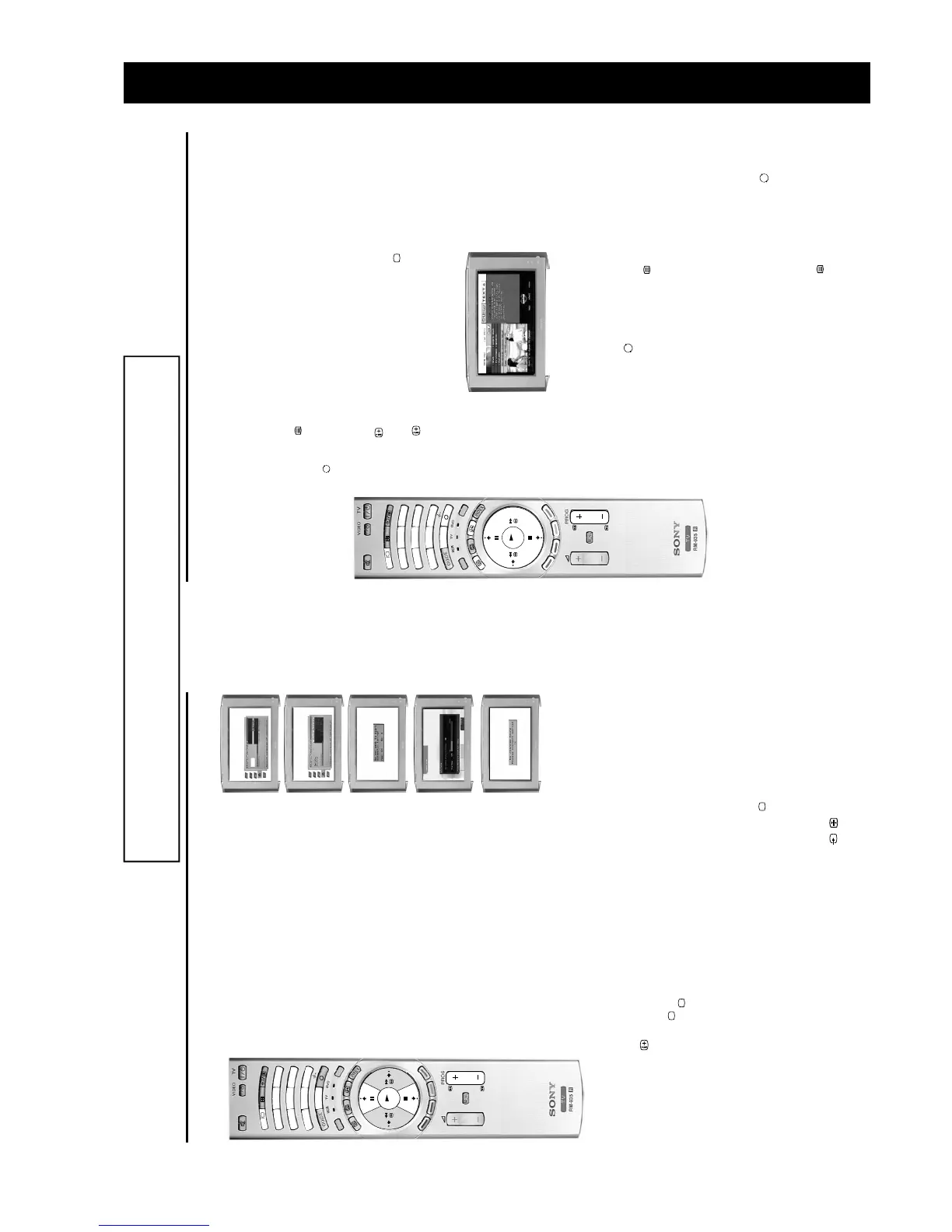
Using a Digital text service
Most digital TV channels broadcast information via their text service. This digital service includes high
quality text and graphics along with advanced navigation options. Additionally, this TV has access to
dedicated text channels transmitted by the broadcasting authorities.
The appearance, content and navigation methods of all Digital text services are decided by the
broadcaster. For example, the BBC’s Digital text service may look different to ITV’s Digital text. Most of the
Digital text services currently available use simple navigation methods based on the following buttons:
The text button to load up the Digital text,
The V, v, B and b buttons (to move around the screen),
The OK button or the numbered buttons (to select items on screen),
The button (to cancel or exit),
The four coloured buttons (to access shortcuts).
Selecting a dedicated Digital text channel
1. Press the button on the remote control to check if you are in digital mode. If you are watching a
digital programme an Info display appears on screen providing brief details for the current and next
programme. If the display does not appear, press the DIGITAL/ button to switch to digital mode.
2. Press the button to remove the Info display from the TV screen then select the programme
number that is broadcasting the dedicated Digital text channel by using the numbered buttons on the
remote control. If you do not know the channel number of a dedicated Digital text channel, you can use
the ‘Channel Index menu’ to find one. (Please refer to the ‘Channel index menu’ section of this
manual.)
3. Once the text page is displayed, follow the on-screen instructions to obtain your required selection.
Note: On some pages the TV programme may also be displayed on the text screen. On-screen instructions will
inform you how to change the displayed programme.
4. If you are instructed to press ‘OK’, ‘Select’ or ‘Cancel’ when viewing the text pages, press the OK
button for ‘OK’ and ‘Select’, and the button for ‘Cancel’ or ‘Exit’.
5. When you have finished viewing the text service, press the button to exit.
DIGITAL
M
OD
E
REC
1
4
7
3
6
9
2
5
8
0
OK
DIGITAL
Selecting a text service from other Digital channels
Normal text services may also be available on other digital channels. This is sometimes indicated by a
small symbol on your TV screen, superimposed on the programme you are watching.
1. Press the V, v, B, or b buttons to select the symbol, then press the OK button to display the chosen
information.
2. Alternatively, you may be instructed to use the numbered or coloured buttons on your remote control
to display the various pages of text information. If you are instructed to press ‘OK’, ‘Select’ or ‘Cancel’
when viewing the text pages, press the OK button for ‘OK’ and ‘Select’, and the button for
‘Cancel’.
3. Once the text information is displayed, you can access required information by using the V, v, B, or b
buttons, the coloured buttons and/or the numbered buttons of the remote control.
4. When you have finished viewing the text service, press the button to exit.
Getting started
6
DIGITAL
MO
DE
REC
1
4
7
3
6
9
2
5
8
0
DIGITAL
OK
5. Automatically tuning the TV
1. When you switch on this TV for the first time, the Language/Country
menu appears on screen with the word ‘English’ highlighted. Press
the V or v buttons on the remote control to choose the language you
require then press the OK button to confirm.
Note: The digital features of this set are designed for use in Great Britain only.
2. The word Country is now highlighted. Press the V or v buttons to
choose the country in which you wish to operate the TV, then press
the OK button to confirm.
The autotune prompt screen appears. Press the OK button to select
Yes and begin the digital autotune procedure.
As this may take some time, a menu appears on screen and informs
you of the tuning progress.
When all the available digital programmes are found, the analogue
tuning display appears and all the analogue signals are captured and
stored.
If no digital and no analogue signals are found, a display appears on
screen asking you to confirm your aerial is connected. Check your
aerial is connected then press the OK button to repeat the tuning
procedure.
Once all signals have been captured and stored, the TV returns to
normal operation and displays the digital programme captured on
programme number 1.
Note: If no digital signals are captured, then the analogue programme stored on
programme number 1 is displayed.
3. To view programmes, press the PROG+/- button or the numbered
buttons on the remote control.
Switching between digital and analogue
programmes
To check if you are watching a digital or analogue programme press the
button on the remote control. If you are watching a digital programme
an Info display appears on screen providing brief details for the current
and next programme. To change to analogue programmes press the
DIGITAL/ button. When you wish to return to digital programmes press
the DIGITAL/ button once more.
If you connected a VCR to your TV when following the ‘Connecting your aerial
instructions’, you now need to find your video channel.
1. First ensure the TV is in analogue mode. If not press the DIGITAL/ button on the
remote control.
2. Press the PROG+/- button on the remote control until the picture from the pre-
recorded tape appears on screen.
Notes: If you wish to move your video channel to a different programme number, refer to the
‘Rearranging your channels’ section of this manual.
If you have connected your VCR using a scart lead, press the
/
button repeatedly on
the remote control until the picture from the pre-recorded tape appears on the TV screen.
6. Finding your video channel
The operating instructions mentioned here are partial abstracts from the ‘Operating
Instruction Manual’. The page numbers of the ‘Operating Instruction Manual’ remain
as in the manual.
SECTION 1 GENERAL



 To Next Page